Advanced Connector Policies: Don’t Break Customer Insights - Journeys Publishing
Learn why Advanced Connector Policies can block Customer Insights - Journeys from publishing journeys, which connector needs to be allowed, and how to configure your policy without interrupting marketers.

Some days start like any other: morning cup of coffee, daily meeting with colleagues, solve some problems from customers, etc.
But today I got a message from a user. He couldn’t publish a customer journey and he didn’t know why. He sent me the weirdest screenshot. This is more or less what he sent me:
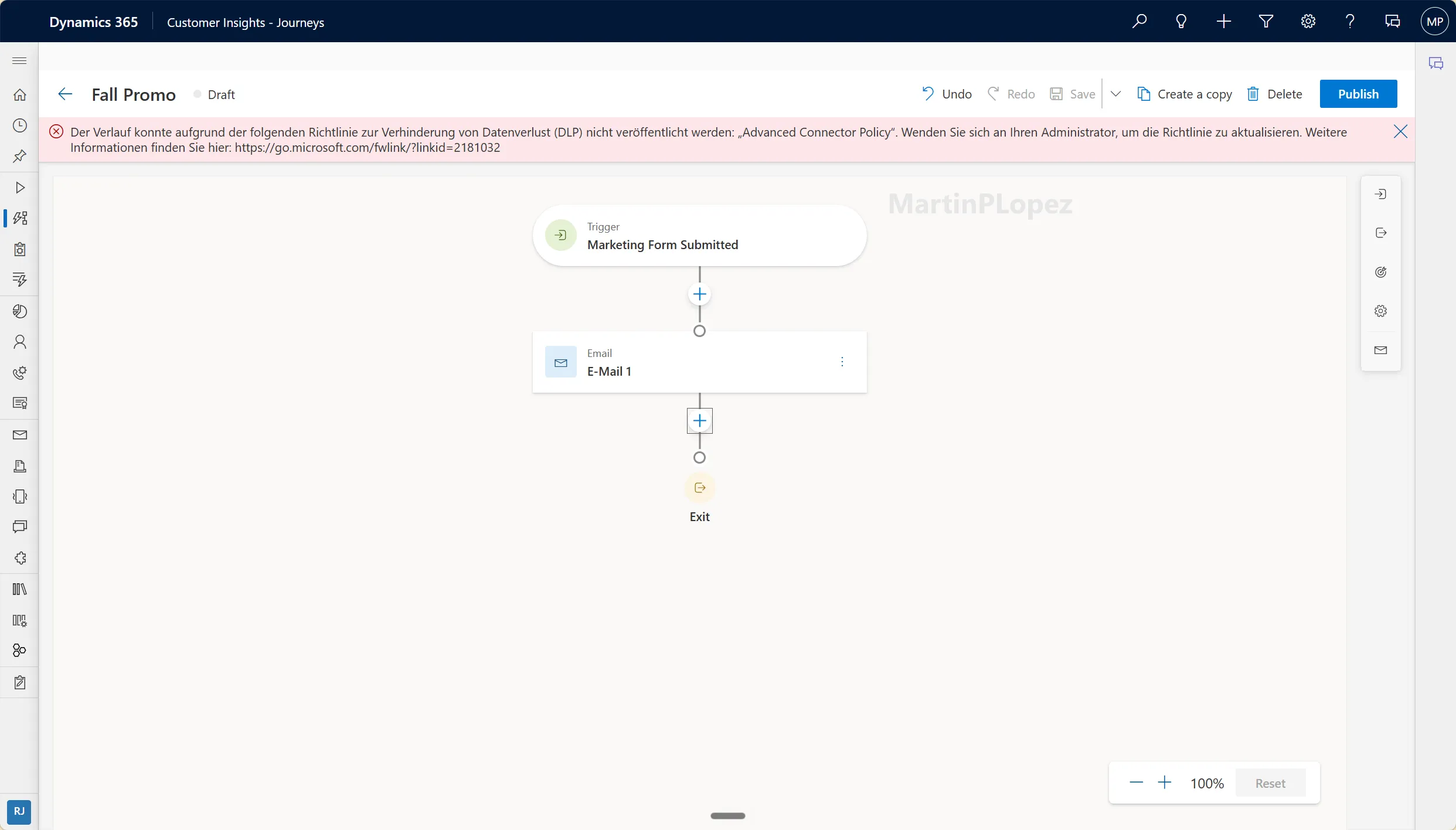
My first thought was, “When did we set up the Advanced Connector Policies?”
But then I remembered that it was recently and that I wasn’t involved in the process of setting it up, so I could not give any feedback on adding Customer Insights connectors to the Advanced Connector Policies. Luckily, as soon as I did, the journey started running just as before.
In this article, I’ll go over what Advanced Connector Policies (ACP) are, why it is good to implement them and how to do it without interrupting your Customer Insights - Journeys
And if you are facing a similar issue, you can send your system administrator this article directly. Unless it is you, in that case you can go directly to “How did I do it”.
NOTE
TL;DR:
If Customer Insights - Journeys fails when publishing a journey after Advanced Connector Policies are enabled, check whether the required Customer Insights - Journeys connector is allowed in your policy.
The key connector to look for is the native Journeys connector, currently documented by Microsoft as Dynamics 365 Marketing V2 with the ID shared_d365marketingforapps.
Without it, journey publishing can be blocked by governance rules even though the journey itself looks valid.
What are the Advanced Connector Policies
Advanced Connector Policies are rules that govern how connectors can be used within Power Apps, Power Automate and Copilot Studio.
Each connector can be classified as allowed or blocked. By default it will block most of the connectors and only leave the Microsoft standard ones, but you can any time adapt this allowed connectors list to your needs.
This is the evolution of the idea of Data Loss Policies (DLPs), which allowed to classify the connectors and allow only certain categories. Microsoft simplified this by giving just an allowed and blocked list
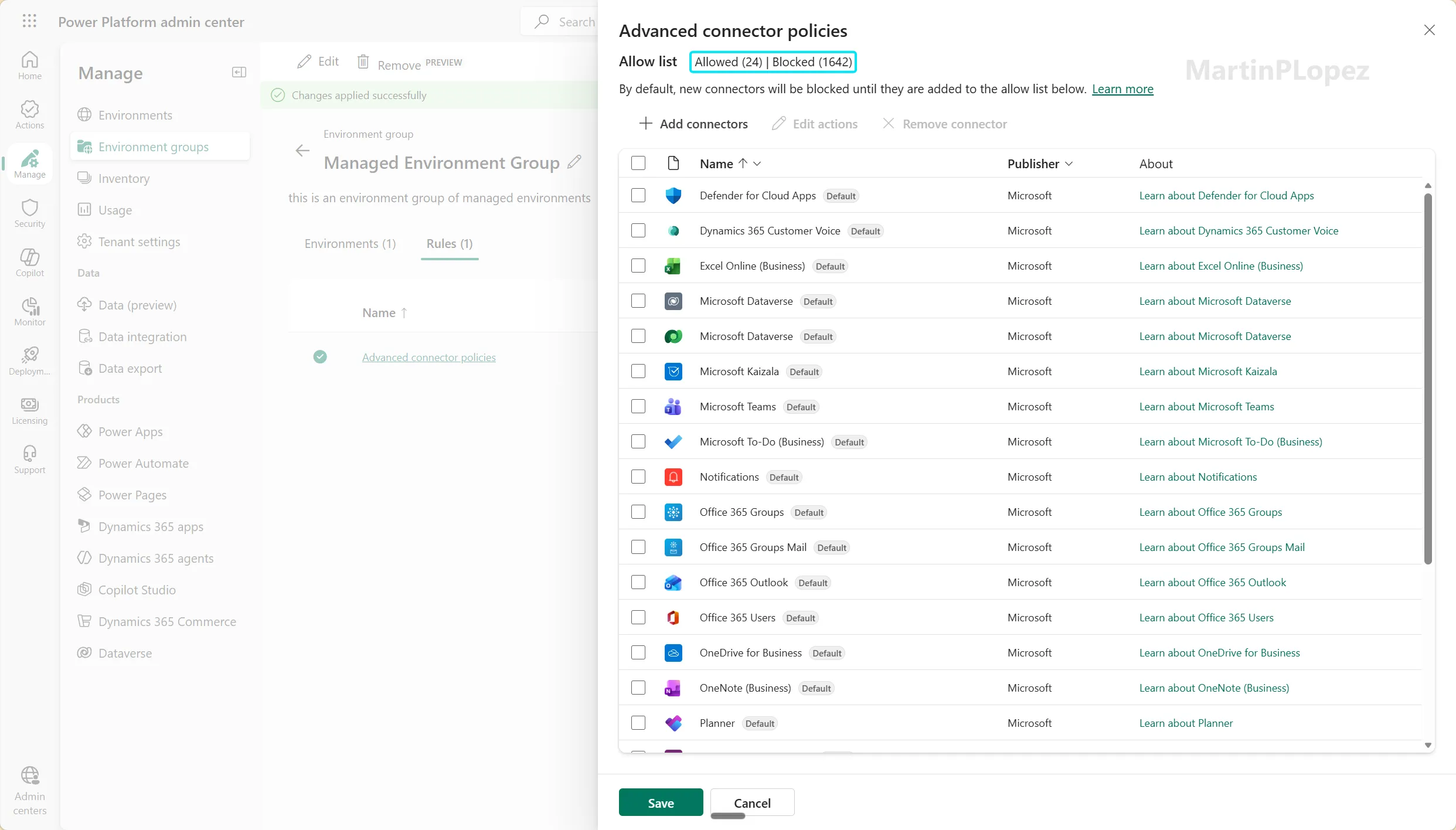
Advanced Connector Policies can be configured at the environment group level for bulk governance or directly on individual environments for targeted governance. They are especially powerful with Managed Environments, where administrators get more control over connectors and actions.
It is not obligatory to implement these rules to all the environments, but it is recommended if you want to apply governance to your power platform environments.
Why should we set them up?
Advanced Connector policies are intended to reduce the risk of users unintentionally exposing organizational data through connectors used by Power Apps, Power Automate, and Copilot Studio.
But we use Customer Insights Journeys, not any of those tools
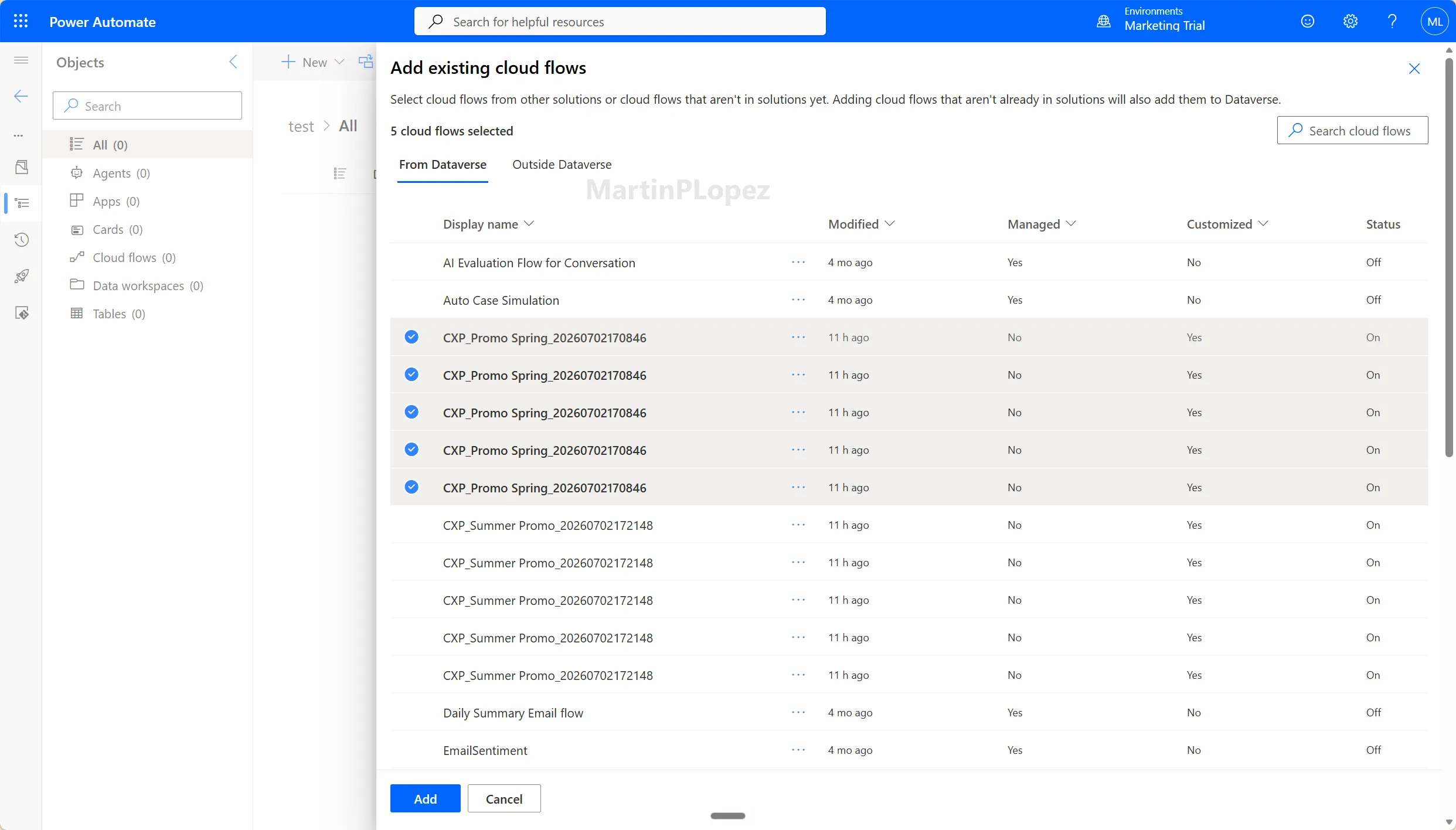
Yes and no. When you use journeys, Microsoft is using Power Automate flows behind the curtains to do the actions in those journeys. So that means that if a connector that they use in their flows isn’t approved, by the time of publishing, the flow will fail.
How I set it up
I will not go very deep into how to set it up, because there’s a perfectly valid Microsoft article around how to set up the advanced connector policies. But I will give some pointers on how I set it up for Customer Insights Journeys.
Microsoft explains that it used to have another connector called Dynamics 365 Customer Insights - Journeys, but now the one to allow is the Dynamics 365 Customer Insights - Journeys V2 connector (with ID shared_d365marketingforapps).

And for those of you who might think “isn’t the normal Dynamics Customer Insights connector necessary?”
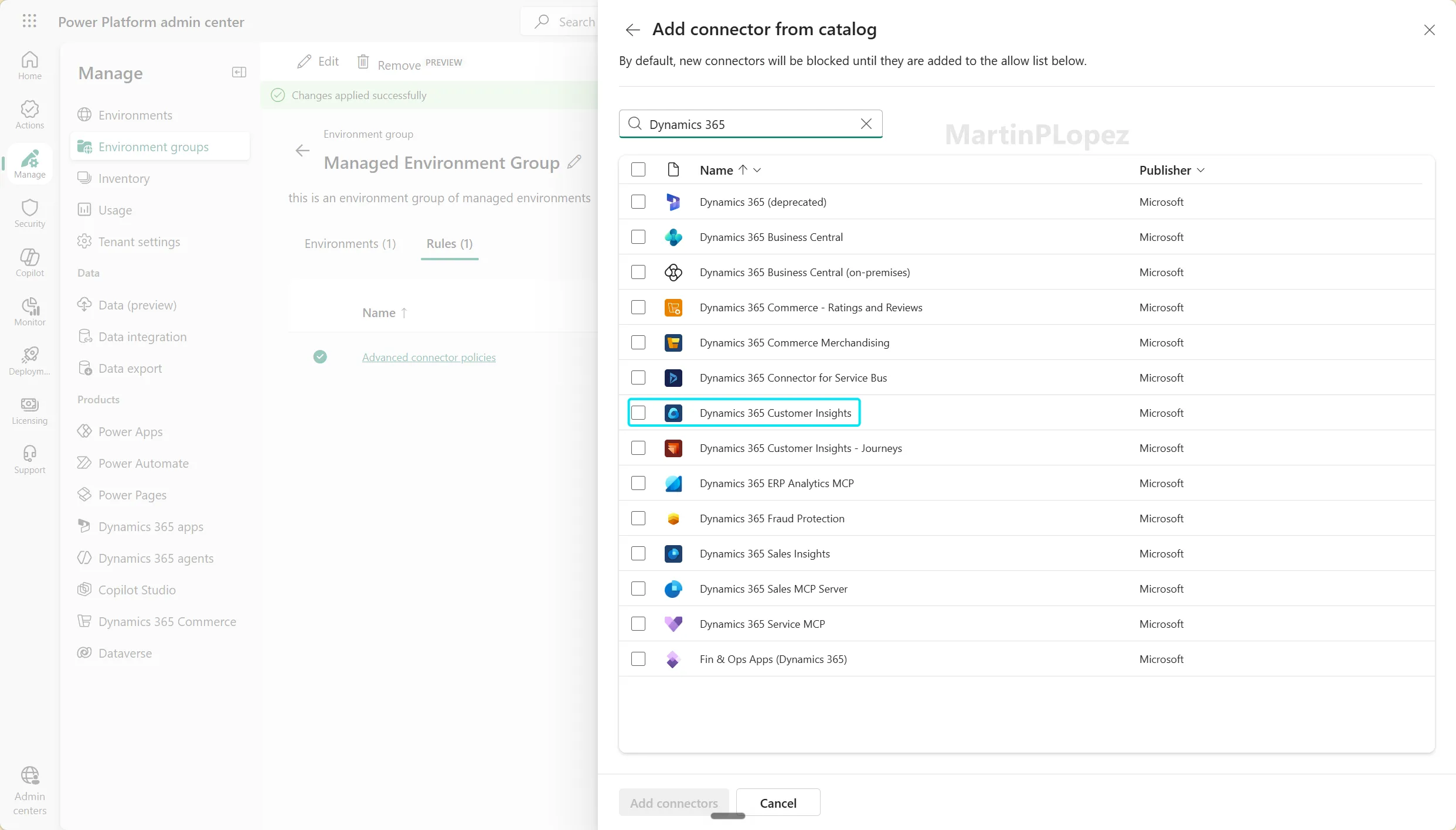
In this case, this connector refers to the Customer Insights - Data connectors of Power Automate.
If you’re not using it for any of your Power Apps, Power Automate flows or Copilot Studio Agents, it can remain blocked.
TIP
Note
If you do have Customer Insights Data and use segments in Customer Insights Journeys, your segments will still synchronize even with this connector blocked.
In this case, Dataverse is synced with Dynamics Customer Insights Data not by Power Automate, but by system job.
Conclusion
Advanced Connector Policies are a useful step forward for Power Platform governance. They give administrators a cleaner way to control which connectors are allowed and reduce the risk of data being used in places where it should not be.
But in this specific case, I think the experience could be better.
Most Customer Insights - Journeys users are marketers. They should not need to know which internal connector is required to publish a journey, or why a governance setting in Power Platform suddenly blocks their work.
If Customer Insights - Journeys is installed in an environment, the required native connector should either be clearly highlighted during ACP configuration or automatically suggested as part of the allowed list.
Hopefully, Microsoft improves this experience and this article becomes obsolete soon. Until then, I hope this helps you avoid a confusing publishing error and keeps your journeys running.
One useful CI-J idea, every other Friday.
Sign up for my newsletter and be the first to know about new blog articles, Customer Insights discoveries, and more.