Guide Users in Customer Insights - Journeys with Custom Help Panes
Customer Insights - Journeys offers a powerful set of features: emails, journeys, segments, triggers, events, and forms.
But for many marketing teams, the challenge isn’t the lack of functionality - it’s navigating all those features efficiently.
New users often ask questions like:
Where do I start? What should I configure first? Did I miss a step?
Training sessions and documentation help, but they require users to leave the application to find answers.
What if the guidance could live directly inside the interface?
That’s exactly what Custom Help Panes allow you to do.
Customer Insights – Journeys runs on a model-driven app, which means you can enable Custom Help Panes.
These panes allow you to:
- Embed contextual help directly inside forms
- Guide users through processes like email or event creation
- Link to other pages inside the application
- Provide checklists and best practices
Instead of external documentation, marketers get step-by-step guidance inside the product.
What Are Custom Help Panes
Custom help panes allow you to add context-sensitive help content inside model-driven apps. (In case you were wondering, Customer Insights - Journeys is based in a model-driven app)
They appear as a side panel next to the form or page and can contain:
- Rich text
- Links
- Images
- Videos
- Coach marks and help balloons
One useful behavior: the help pane remains open while the user navigates between forms, so you can guide users across multiple steps.
This makes it ideal for step-by-step marketing processes!.
Why They Are Useful for CI Journeys
Instead of making a documentation about all the steps the marketers have to do to create an email, or a journey, you can just directly add a help pane to the Journey or the Email!
But it’s better to see some real life examples 🐣
Example 1 – Email creation
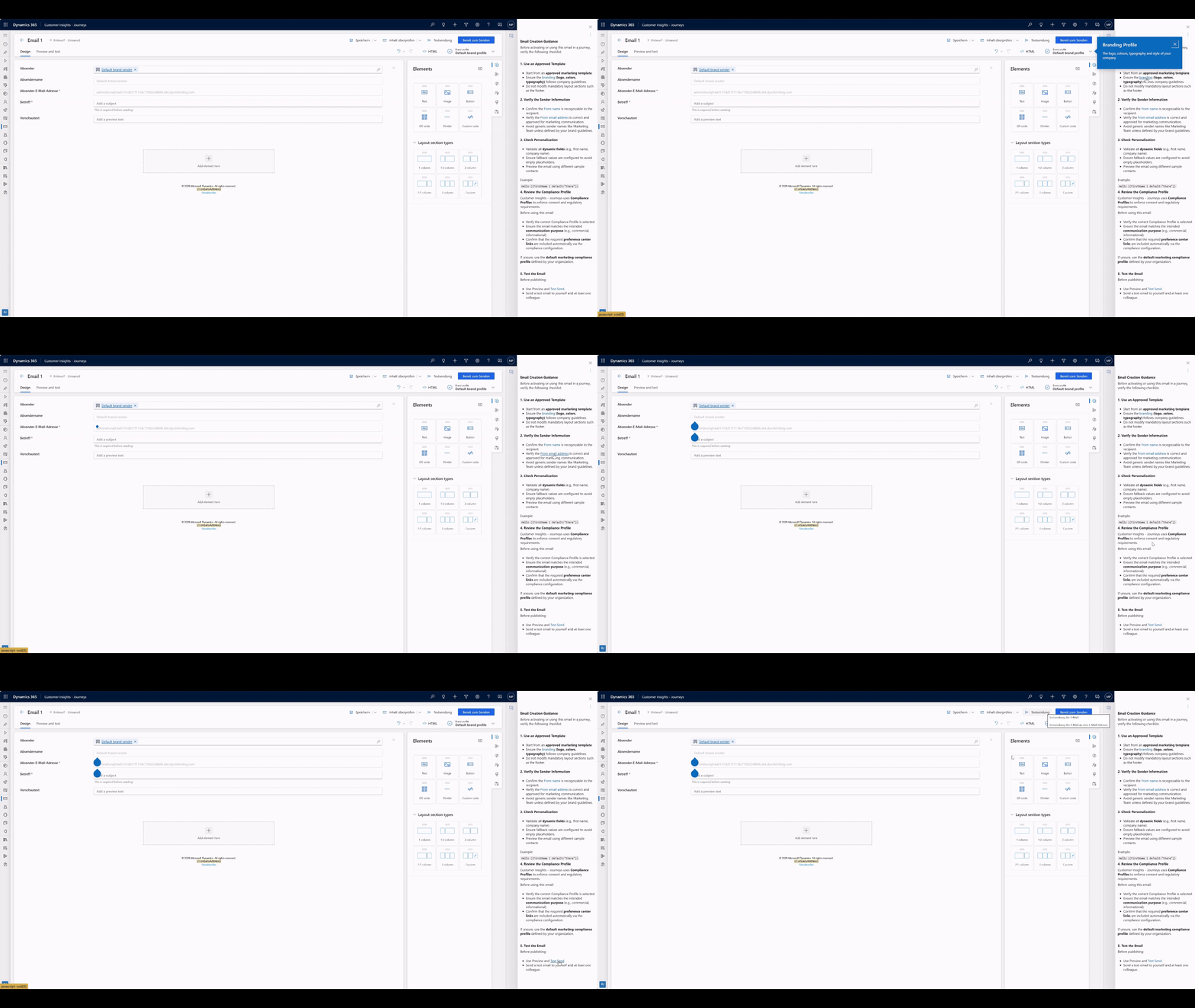
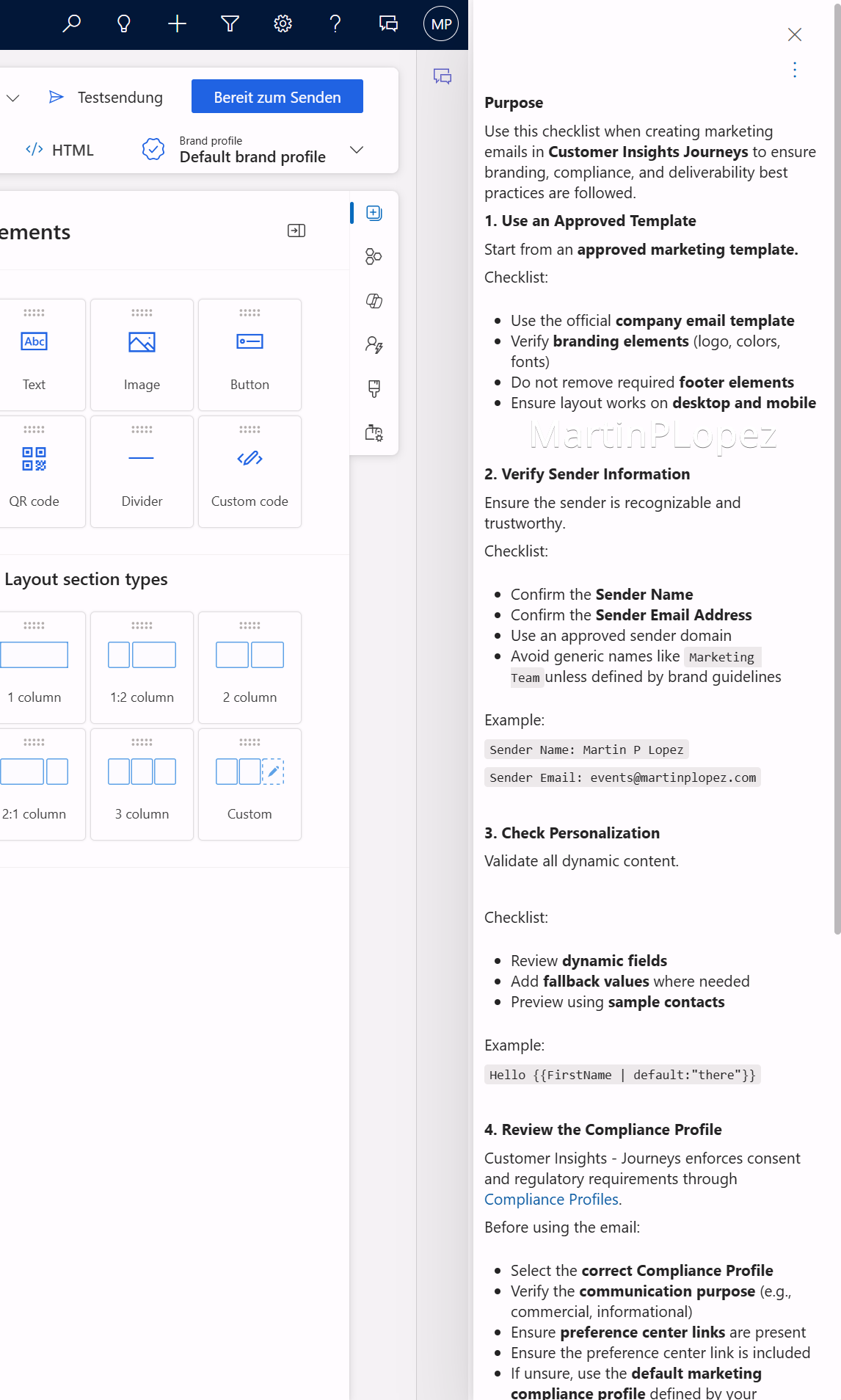
Inside the email form you can create a Email creation guidance. Here a sample of how the pane can look like Help pane content example:
Purpose
Use this checklist when creating marketing emails in Customer Insights - Journeys to ensure branding, compliance, and deliverability best practices are followed.
1. Use an Approved Template
Start from an approved marketing template.
Checklist:
- Use the official company email template
- Verify branding elements (logo, colors, fonts)
- Do not remove required footer elements
- Ensure layout works on desktop and mobile
2. Verify Sender Information
Ensure the sender is recognizable and trustworthy.
Checklist:
- Confirm the Sender Name
- Confirm the Sender Email Address
- Use an approved sender domain
- Avoid generic names like
Marketing Teamunless defined by brand guidelines
Example:
Sender Name: Martin P Lopez
Sender Email Address: events@martinplopez.com
3. Check Personalization
Validate all dynamic content.
Checklist:
- Review dynamic fields
- Add fallback values where needed
- Preview using sample contacts
Example:
Hello {{FirstName | default:"there"}}
4. Review the Compliance Profile
Customer Insights - Journeys enforces consent and regulatory requirements through Compliance Profiles.
Before using the email:
- Select the correct Compliance Profile
- Verify the communication purpose (e.g., commercial, informational)
- Ensure unsubscribe links are present
- Ensure the preference center link is included
If unsure, use the default marketing compliance profile defined by your organization.
5. Test the Email
Always test before using the email in a journey.
Checklist:
- Use Preview and Test Send
- Send a test email to yourself
- Verify:
- Mobile rendering
- Images
- Links and buttons
- Personalization fields
6. Final Validation
Before activating the email or using it in a journey:
- Subject line reviewed
- Preheader text added
- Compliance profile confirmed
- Links tested
- Email approved (if applicable)
💡 Tip Clear subject lines and minimal spam trigger words improve deliverability.
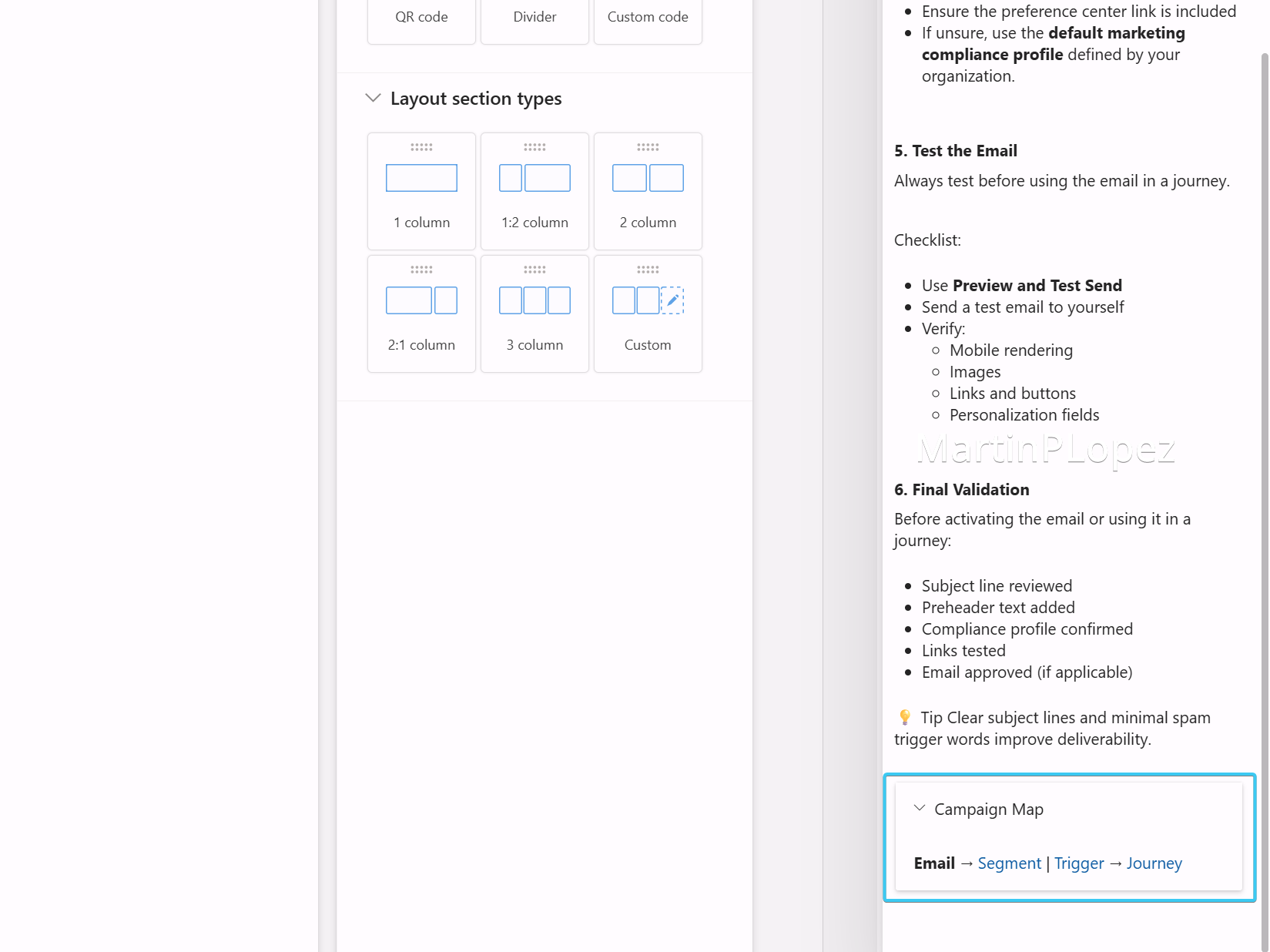
This is how it might look like:
Example 2 – Event creation
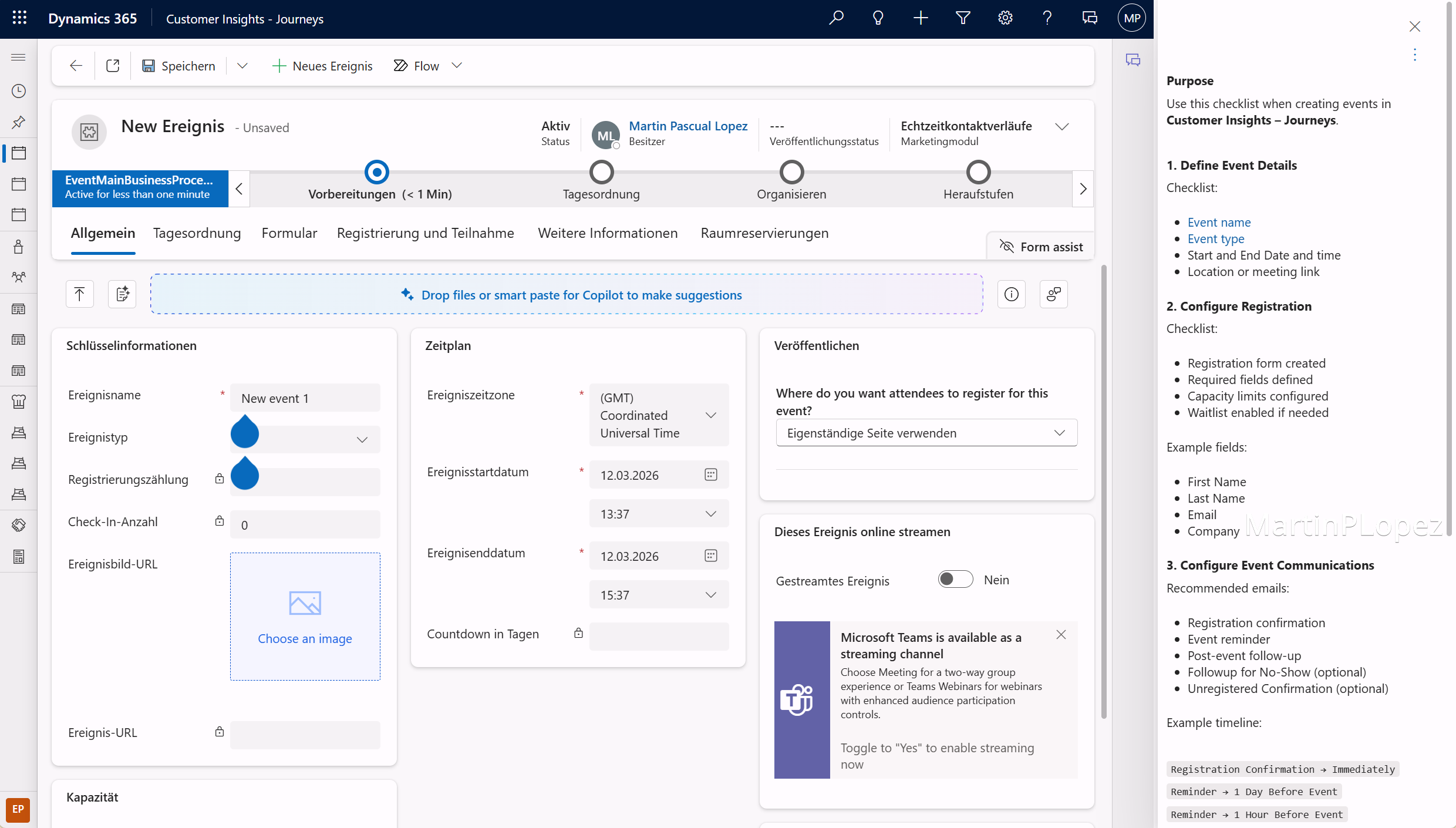
Here is another example of how a checklist can help you organize your event:
Purpose
Use this checklist when creating events in Customer Insights – Journeys.
1. Define Event Details
Checklist:
- Event name
- Description
- Event type (online / hybrid / in‑person)
- Date and time
- Location or meeting link
2. Configure Registration
Checklist:
- Registration form created
- Required fields defined
- Capacity limits configured
- Waitlist enabled if needed
Example fields:
- First Name
- Last Name
- Company
3. Configure Event Communications
Recommended emails:
- Registration confirmation
- Event reminder
- Post‑event follow‑up
- Follow-up for No-Show (optional)
- Unregistered Confirmation (optional)
Example timeline:
Registration Confirmation → Immediately
Reminder → 1 Day Before Event
Reminder → 1 Hour Before Event
4. Configure Event Journeys
Recommended emails:
- Registration confirmation
- Event reminder
- Post‑event follow‑up
- Follow-up for No-Show (optional)
- Unregistered Confirmation (optional)
Example timeline:
Registration Confirmation → Immediately
Reminder → 1 Day Before Event
Reminder → 1 Hour Before Event
5. Test the Registration Process
- Complete a test registration
- Verify confirmation email
- Validate reminder emails
This is how it might look like:
Using help panes as process maps
But the real value comes from how you structure your Help Panes. So it can be used as a map inside your intention.
So imagine you have a normal campaign script:
How great would it be if you could link your next step directly in your help pane?
Campaign Launch Guide
Creating a map of the campaign for each step, and adding it as a section to your pane helps you identify where you are in your standard process and what are the next steps:
Event Launch Guide
To organize an event usually requires more elements as one might think, help guide them through this process
I recommend using this sequence when creating an event in Dynamics Customer Insights Journeys:
But how do I take this to the Help pane? Just like before, add a section with a checklist of the step you’re in and section with a map to know which section is next or was before:
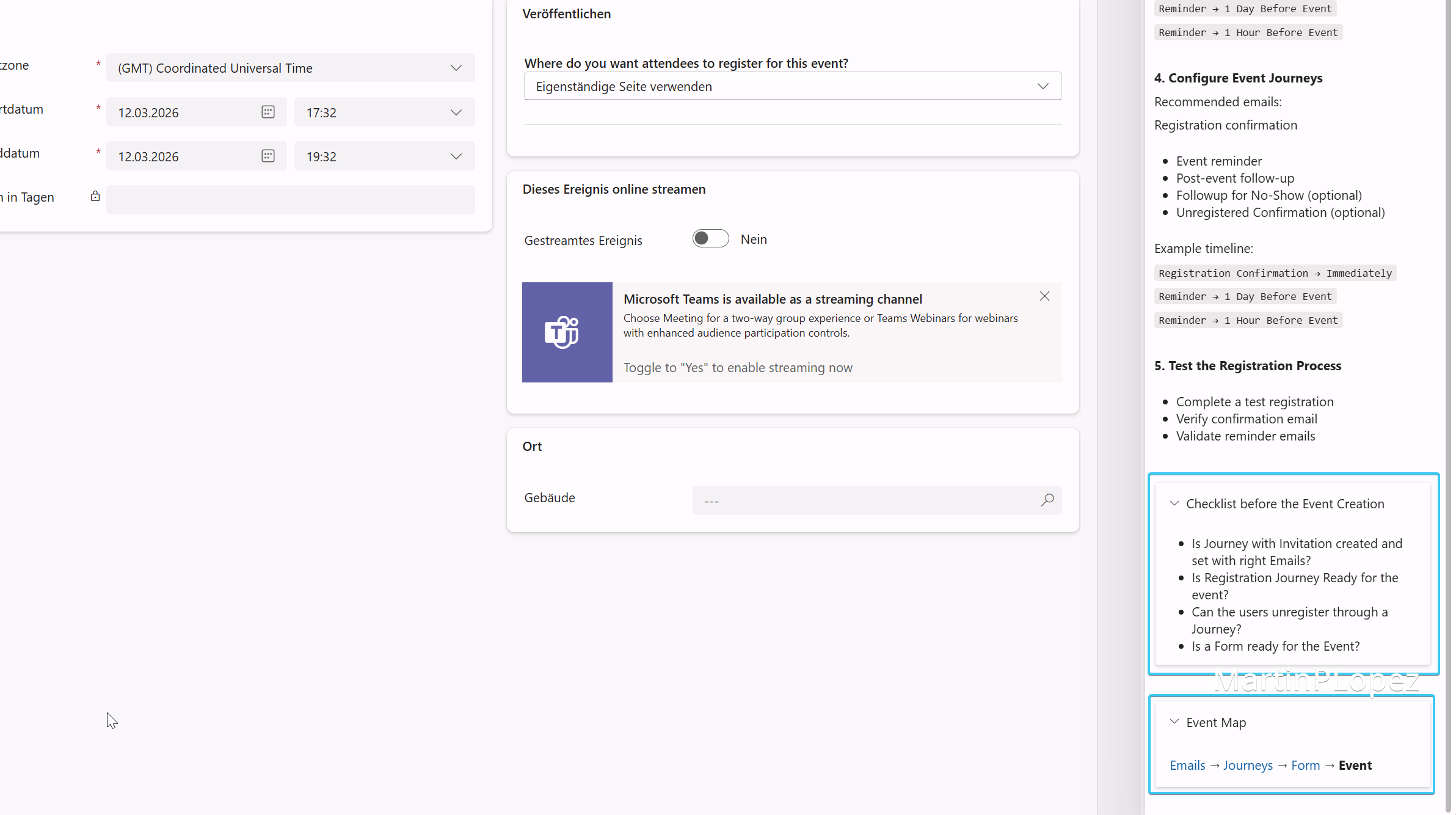
For the Checklist, I’d recommend less is more, keep it simple and put no more than 5 checks.
And if your event includes an external registration portal, you can also build a branded event website connected to Customer Insights - Journeys.
How to enable
Microsoft documentation already explains the setup process very well: Create guided help for your model-driven app
Here are the high-level steps:
- Open Power Platform Admin Center
- Navigate to Environment Settings
- Enable Custom Help Panes
- Create help pages in Dataverse (recommended inside a solution)
- Assign security roles
Important:
- To enable this feature, you might require Power Platform Administrator or Dynamics 365 Administrator role in your tenant
- Users need permission to read the Help Page table, adapt the security role accordingly
- Authors need privileges to create and edit help pages.
More Info about Security and privileges under Privileges required
Best practices
- Help panes are linked to a specific language. If the user doesn’t have a help pane for his language, he won’t see anything.
- If you use balloons or checkmarks take into account that this elements are linked to the HTML element. So if the element is inside a collapsed HTML element, it will not show or not show correctly. Keep in mind that the users can be more confused than helped with this kind of things.
- Dropdown or Optionset elements don’t always work with Coachmarks or ballons (for instance in Email)
- I’m more of a reader but if you have workshops in video and you can divide them into different sections, you can directly embed the videos in the help panes
- Use the links to reference other sections of Customer Insights - Journeys
Final Thoughts
Custom Help Panes are one of the most underrated capabilities in Dynamics 365 and Power Apps model-driven applications.
Instead of relying on external documentation or training sessions, you can guide users directly inside the interface.
For teams using Customer Insights - Journeys, this means:
- Fewer onboarding questions
- Better process consistency
- Faster campaign execution
With just a few help pages and checklists, you can transform the application from a complex tool into a guided marketing workspace.