Invite Leads to Your Customer Insights Journeys Events
Learn how to invite Leads to Customer Insights Journeys events while keeping the generated Contact and original Lead connected using Power Automate.

On this page
- How the out-of-the-box behavior works
- The flow logic
- Build it
- 1. The trigger
- 2. Get the Contact
- 3. Find an existing open Lead
- 4. The condition
- 5a. If YES → link the existing Lead
- 5b. If NO → create a new Lead
- Things I’d watch out for
- Conclusion
In Customer Insights Journeys, events run on Contacts. Registrations, check-ins, reminders, the whole journey, all of it is contact-shaped.
Which is fine, until you remember that plenty of the people you’d love to have at your event aren’t contacts at all: they’re sitting in your Leads. Prospects Sales is already working with, or people who raised their hand on a form but are not in your contact base yet.
So you invite those leads to the event anyway and Customer Insights Journeys happily registers them as contacts. Now there’s a subtle catch: the new Event Registration points at a contact, while the Lead it actually belongs to is left on the sidelines, disconnected. 🙋
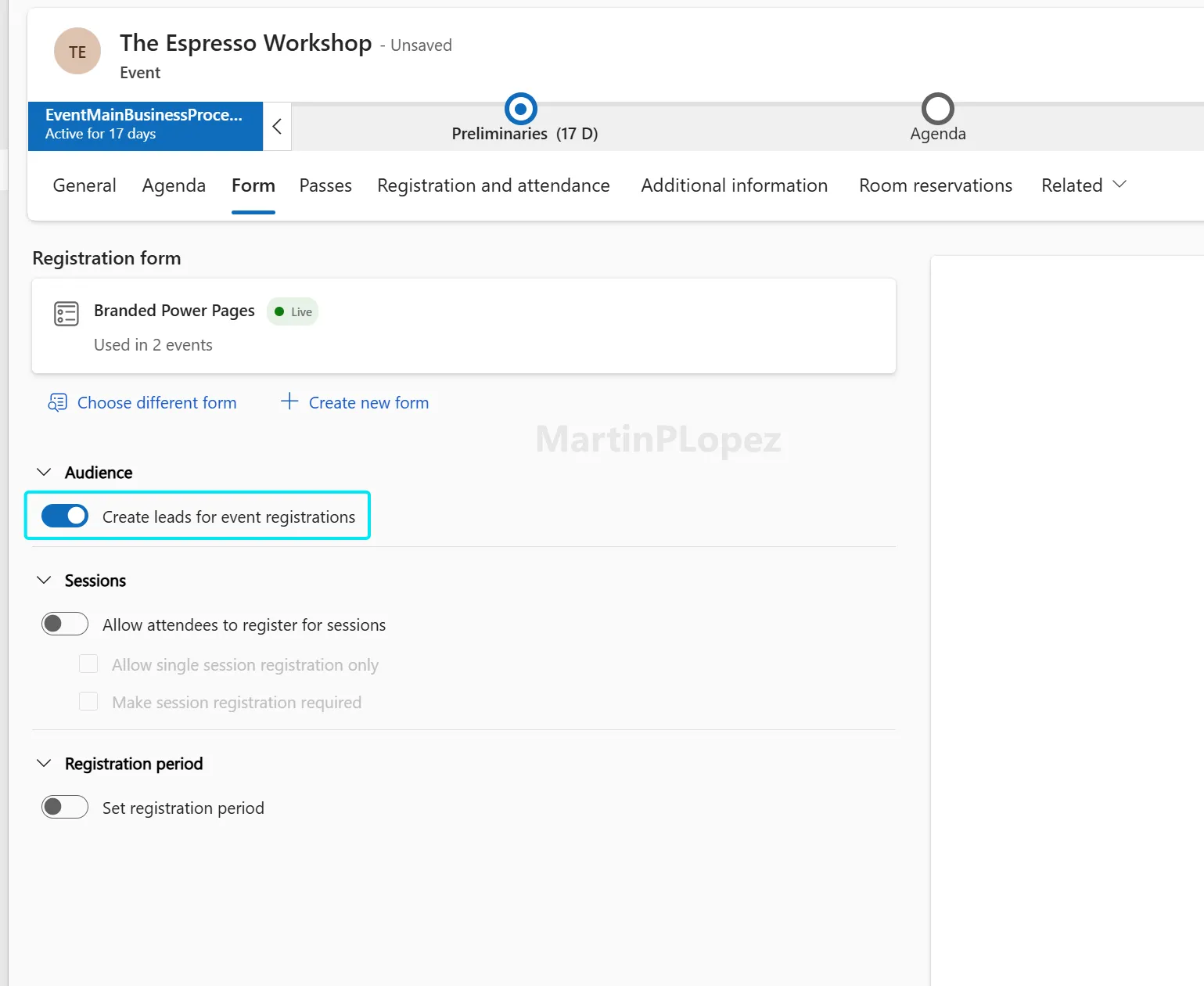
In this article, we explore a solution on how to solve this problem easily with a Power Automate Flow. This flow keeps the contact and the lead togetherwhenever a new registration is created, it finds the matching open Lead and links it to the registrant’s Contact. If no open Lead exists yet, it creates one and connects it back to the event.
NOTE
TL;DR:
Events register Contacts, but you want your Leads at them too, so this Power Automate flow keeps the two linked.
- It triggers whenever an Event Registration is added (Dataverse, scope Organization).
- It searches for an open Lead (
statecode eq 0) with the registrant’s email. Found one? → it links that Lead to the Contact (sets Parent Contact). None yet? → it creates a new Lead, stamped with the Originating Event. - The payoff: invite leads to your events and keep every registrant’s contact tied to the lead it belongs to. 🔗
How the out-of-the-box behavior works
Microsoft will by default link the contact and the lead in the following way:
- It will first associate the lead with a contact, setting up a parent contact field with the contact assigned.
- Then it will create a new record on the connection entity, where it will make the contact be related to the lead as the role of a stakeholder.
Something I discovered while writing this article is that when you make an association of the lead via the parent contact field, it will automatically create a connection record as a stakeholder for the contact. So there is no need for an extra step in the flow where we create this record.
The flow logic
Before clicking around, it helps to picture the decision:
Build it
1. The trigger
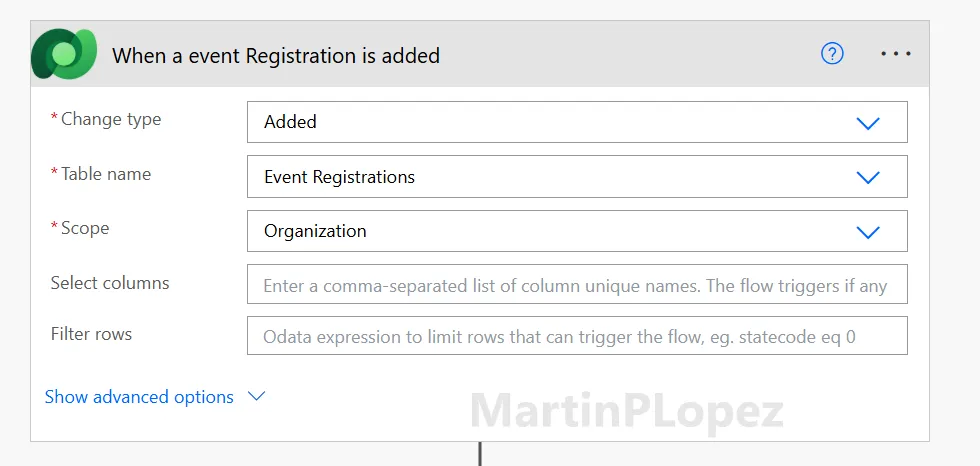
Add the Dataverse trigger When a row is added, modified or deleted and configure it:
- Change type: Added
- Table name: Event Registrations (
msevtmgt_eventregistration) - Scope: Organization
The Scope is the part people get wrong. With User scope the flow only fires for registrations you own, useless here. Organization means it catches every registration in the environment, which is what we want when this runs under a service account.
💡 If you want to limit the events in which this happen I would recommend creating a field on the event table which will activate or deactivate the generation of leads. This can also be added as a filter in the
Filter rowsoption in a trigger.
2. Get the Contact
Add Get a row by ID (Dataverse):
- Table name: Contacts
- Row ID: the contact from the registration. In the expression editor:
triggerOutputs()?['body/_msevtmgt_contactid_value']
The registration stores the contact as a lookup, and _..._value is how you read a lookup’s GUID straight off the trigger output. We need the full contact record next, mainly for the email and the name.
3. Find an existing open Lead
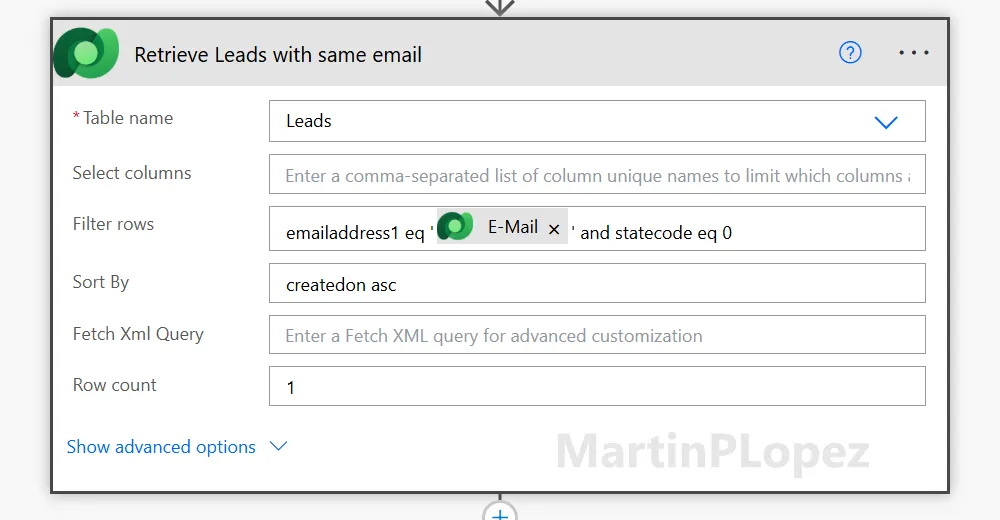
Add List rows (Dataverse) on the Leads table and open Show advanced options:
-
Filter rows:
emailaddress1 eq '@{outputs('Get_Contact')?['body/emailaddress1']}' and statecode eq 0 -
Sort by:
createdon asc -
Row count:
1Read it left to right: same email and still active. We sort by creation date ascending and take one, so if there are several matches we deterministically grab the oldest one (the original) instead of a random duplicate. But here the logic should be adapted to your organization way of handling leads.
4. The condition
Add a Condition. On the left side, use this expression (not dynamic content, type it in the expression editor):
length(outputs('Retrieve_Leads_with_same_email')?['body/value'])
Operator is greater than, right side 0.
List rows always returns an array under body/value. length() counts it: greater than zero means we found a Lead. This is cleaner and faster than looping.
5a. If YES → link the existing Lead
In the If yes branch, add Update a row (Dataverse):
-
Table name: Leads
-
Row ID:
first(outputs('Retrieve_Leads_with_same_email')?['body/value'])?['leadid'] -
Parent Contact for lead (Contacts): set this lookup to the contact:
/contacts/@{outputs('Get_Contact')?['body/contactid']}
Two small things trip people up here. First, first(...) grabs the single Lead out of that array (we asked for one, but it’s still an array). Second, a lookup in Update a row isn’t a plain GUID, you bind it as a path: /contacts/<guid>. The field is Parent Contact for lead, which is the standard Lead → Contact relationship.
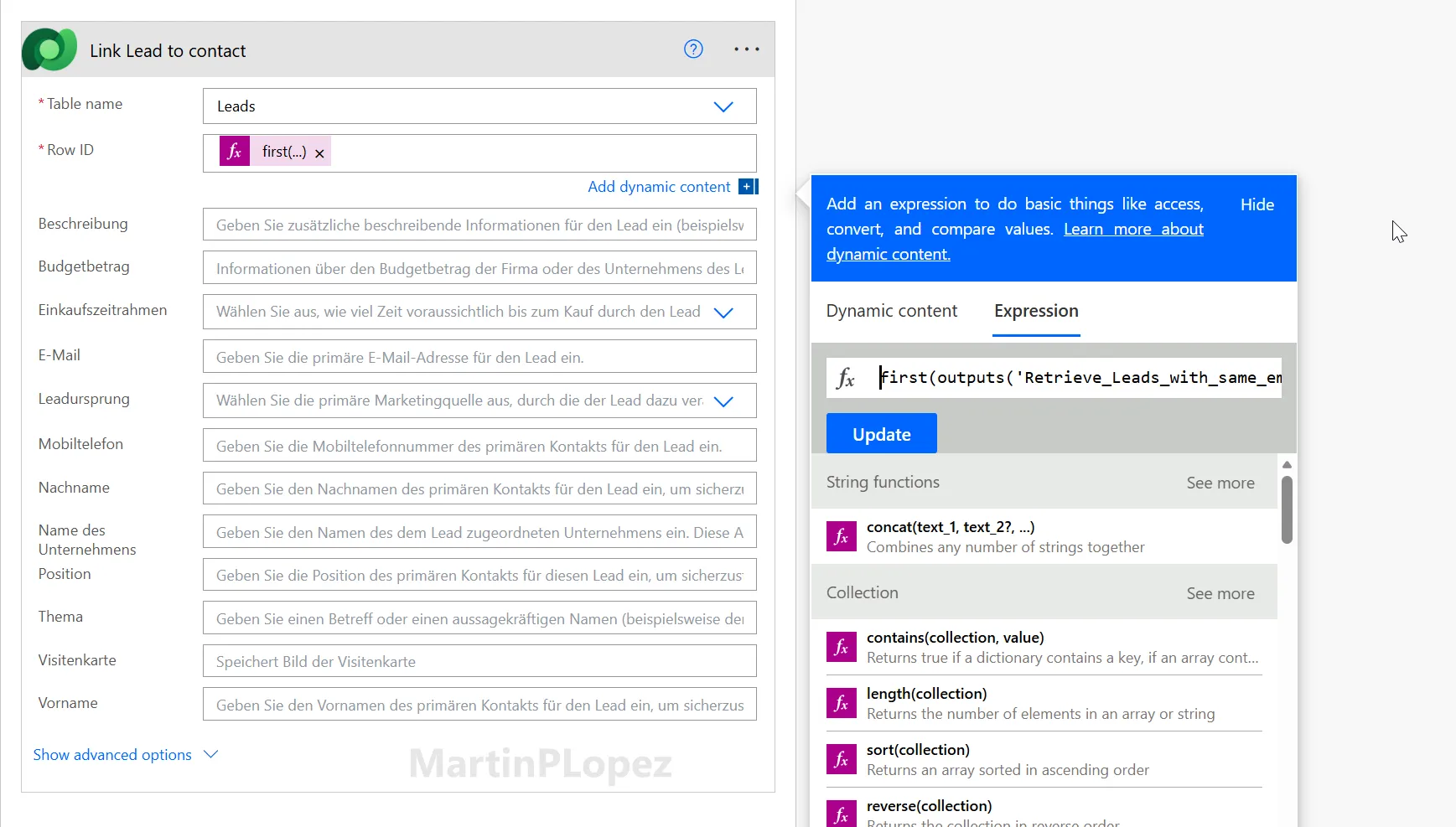 The Row ID uses
 first() to pull the one Lead from the list, and Parent Contact for lead is bound as /contacts/<contactid>, not just the raw GUID.
5b. If NO → create a new Lead
The If no branch has two actions. Order matters: get the event first, then create the Lead.
Get a row by ID (Dataverse) - Get Event:
- Table name: Events (
msevtmgt_events) - Row ID:
triggerOutputs()?['body/_msevtmgt_eventid_value']
Add a new row (Dataverse) - Create new Lead:
- Topic (
subject) → the event’s name:outputs('Get_Event')?['body/msevtmgt_name'] - Email →
outputs('Get_Contact')?['body/emailaddress1'] - Last Name →
outputs('Get_Contact')?['body/lastname'] - First Name →
outputs('Get_Contact')?['body/firstname'] - Parent Contact for lead (Contacts) →
/contacts/@{outputs('Get_Contact')?['body/contactid']} - Originating Event (Events) →
/msevtmgt_events/@{triggerOutputs()?['body/_msevtmgt_eventid_value']}
That Originating Event field is key. It’s the native CIJ field on the Lead, so once you set it, the platform itself knows this Lead came from this event and it shows up in the event’s insights without any extra work from you.
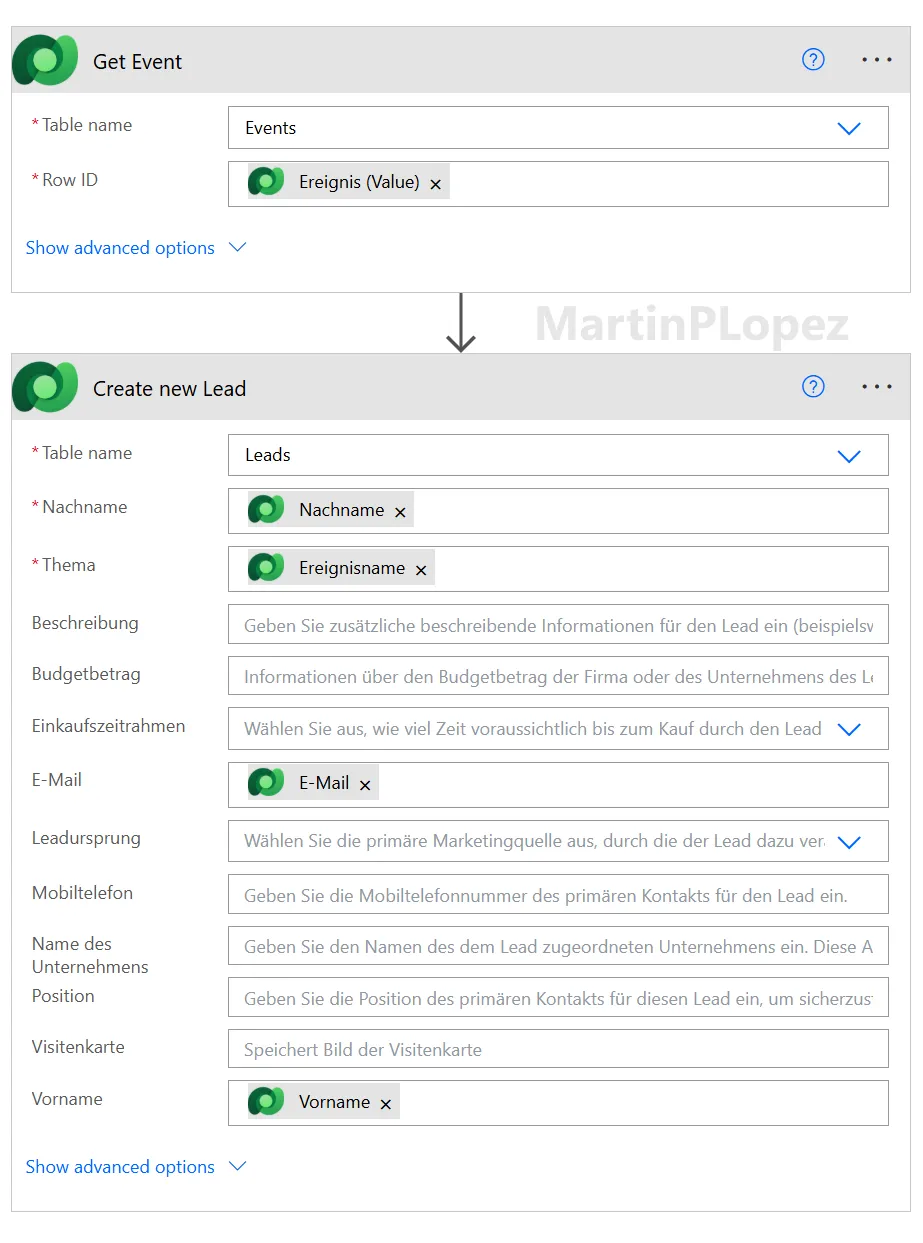
Both lookups Parent Contact for lead and Originating Event are bound as paths (/contacts/... and /msevtmgt_events/...). The Topic carries the event’s name so Sales instantly sees the context.
Things I’d watch out for
A few pointers before you flip this on for real:
- Test in a sandbox first. Register a couple of test contacts one brand new, one who already has an open Lead, and confirm both paths behave (create vs. link).
- Run it as a service account with the right Dataverse privileges (create/update on Leads and Connections), not under your personal user. Not sure how to do it? It’s pretty well explained in this article: Power Automate with a Service Principal
- Wrap it in a solution and use a connection reference so you’re not rebuilding connections when you ship to Prod. The exported flow already does this.
- Lead matching logic. This example uses the oldest open Lead with the same email address, but adapt this to your organization’s lead process. In some setups, you may want to match by campaign, event, business unit, owner, or source instead.
- Bulk registrations. This fires once per registration row. If you ever import registrations in big batches, keep an eye on your flow run volume.
Conclusion
Customer Insights Journeys does a good job of handling event registrations, but the Lead-to-Contact relationship can easily become disconnected when you invite Leads to your events.
With a small Power Automate flow, you can close that gap: every new event registration checks for an existing open Lead, links it to the registered Contact, or creates a new Lead when needed. The result is cleaner data, better event attribution, and a much clearer handover between marketing and sales.
But the main idea stays the same: do not let your event registrations live only on the Contact side. Keep the Lead connected too, so Sales can see the full context of who registered, where they came from, and how they already interacted with your company.
One useful CI-J idea, every other Friday.
Sign up for my newsletter and be the first to know about new blog articles, Customer Insights discoveries, and more.