Keep Expired Customer Insights - Journeys Segments Alive with Power Automate
Learn how to automatically reactivate expired Customer Insights - Journeys segments with Power Automate, while keeping control over which segments stay active.

Earlier this year, Microsoft introduced automated segment management in Customer Insights - Journeys. Segments that aren’t actively used eventually move to an Expired state and stop being evaluated.
The feature originally used a 30-day expiration window, but after community feedback Microsoft extended it to 120 days.
This limit is fine for most cases, but what if you rely on segments that may sit unused for more than 120 days? 🙄
I recently had this requirement with a couple of clients, so I chose to automate the manual process with my favourite Power Platform tool: Power Automate
NOTE
TL;DR:
Customer Insights - Journeys automatically expires segments that remain unused for 120 days.
For segments that still need to stay active outside normal journey usage, you can use a scheduled Power Automate flow to find selected expired segments, move their segment definitions back to Draft, and publish them again automatically.
Why keep segments alive?
But why bother at all? At the end of the day Microsoft is just setting them as expired and you can manually reactivate them again. This is fine for most people.
But if you find yourself in one of the following situations:
- You have segments that keep track of suppression lists but aren’t used in a journey.
- You have segments that you use once or twice a year, with more than 120 days between uses.
- You have test segments which will be used sporadically
- You have a business process that uses the members of a segment but not a journey
Especially if the last scenario applies to you, it’s necessary to make sure that the segments keep on being updated to keep the business process working.
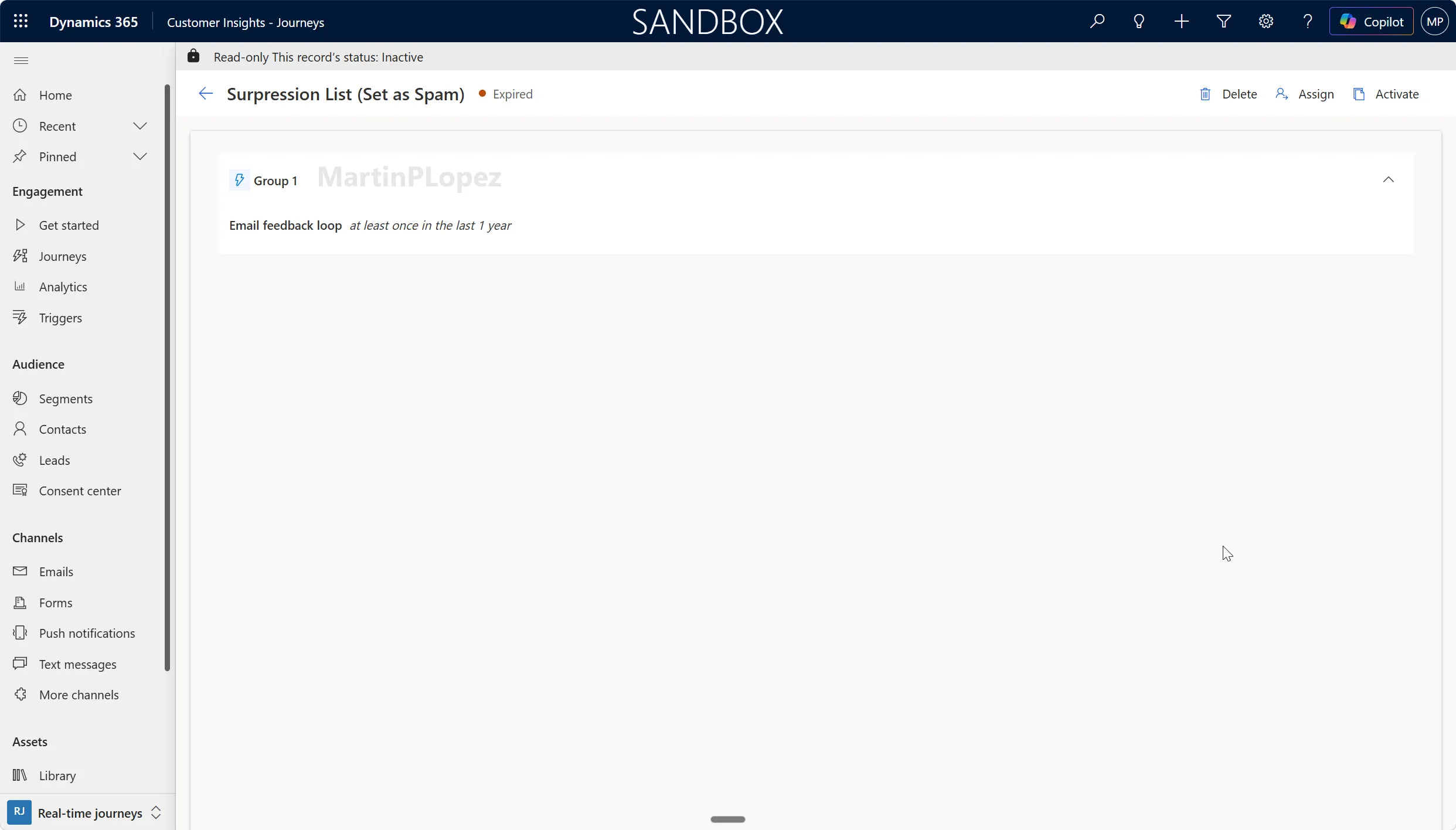
How can we implement this?
This article is heavily inspired by this post from Megan V. Walker where she explains how to activate the segments. So we are going to replicate the clicking in Power Automate.
In my case, the flow runs once a day and looks for expired segments whose names contain the KEEP marker. If none are found, there’s nothing to process. If there are matches, the flow moves each segment back to Draft and then publishes it again.
1. Trigger and retrieve the segments
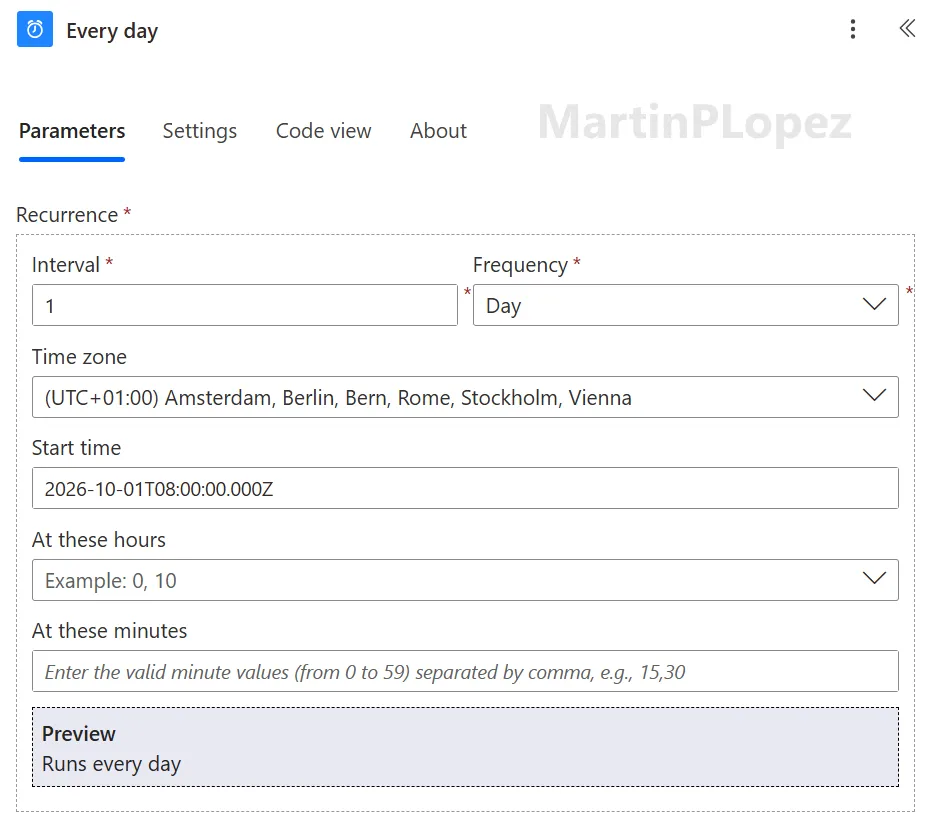
Start with a new Scheduled cloud flow. The flow only has to catch segments after they expire, so once a day is plenty.
Trigger: Recurrence
- Interval: 1
- Frequency: Day
- Start time: pick a time when nobody is building journeys. In my case it’s 08:00 UTC.
💡 The start time is in UTC unless you set Time zone. If you’re in Switzerland like me, either set the time zone to (UTC+01:00) Bern or remember that 08:00 UTC is 10:00 in summer and 09:00 in winter.
Action: List rows (Microsoft Dataverse)
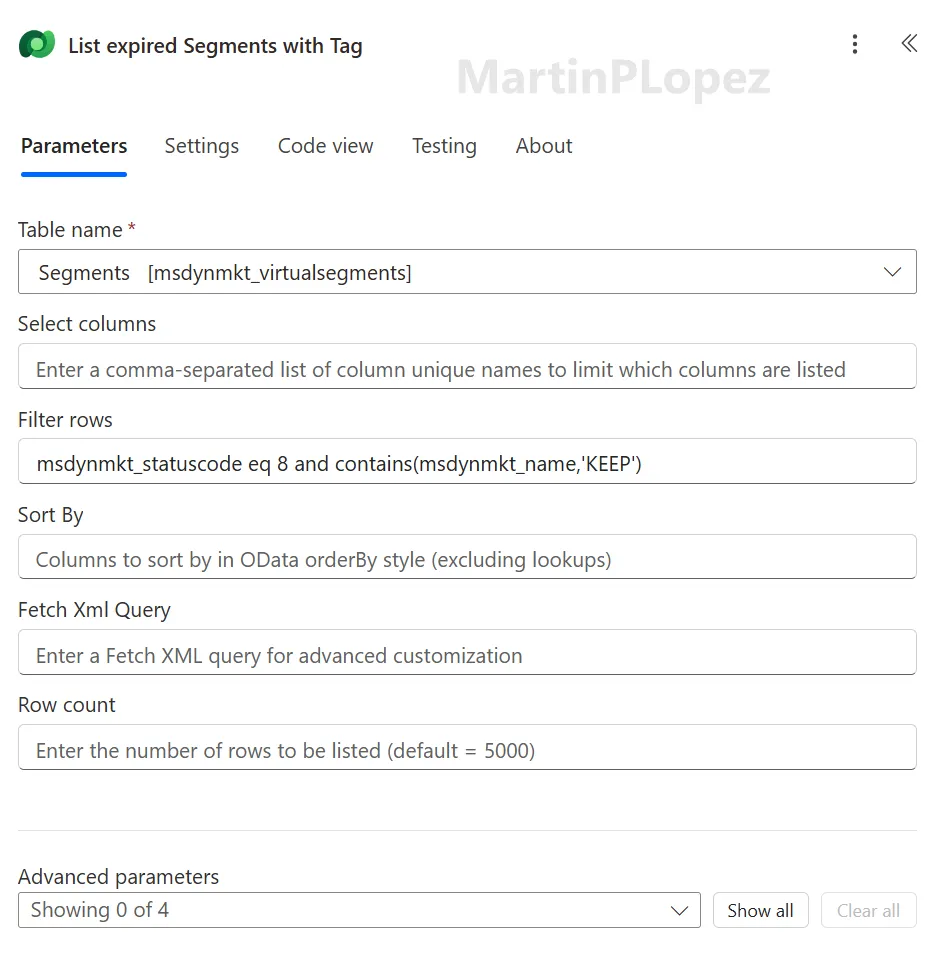
Next, add a Dataverse List rows action and I like to rename it to List expired Segments with Tag. Renaming is a best practice, as the name shows up in every expression that references this step later, so a clear name makes things easier to handle and edit.
- Table name: Segments (
msdynmkt_virtualsegments) - Filter rows:
msdynmkt_statuscode eq 8 and contains(msdynmkt_name,'KEEP')This filter does two things:
msdynmkt_statuscode eq 8returns only segments in the Expired status.contains(msdynmkt_name,'KEEP')acts as an opt-in naming convention. Only segments with KEEP in their name get revived, and everything else is left to expire as Microsoft intended. This gives marketers a simple control: rename a segment to keep it alive, rename it back to let it go.
💡 You can pick any marker you like (
[KEEP],#evergreen…), but keep it short and unambiguous.
2. Set to Draft and go Live
An expired segment can’t be published again directly. It first has to go back to Draft, and only then can it be published. That means two steps per segment, inside a loop.
Action: Apply to each
Add an Apply to each (in my flow it’s named For each Segment) and pass it the value output of the List rows step:
@outputs('List_expired_Segments_with_Tag')?['body/value']Inside the loop, step 1: Update a row (Microsoft Dataverse)
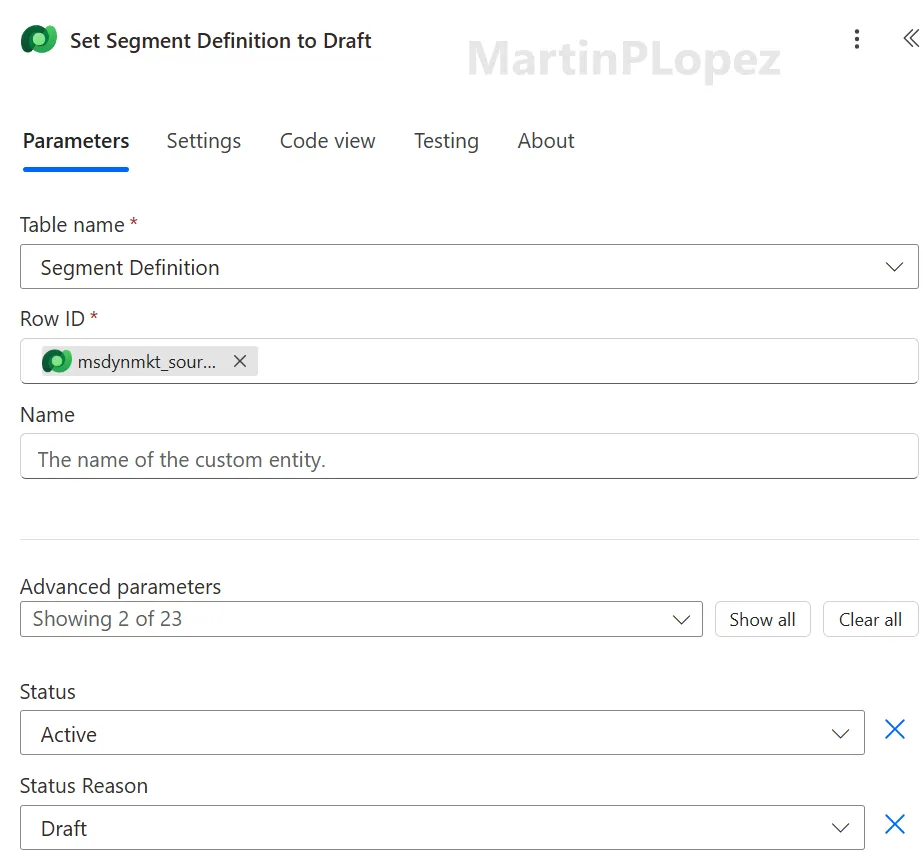
The status you need to change doesn’t live on the segment record you just listed. It lives on the underlying segment definition. Fortunately, the segment holds a pointer to it in msdynmkt_sourceentityid.
- Table name: Segment definitions (
msdynmkt_segmentdefinitions) - Row ID:
@item()?['msdynmkt_sourceentityid'] - Status: Active (
statecode= 0) - Status Reason: Draft (
statuscode= 723270001)
⚠️ This is the step people usually get wrong. If you try to update
msdynmkt_virtualsegmentsdirectly, nothing happens. Always target the segment definition.
Inside the loop, step 2: Invoke an HTTP request (HTTP with Microsoft Entra ID)
There’s no Dataverse connector action for publishing a segment, so the flow calls the unbound msdynmkt_PublishSegmentDefinition action through the Web API instead. I use the HTTP with Microsoft Entra ID (preauthorized) connector because it signs in with the connection user. You don’t need an app registration or a client secret.
When you create the connection, set both Base Resource URL and Microsoft Entra ID Resource URI to your environment URL, for example https://yourorg.crm17.dynamics.com.
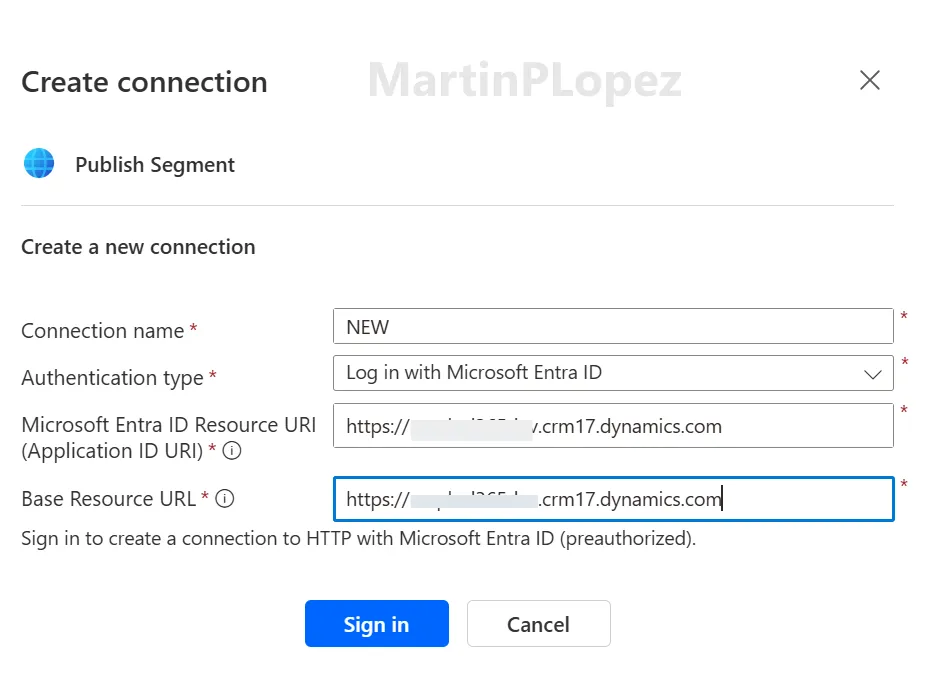
💡 In my case is
crm17before the.dynamics.combecause my environment is hosted in Switzerland. Adapt this part of the URL, along withyourorg, to match your Dynamics environment URL.
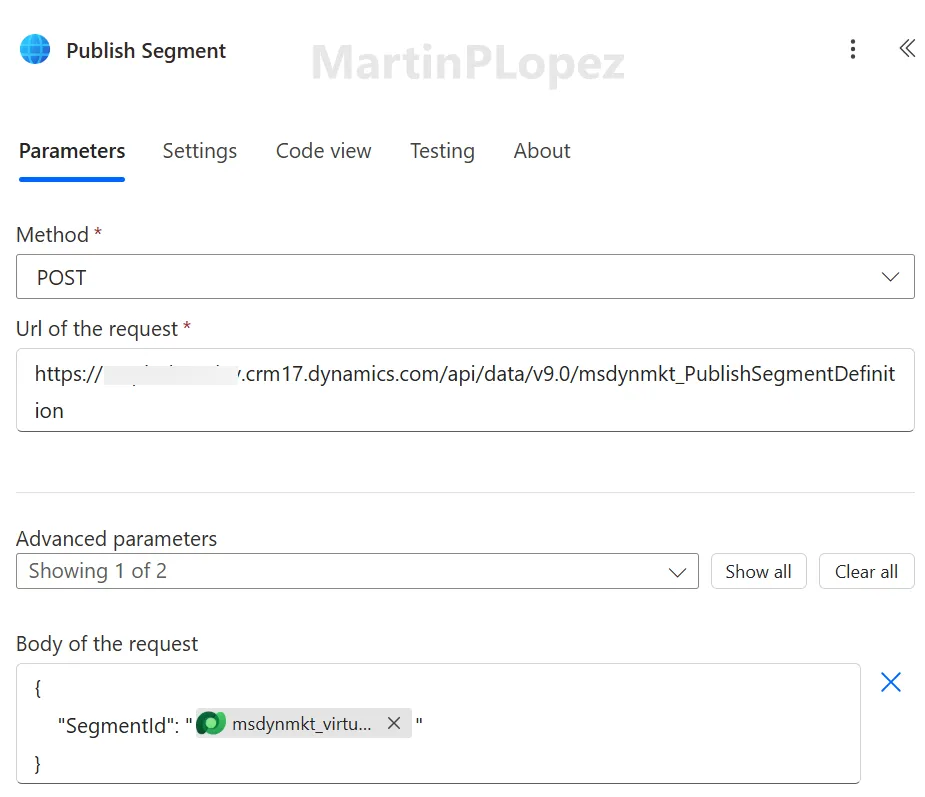
Then configure the action:
- Method: POST
- Url of the request:
https://yourorg.crm17.dynamics.com/api/data/v9.0/msdynmkt_PublishSegmentDefinition- Body of the request:
  {
      "SegmentId": "@{item()?['msdynmkt_virtualsegmentid']}"
  }
💡 Don’t hard-code the environment URL if this flow travels through a solution from DEV to TEST to PROD. Put the URL in an environment variable and reference it in the request URL, so the same flow works everywhere without edits.
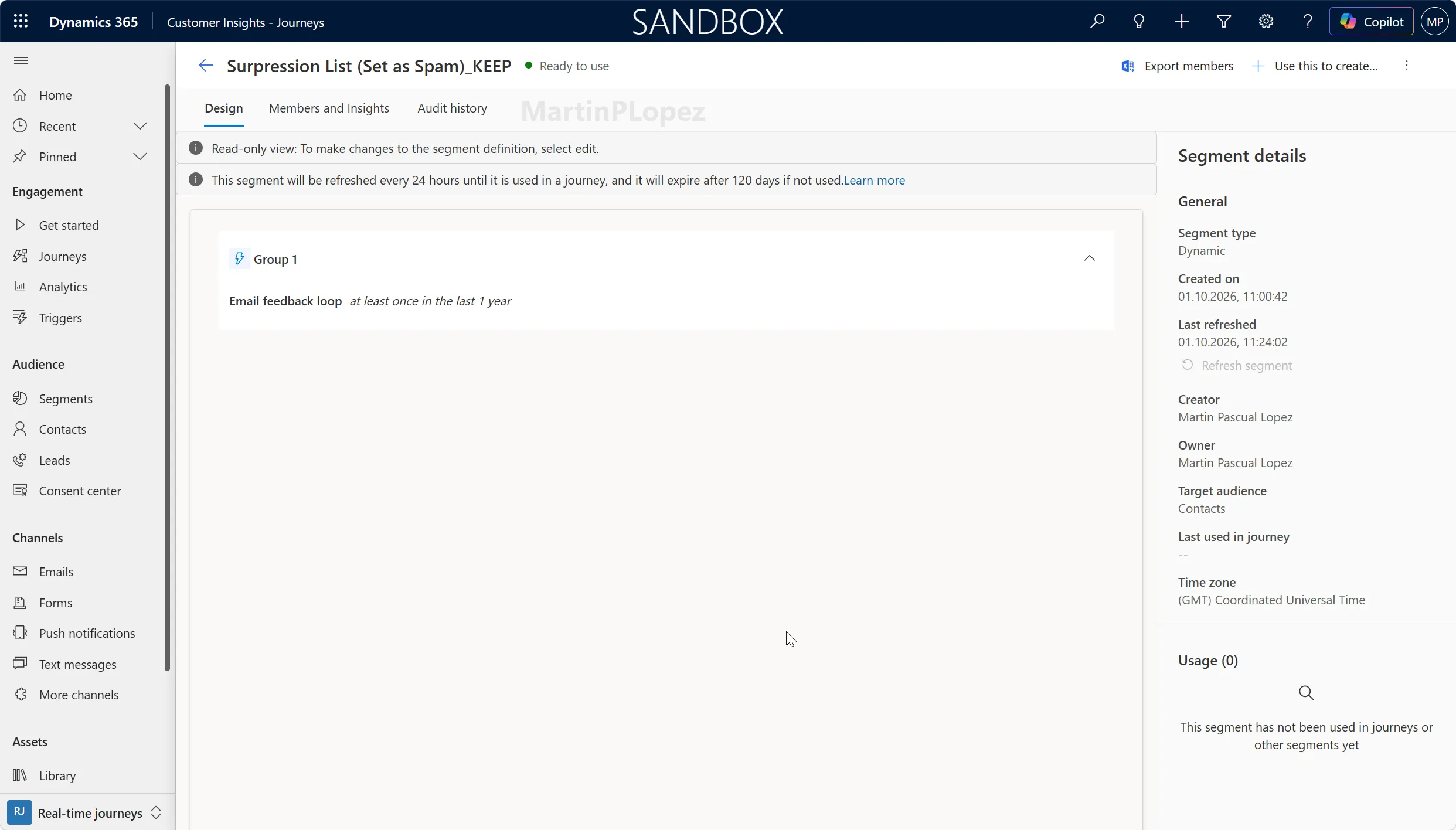
Save the flow and run it manually once to test. In Customer Insights – Journeys > Segments, your KEEP segments should go from Expired to Draft and then to Live after a short wait.
Design considerations
Only reactivate the segments that actually need it.
Microsoft introduced automated segment management to reduce unnecessary processing. Automatically republishing every expired segment would work against that goal. Using an opt-in naming convention like KEEP lets you preserve only the segments your business processes actually depend on. Microsoft explicitly recommends reducing unnecessary active segments because segment volume can affect refresh performance.
Monitor the automation. This flow becomes part of the business process. Connections can expire, deployments can introduce issues, and permissions can change. If downstream processes depend on these segment memberships, treat the flow like any other production automation and monitor failures.
Conclusion
The important part isn’t that every segment should be kept alive. In fact, most shouldn’t.
But when a segment is part of a wider business process (not just a journey) the default expiration behavior might not fit the requirement. In those cases, Power Automate gives us a controlled way to extend Customer Insights - Journeys without fighting the platform’s intended behavior.
That’s one of the things I like most about working with the Power Platform: when the out-of-the-box functionality gets you 90% of the way there, the rest of the platform can often help with the remaining 10%.
One useful CI-J idea, every other Friday.
Sign up for my newsletter and be the first to know about new blog articles, Customer Insights discoveries, and more.