Teams Webinar V2 in Customer Insights Journeys: First Lessons Learned
Two months after setting up Teams Webinar V2 authentication for Customer Insights - Journeys, here is what actually broke, what the documentation does not tell you about real customer setups and the checks I now run before every webinar.

In June I wrote about how to set up Teams Webinar V2 authentication for Customer Insights - Journeys: the app registration, the federated credentials, the Graph permissions, the access policy.
Since then, that article has done something I didn’t fully expect. People don’t ask me how to set it up anymore. They ask why it still doesn’t work 🙋
And the interesting part is that it’s almost always the same short list of things. Not the setup itself, which most admins get through fine, but the gap between “the configuration is saved” and “my webinar actually behaves the way I promised the business it would”.
So this is the follow-up: the first lessons from running this in the wild, and the checklist I now run before anyone books a webinar.
NOTE
TL;DR:
The Teams Webinar V2 setup itself is not what breaks. Two months of follow-ups later, the configuration from the June article has held up. The problems all sit in the gap between “the configuration is saved” and “the webinar behaves the way I promised the business it would”.
Most custom event forms are missing the Meeting Options control. They were last edited before Webinar V2 existed, so the button simply isn’t there. It’s not a drag-and-drop control: you have to copy MeetingOptions from the out-of-the-box form into your own form XML.
A greyed-out Meeting Options button is a security role gap. Custom event management roles usually lack the read privilege on Event teams properties (msevtmgt_eventteamsproperties).
The Graph permissions must be Application permissions, not Delegated. Adding them as delegated looks complete and saves without complaint, but the app can’t use them and the error you get downstream never mentions consent.
If everything is by the book and it still fails, clear the browser cache and sign in again. And plan for the real bottleneck: the setup touches Customer Insights, Entra ID and Teams, which in most organisations means three owners, three change processes and three weeks for one hour of technical work.
What held up
Two things from the June article I’d write exactly the same way again.
One app registration for the whole tenant is enough. Nobody has come back to me with a case that needed one app per Customer Insights environment. Adding a separate federated credential per environment on the same registration has been the right shape every time, and it keeps the permission grant and the consent in one place instead of three.
The setup is a one-time cost. Once it’s correct, it stays correct. None of the problems below came from the configuration drifting on its own. They came from customer setups that differ from the out-of-the-box configuration, which, in my experience, is much more common than not.
The lessons
1. The Form doesn’t display the Meeting Options
This is the most common error and it happens to people that followed the recommended guidelines and do their form customizations in a separate form, not the out-of-the-box form. The problem with this is that probably, by the time that the form was last edited, the Webinar V2 option was not available, so many customers have the problem that the Meeting Options button directly doesn’t show:
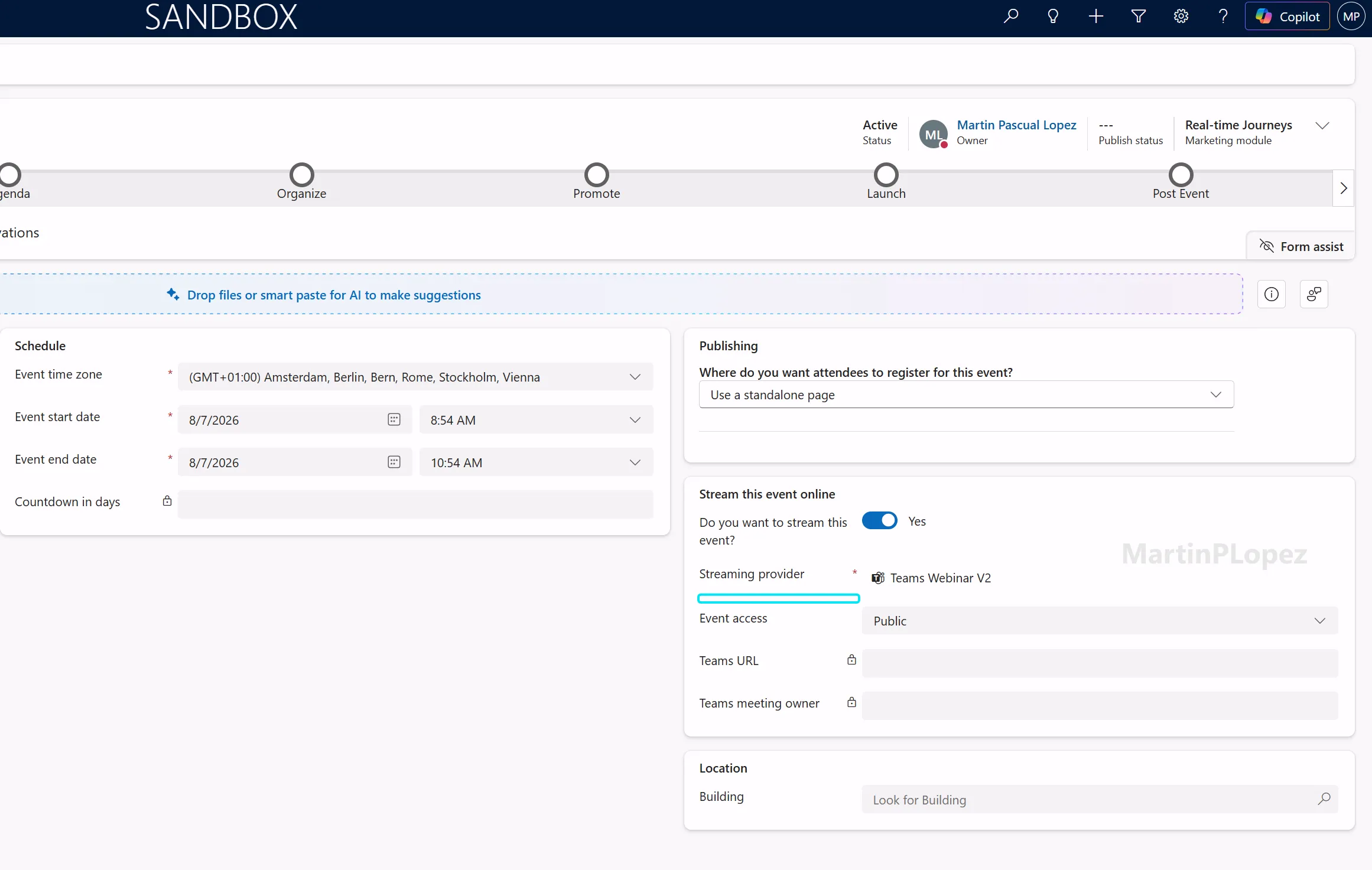
The problem with this issue is that it’s not a drag-and-drop control that you can put in a form directly, so you will have to go through the form.xml underneath to do this.
If you ever edited an XML Form of Dynamics 365, you’ll know they are very easy to break. So I used the help of AI to insert the control named MeetingOptions inside the existing XML.
The best way I found to do this (so far) is to provide the AI with the out-of-the-box form and then your custom form that you use normally, and ask it to copy the MeetingOptions control into your normal custom form. This will have a good result in my experience.
I’m a bit old school, so I used a tool in the XrmToolbox called Form Xml Editor to extract the Xml of the forms and to upload the form with the Meeting Options control
TIP
This is the (new) way
This issue will very likely not be solved with an export in the near future.
With the evolution of the Dataverse Skills, you can do this with an AI directly, I just didn’t try it this use case
If you take one thing from this note: Make sure to add the controls that you use from the out-of-the-box event form to your custom form (if you use one).
2. Meeting Options appears, but the button is disabled
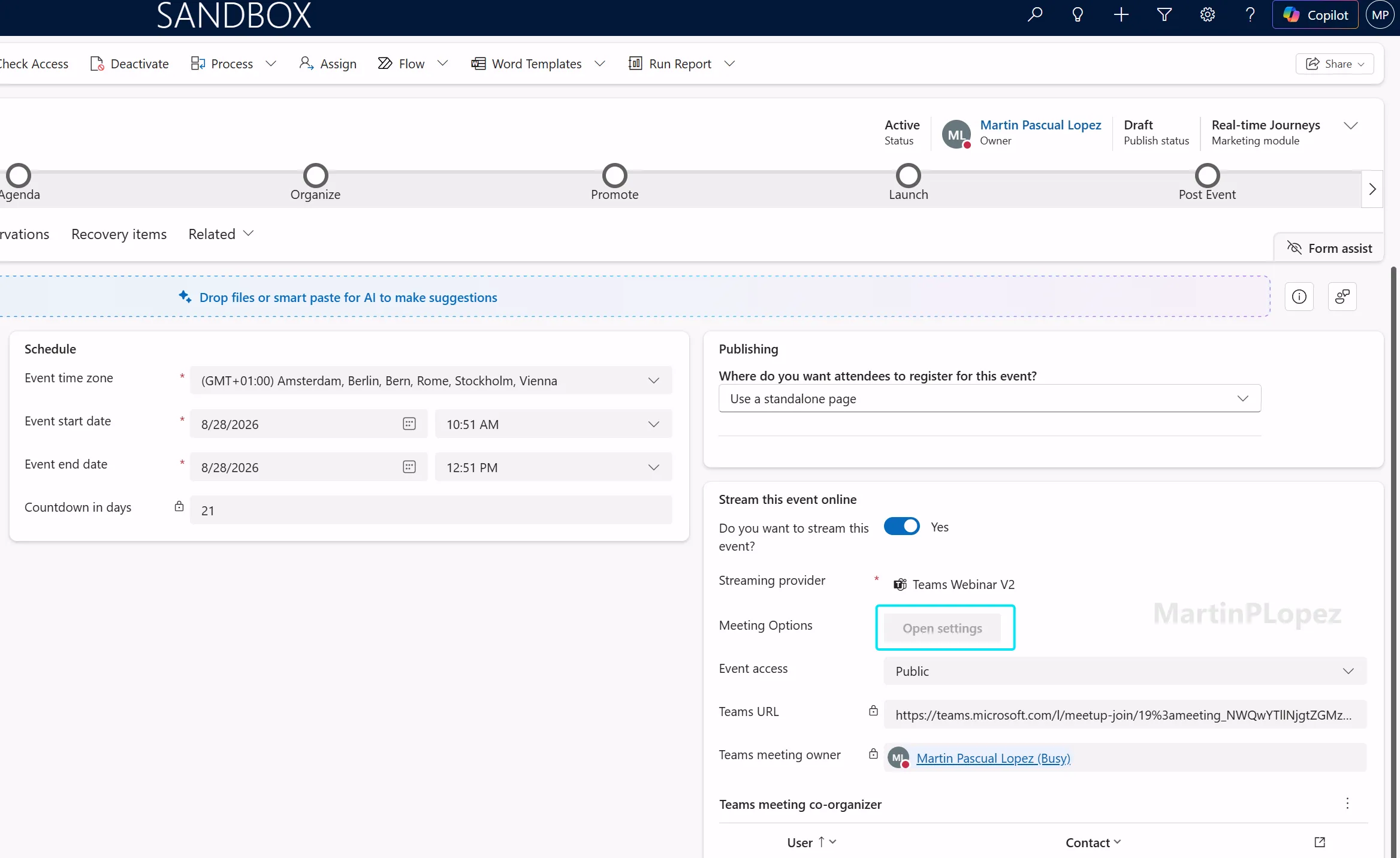
If your marketing people are using a security role that is not out of the box, for instance, if you have defined an event management security role, it might look like you have a meeting options button that shows disabled. They will need the permission to read “Event teams properties” (msevtmgt_eventteamsproperties), which you can give directly to the group.
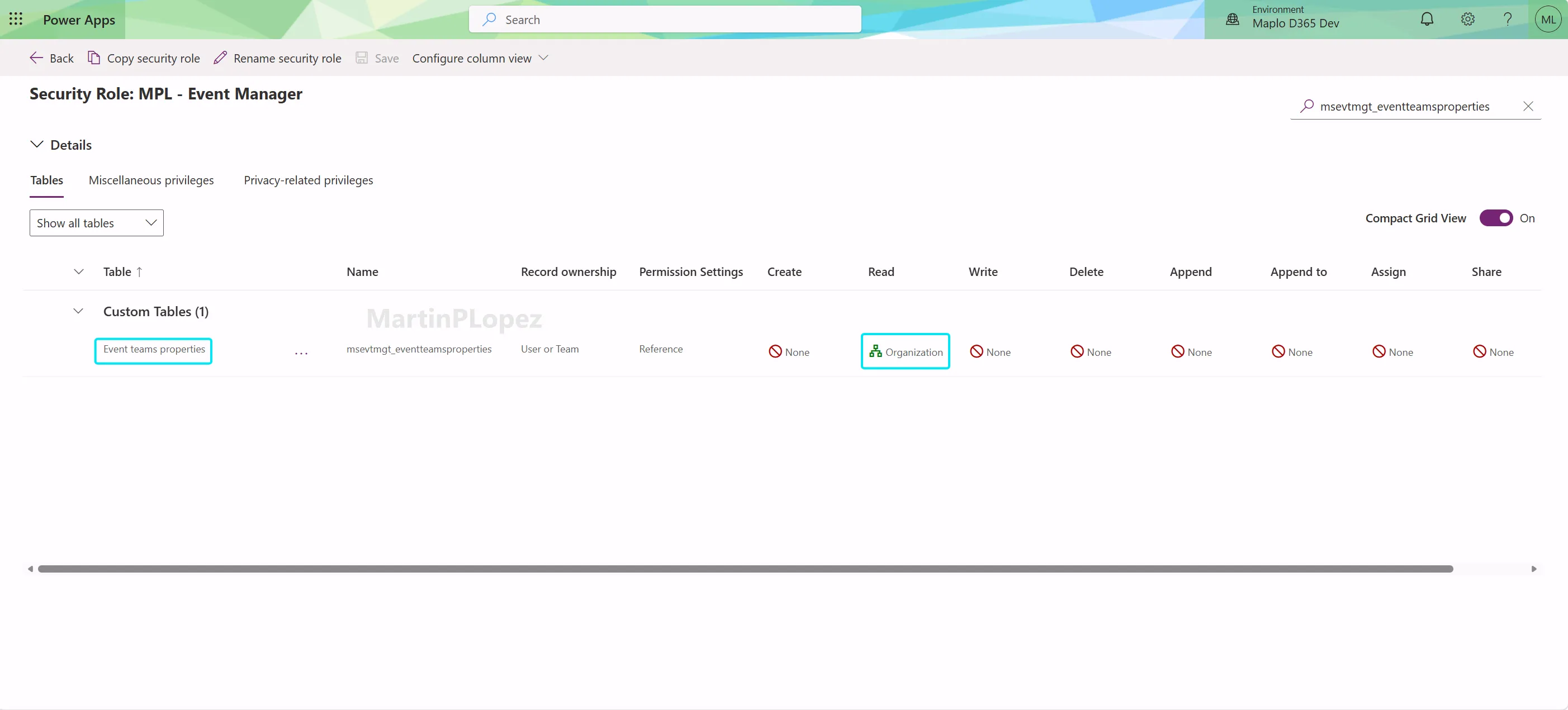
This will give the permissions that were missing for it to work properly.
3. I set up the Graph permissions but it still doesn’t work
The Graph permissions step is where I see the most silent failures.
Adding delegated permissions only to the app registration is sadly not making the cut. An admin normally would doubt to give Application Permissions as it can lead to a security threat and it might require an approval process, so he normally adds everything the documentation lists, saves, sees the full list as delegated permissions, and reasonably concludes the step is done.
It isn’t. Until Application permissions is granted for the tenant, the app can’t actually use those permissions, and the failure you get downstream doesn’t say “consent is missing”. It says something much vaguer about the webinar not being created.
Make sure the Application Permissions are not Delegated permissions. That’s the whole lesson.
4. We did everything in the documentation, we still get the error message
Sometimes it can take a bit of time for Dynamics 365 to apply these application setups, but mostly what I see is just a cache problem.
Make sure that after you did everything in the documentation, you clear the cache completely in the browser, or even sign out and sign in again. That normally makes it work.
5. The real bottleneck is the security process
I said this at the end of the June article and two months of follow-ups have only made me more confident about it.
The setup touches Customer Insights, Entra ID and Teams, and in most organisations those are three different people with three different change processes. The technical work is maybe an hour. Getting those three people in the same conversation, make them understand which permissions they really need and get approval is the part that takes three weeks.
If you’re a marketer or a functional consultant, the useful move is not to learn the setup, it’s to start the conversation early and bring the June article with you. If you’re the admin who owns all three, you already know how much easier your life is 😅
My lessons learned checklist
The short version I now run through before anyone commits to a date:
- Open the event form your marketers actually use and confirm the Meeting Options control is there → if it’s a custom form, assume it isn’t until you’ve seen it.
- Check the security role behind a greyed-out button → read on Event teams properties (
msevtmgt_eventteamsproperties), not just the standard event privileges. - Confirm the Graph permissions are Application permissions and granted for the tenant → the permission list looking complete is not the same as the app being able to use it.
- Clear the cache and sign out and in again before declaring it broken → a good part of the “we did everything and it still fails” cases end here.
- Get the Customer Insights, Entra and Teams owners into the same conversation early → before a date is promised to anyone.
Steps 1 to 4 are maybe an hour of work. Step 5 is the one that decides whether that hour happens this week or in three weeks, and it’s the one people start last.
Conclusion
None of these are hard problems. What do they have in common?
The form saves without the control it needs. The role saves without the privilege it needs. The permissions save as delegated and the list looks exactly as complete as it would if they were right. Everything looks like it worked, right up until someone asks why they don’t see the meeting Options button or they see it, but is greyed out. That’s a bad place to discover a misconfiguration, luckily it happens before the webinar goes live and you have the chance to fix it.
I wish these kinds of problems would be included in the official documentation, but until then, if this article can help someone, I’m happy to write it 😊
If you haven’t done the setup yet, start with the full walkthrough from June → this note assumes you’ve already been through it.
One useful CI-J idea, every other Friday.
Sign up for my newsletter and be the first to know about new blog articles, Customer Insights discoveries, and more.