Personalized Christmas Emails in Seconds with Power Automate + AI

When I was a kid, I remember spending hours preparing Christmas cards by hand - paper, crayons, glitter, and a lot of patience. Writing a thoughtful message, waiting for the glue to dry, finding a stamp, and finally dropping the envelope into the school mailbox was all part of the ritual.
Today, very few people send physical Christmas cards anymore. But the intention behind them hasn’t changed: letting people know we’re thinking of them and that they matter.
Companies feel the same need toward their customers. They want to communicate in a way that feels personal and genuine - but when you’re dealing with hundreds or thousands of contacts, that quickly becomes a challenge. Generic email templates don’t feel special, and complex conditional logic only goes so far.
This is where Power Automate and Artificial Intelligence come into play. By combining Dataverse data with AI-powered prompts inside a flow, it’s possible to generate highly personalized emails at scale - messages that adapt to each recipient’s context without sacrificing automation.
In this article, I’ll show how you can use Power Automate + AI to turn a single click into hundreds (or thousands) of truly personal emails.
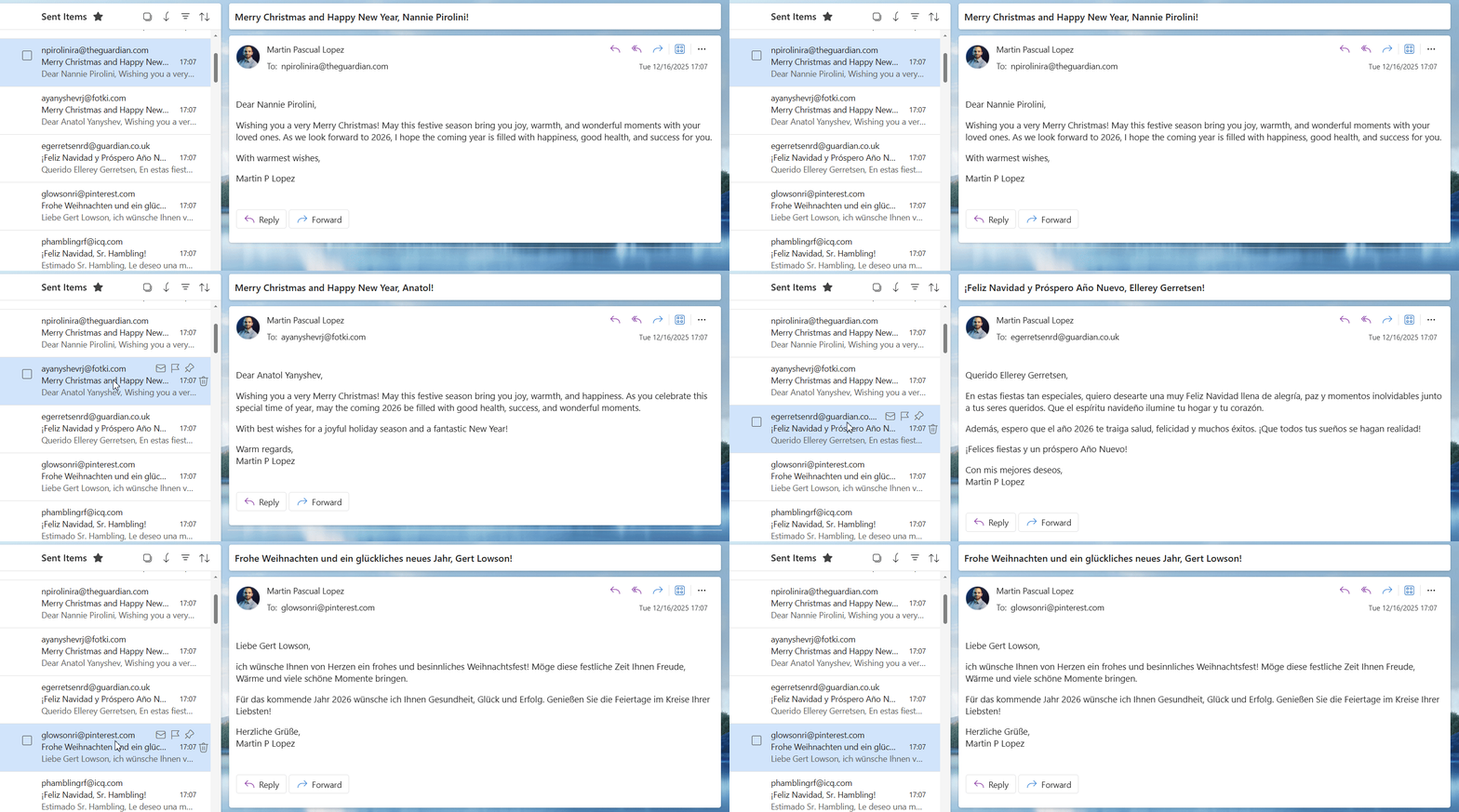
With Power Automate and the AI Prompt connector, you can generate hundreds or thousands of highly personalized emails using Dataverse contact data - without building complex logic or templates.
In this article, I’ll show how to use AI prompts inside a flow to add context, tone, and intelligence to your email communications, while keeping everything scalable and automated.
The personalization-at-scale problem
Personalization has been a buzzword for years, but in practice it’s often reduced to little more than:
“Hi {{FirstName}}”
The result?
Messages are sent at scale, but they don’t feel personal - and recipients notice.
At the same time, writing individual emails manually simply doesn’t scale. No one has the time to craft hundreds of unique messages, even if the intent is there.
What’s missing is a way to keep:
- the efficiency of automation
- while regaining the human tone and context of a personal message
That gap is exactly where AI can add real value.
If you’ve read this far, you might be thinking: Alright Martin, but this is the third Post I read today about AI being the solution
I can say, yes, buuuuut probably not within Power Automate 🙌
Introducing: Power Automate + AI Prompts
Power Automate has always been excellent at orchestrating processes: triggering actions, retrieving data, and sending messages. What it traditionally lacked was the ability to think about the content it was sending.
That changes with the AI Prompt connector.
By introducing AI into your flows, you can move beyond fixed templates and rules, and instead generate content dynamically, based on real data and context.
In this approach:
- Dataverse provides structured information about each contact
(name, role, company, preferences, history, etc.) - Power Automate controls when and to whom messages are sent
- AI prompts decide how the message should be written
Instead of hardcoding dozens of variations, you describe what kind of message you want:
- the tone (formal, friendly, festive…)
- the context (customer relationship, event, time of year)
- the key facts the AI should consider
The AI then generates a unique message for each recipient, using the data you pass into the prompt.
The result is a powerful combination:
- One flow
- One prompt
- Potentially thousands of emails
- each one different, relevant, and human-sounding.
This doesn’t replace automation. It enhances it, turning Power Automate from a message delivery engine into a personalization engine.
Let’s build it
Step 1: Create the flow
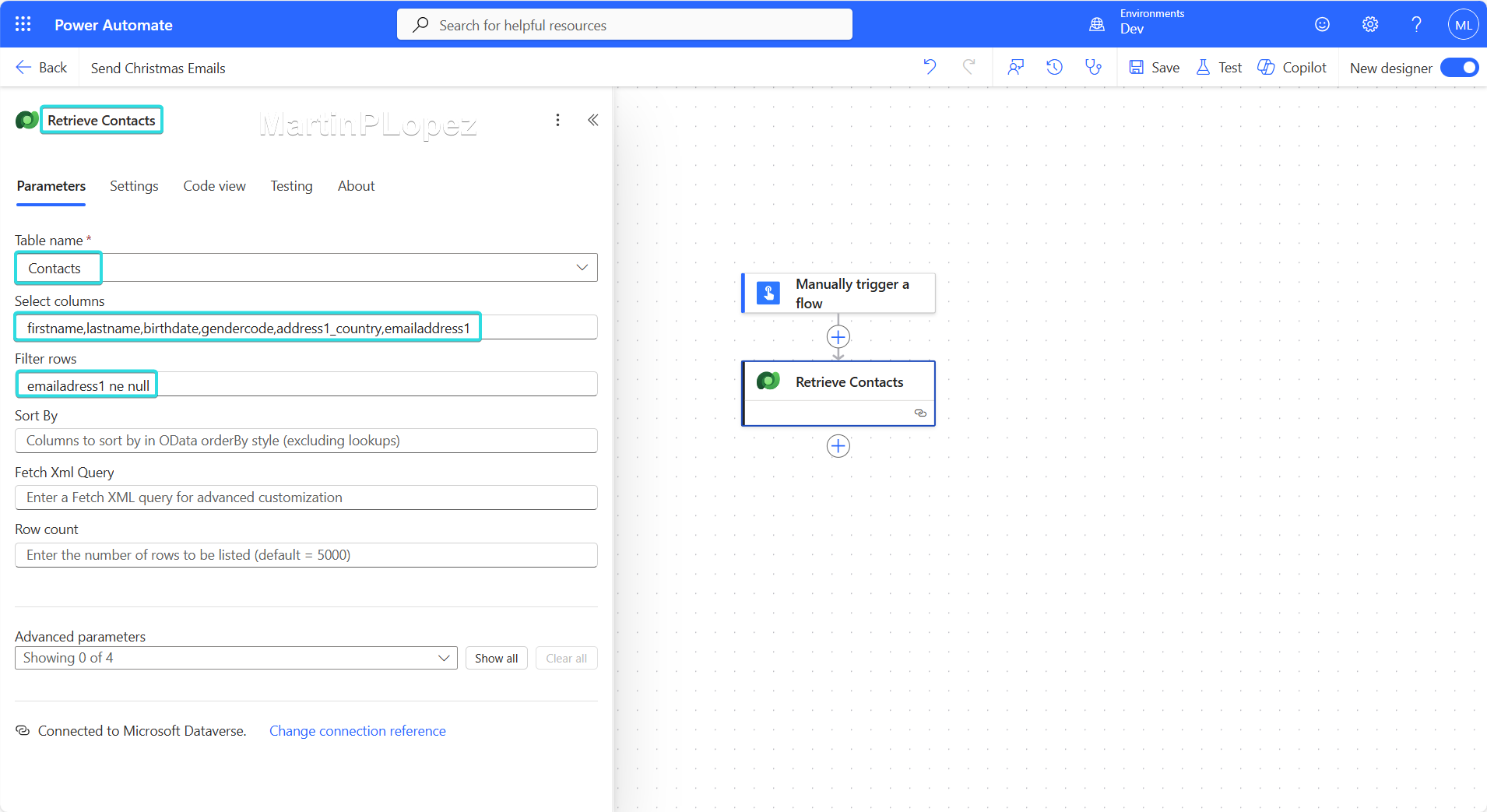
For starters, I recommend creating a manually triggered Power Automate Flow with a Dataverse “List rows” action. This will allow us to control exactly when the emails are sent and to whom.
- Rename the action to describe what it does (best practice): e.g., List Dataverse Contacts
- Use Select columns for only the fields you’ll pass to the prompt
- Filter out contacts without an email address to avoid failures
Step 2: Create the AI Prompt
The next step is to select the Run a prompt action. This lets us generate a personalized email using the Dataverse data we just retrieved
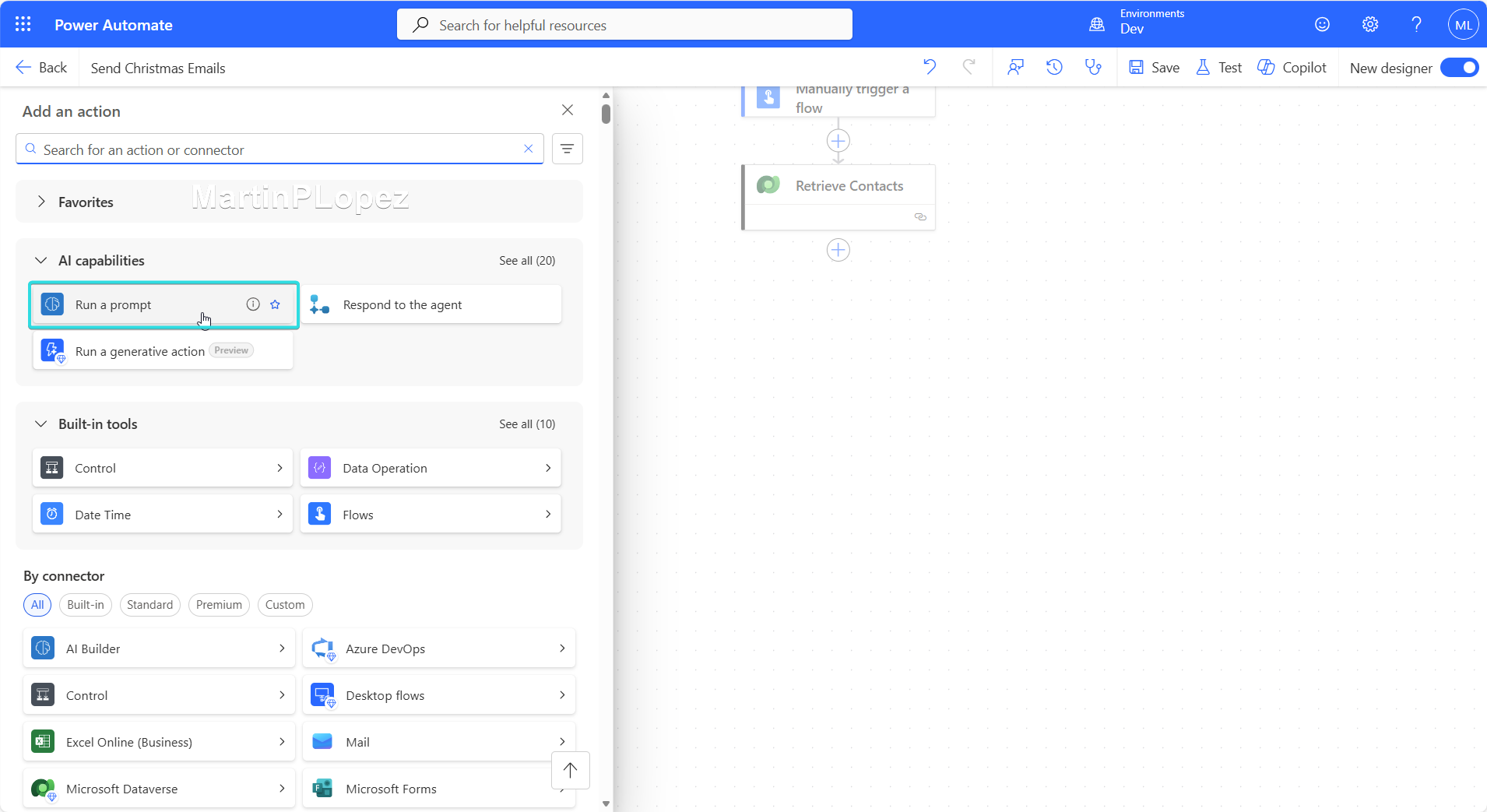
We’ll create a new prompt from scratch, so click on “+ New custom prompt”, this will open a window like the following:
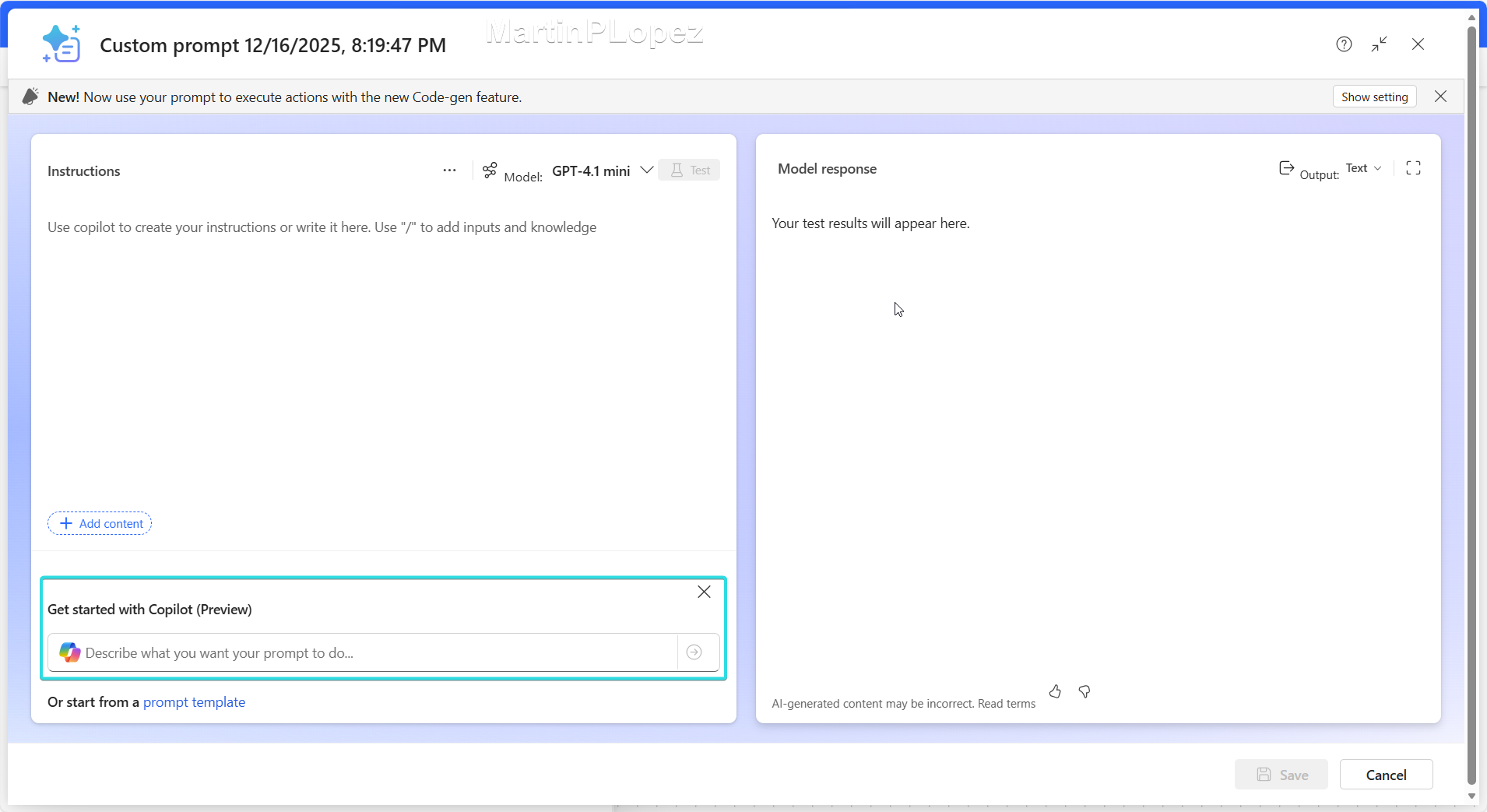
Here my final version of my prompt, so you can feel free to use it:
You are tasked with composing personalized Christmas email based on provided contact information.
The email should be tailored to each individual using their first name, last name, birthdate, gender, and country.
Additionally, the email content must be translated appropriately to match the language or cultural context of the recipient’s country.

### Instructions:
1. **Personalization:**
   - Use the first name and last name to address the recipient warmly and personally.
   - Optionally, incorporate a friendly mention of their birthdate if relevant and appropriate.
2. **Cultural Sensitivity:**
   - Adapt the tone and style of the Christmas greeting to suit the cultural norms of the recipient’s country.
3. **Translation:**
   - Translate the entire email content into the primary language of the recipient’s country.
   - Ensure the translation preserves the warmth and festive spirit of the original message.
4. **Email Content:**
   - Include a warm Christmas greeting.
   - Optionally, add a positive, festive message or wish for the upcoming year (2026).
5. **Output:**
   - Provide the personalized and translated email text.

### Guidelines:
- Do not assume the language of the country without verification; use common language associations (e.g., Spain → Spanish, France → French).
- Keep the message respectful, warm, and festive.
- Avoid overly formal or informal language unless culturally appropriate.
- Extract all personalization details strictly from the provided contact info.
- Add a Signature of Martin P Lopez

### Output Format:
Output the personalized Christmas email in json format:
example:
{
"subject":"",
"email":""
}

Include a Subject for the Email in the subject and the email content in html in the email.
Provide the contact information here:
firstname: {{firstname}}
lastname:  {{lastname}}
birthdate:  {{birthdate}}
gender:  {{gender}}
country:  {{country}}
- Feel free to edit the prompt as you need, this prompt should be used as reference.
- I used the cultural sensitivity, translation and output instructions as I provide different Countries of reference
- In the email content I found problems when you don’t indicate the coming year, so I recommend adding it
- In the Guidelines I indicated to add my signature, that worked very nicely for all languages
- I find very useful to have an output in JSON so you can have the subject and body of the email as output
- In the last part, the dynamic contents are added. They’re a normal text contents, we provide the data from Dataverse afterwards.
- My recommendation is to give a clear name of the function to the prompt as a best practice
- The Output in HTML is to ensure the Email is formatted correctly with spacing.
- For better results I recommend the ChatGPT 4.1 Model instead of the Mini, it will improve the result a lot.
Once we’re done, we save the prompt and we can map the variables with the data from Dataverse:
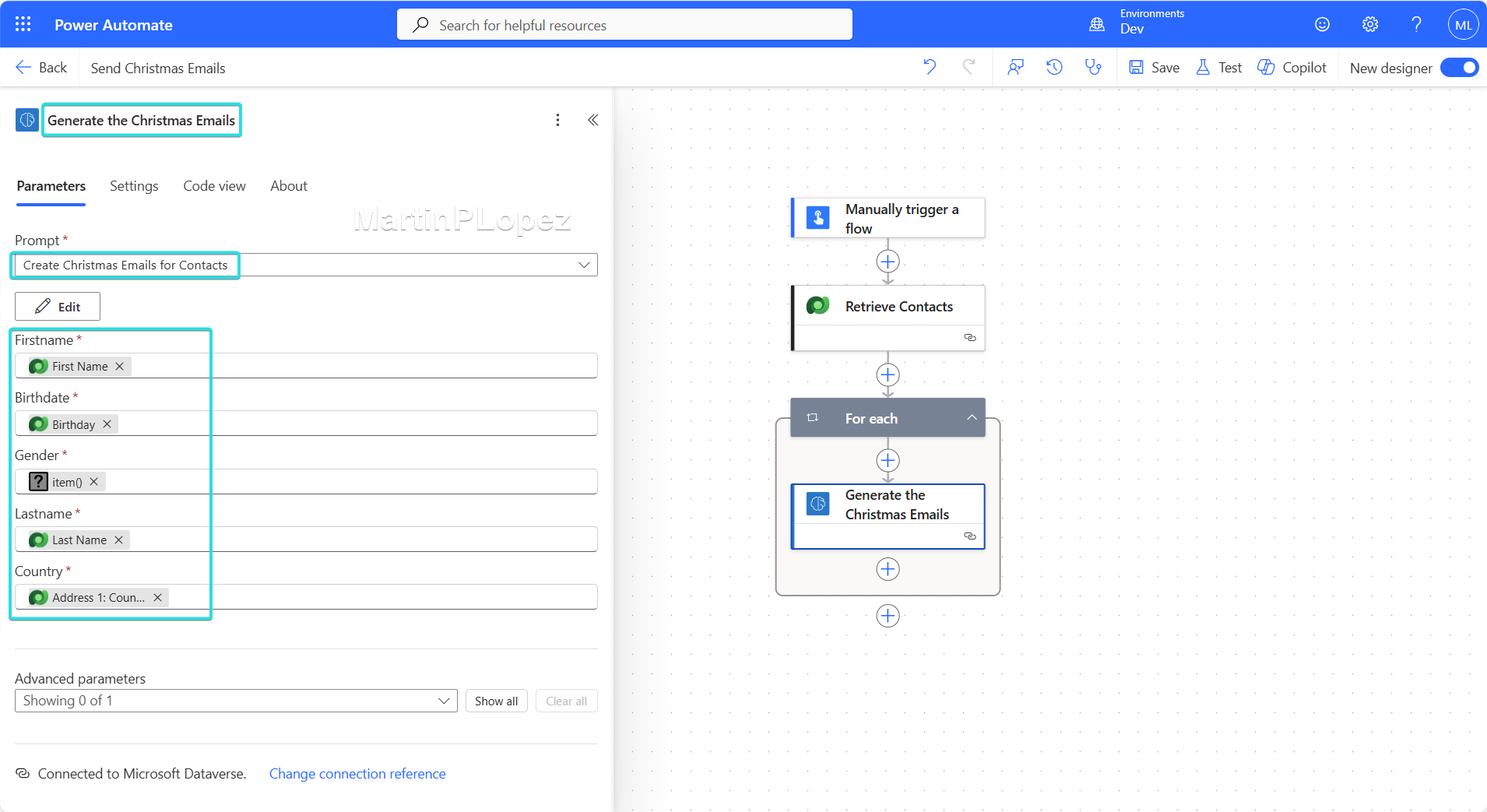
Power Automate will automatically wrap the prompt and email actions in an Apply to each loop over the returned contacts.
Step 3: Send the Email
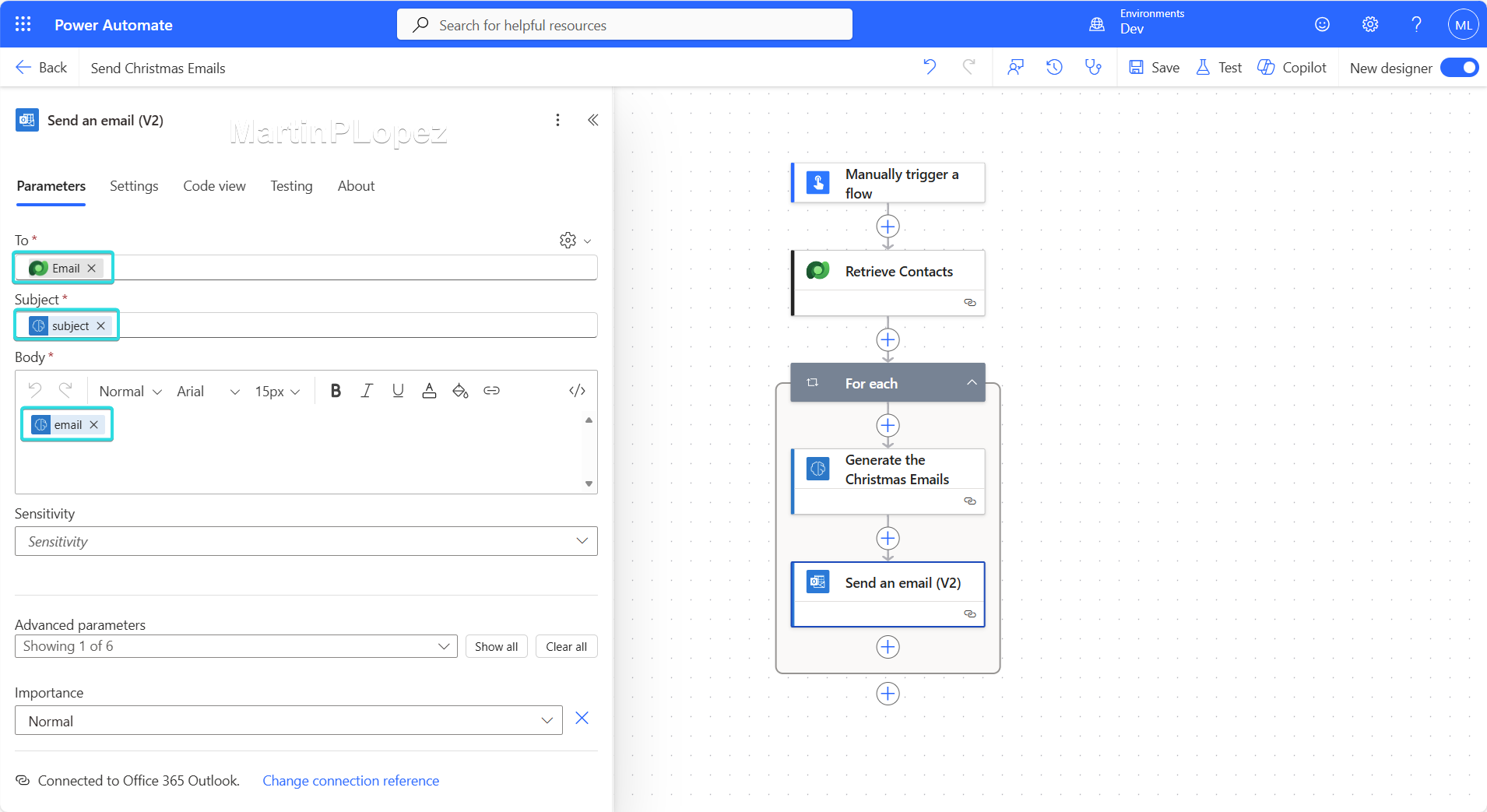
Now add the Outlook action to send the emails. Map the prompt output (subject and email) to the email subject and body, and use the contact’s email address from Dataverse as the recipient. The flow should be ready!
Conclusion
I really like this solution, it’s simple, easy to implement and gives many extension possibilities:
- Send everything dynamically uploading an Excel of contacts to a SharePoint site
- Connect and expand with Dynamics Customer Insights Journeys
- Adapt it to be more personal in your marketing strategy, for example by sending Event follow-ups, VIP customer outreach or targeted campaigns
This opens up a lot of possibilities and creates a super-powered version of Power Automate. I’m excited about what’s coming in 2026…😊
How about you? You think this combination has other possibilities, I’d love to read them! 😉 email me or tag me on LinkedIn!