From Semicolons to Structured Lists: Better Double Opt-In Emails in Customer Insights - Journeys
Learn how to customize double opt-in emails in Customer Insights - Journeys using a synchronous Dataverse plugin, without relying on Power Automate delays. Includes implementation details, deployment guidance, and performance tests.

A client recently asked me to improve their double opt-in confirmation email. It showed all the topics from the form as one line of text separated by semicolons. It was difficult to read, so they wanted it to be in a structured list.
I found the article by Amy Holden, which builds on an earlier solution by Pauline Kolde.
I liked the approach, but I wanted to avoid relying on an asynchronous Power Automate flow and adding a wait step to the journey.
So I decided to try something different: a synchronous Dataverse plugin that prepares the consent information directly when the Field Submission records are saved.
NOTE
TL;DR:
Customer Insights - Journeys can include selected consent topics in double opt-in emails, but the default presentation isn’t particularly readable.
Inspired by solutions from Amy Holden and Pauline Kolde, I built a synchronous Dataverse plugin that extracts consent information from Field Submission records and stores it in plain columns for email personalization.
Unlike an asynchronous Power Automate flow, the plugin processes each record within its Dataverse transaction, avoiding an additional flow execution and update. I also tested the solution with batches of up to 1,000 form submissions, with the expected topics appearing in every tested email.
The plugin and solution files are available on GitHub.
Why does this problem arise?
Customer Insights - Journeys provides a built-in double opt-in process. When enabled, Microsoft automatically creates a confirmation email and a journey that sends it after a customer submits an eligible marketing form.
The confirmation email can include the purposes and topics the customer selected, such as newsletters, events, or product updates.
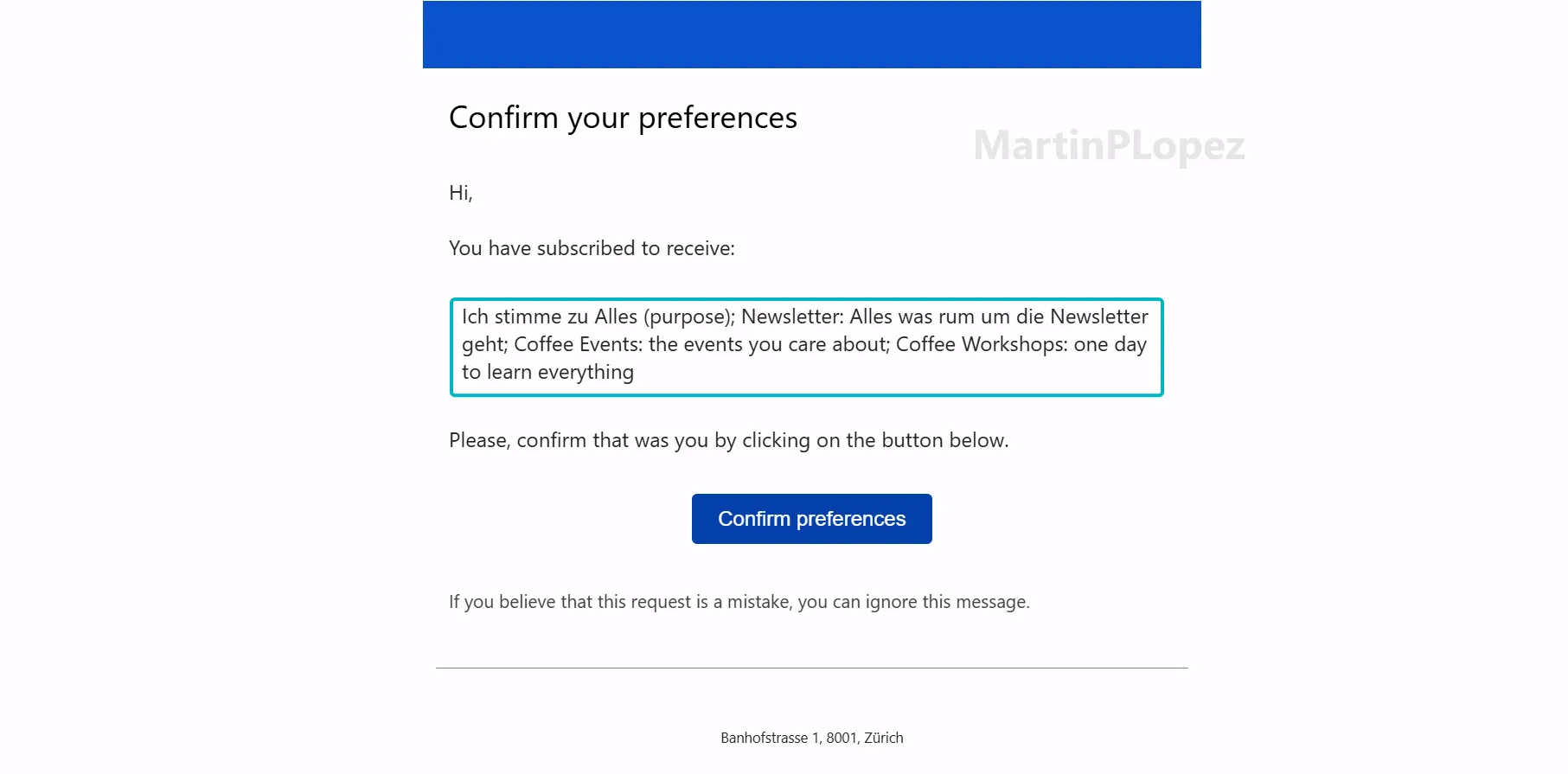
The problem? By default, these selections are displayed as a single line of text separated by semicolons. Although the information is there, it isn’t particularly easy for customers to read.
Here’s an example:
What can we do to make it easier for our customers?
To make it easier for our customers, we can implement the logic described in the article by Amy Holden, in which she creates new columns on the ‘Field Submission’ table. This solution will allow us to set the fields that we want to select in the right order and show exactly the title of the topic that the customer agreed on in a very nice way.
To implement this logic of getting only the fields of consent, she also built a Power Automate flow, which requires a lot of steps to be able to get a clean state. It is also more difficult to monitor, in my opinion.
But the real problem comes when we have to wait until the Power Automate flow runs before sending the email, because otherwise the fields could be sending an email with the previous fields not filled out. This means that, as the Power Automate flow is an async process, we cannot trigger the email knowing that the flow has completed for sure.
The only way to get around this limitation is using a sync process option in Dataverse: either via a custom workflow action or a plugin in code. Luckily, the logic for this in Power Automate is quite easy to do in a plugin, so I will be taking this approach.
But let’s take a look at the different characteristics of each solution:
| Plugin | Power Automate flow | |
|---|---|---|
| Timing | Runs synchronously, in the same transaction that saves the row, so the values exist as soon as the row is committed | Runs asynchronously, seconds to minutes later, so the article needs a 1-minute journey wait |
| Writes | Changes the row before it’s saved, so no extra update | One extra update call per consent row |
| Moving parts | Two plain columns and one assembly | Flow, connection references, a connection owner, and formula columns plus lookups (formula columns can’t parse JSON) |
| Failure behaviour | Chosen in code: log the error and carry on | Failed runs show up only if someone checks run history |
| Licensing and limits | Runs on the platform, with no flow runs or API request limits used | Each submission uses flow runs and API requests |
| Deployment | One solution, deployed by script to any environment with any prefix | Connections have to be re-bound in each environment |
| Trade-off | Needs C#, a strong-name key and plugin registration, which makes it harder for makers to change | Anyone can open and edit it with low-code tools |
Implementing the Plugin
The plugin runs synchronously in the PreOperation stage, allowing it to populate the additional columns before each Field Submission record is saved.
This eliminates the need for a separate Power Automate flow to process the consent information. However, I discovered during testing that Customer Insights - Journeys sometimes populates consent values through subsequent updates rather than during the initial creation.
For that reason, the plugin handles both Create and Update operations. This ensures the additional columns are populated whenever the relevant consent values are written.
But how did we implement this logic? Let’s take a look.
1. How the plugin works
The problem. When someone submits a marketing form, Journeys stores each consent checkbox as a Field Submission row (msdynmkt_marketingfieldsubmission). The field value is a JSON blob holding the topic ID, the opt-in state and the checkbox label. The email designer can’t read JSON, so it can’t turn those rows into a readable list.
What the plugin does about it. It runs inside Dataverse whenever a Field Submission row is created or updated. For each row it:
- Skips anything that isn’t a consent field (consentsubmissionvalues).
- Reads the JSON and skips purpose consents such as general commercial consent. Only topics (newsletters) count.
- Takes the checkbox label the visitor actually saw and cuts it at the first :. For example, “Coffee Courses: last offers on our courses of…” becomes “Coffee Courses”.
- Writes two plain columns on the same row: Consent Name (text) and Opted In (yes/no).
2. Understanding and customizing the plugin
I uploaded the plugin to my GitHub repo. The repo contains the core of the plugin and 2 built solutions (with the fields), so one can directly import this solution to their system and have it working.
But if you want to build it yourself, here are the 5 functions that make the difference in the plugin:
1. Read from Target, fall back to the pre-image
The plugin is registered on both Create and Update. That matters because, in testing, Journeys created the Field Submission rows first and filled in most consent values 1–2 seconds later with an update. A Create-only plugin listed just one of four ticked topics.
On an Update, Target only contains the columns that changed. A small helper therefore checks Target first and then falls back to the pre-image registered as pre:
private static string GetString(Entity target, Entity preImage, string attribute)
{
    if (target.Contains(attribute))
    {
        return target.GetAttributeValue<string>(attribute);
    }

    return preImage?.GetAttributeValue<string>(attribute);
}
2. Use the label the visitor saw
Topic names in Dataverse are often short internal labels like “Newsletter” or “Coffee Events”. The checkbox label on the form is what the visitor actually read, so the plugin uses that. It cuts the label at the first colon and trims it to the column length:
public static string ToConsentName(string labelText)
{
    if (string.IsNullOrWhiteSpace(labelText))
    {
        return null;
    }

    var name = labelText;
    var colon = name.IndexOf(':');
    if (colon > 0)
    {
        name = name.Substring(0, colon);
    }

    name = name.Trim();
    if (name.Length > MaxNameLength)
    {
        name = name.Substring(0, MaxNameLength);
    }

    return name.Length == 0 ? null : name;
}
“Coffee Courses: last offers on our courses of espresso and latte art” becomes Coffee Courses. One side effect: the bullets follow the form’s language, so a German form produces German bullets.
3. Parse the JSON, skip purposes
The parsing lives in a static ConsentParser class with no Dataverse dependency, so it can be unit tested on its own. It uses DataContractJsonSerializer, which is part of .NET Framework and works in the plugin sandbox without extra assemblies:
[DataContract]
private sealed class ConsentJson
{
    [DataMember(Name = "msdynmkt_topicid")] public string TopicId { get; set; }
    [DataMember(Name = "msdynmkt_value")] public string Value { get; set; }
    [DataMember(Name = "labelText")] public string LabelText { get; set; }
}
public static ConsentInfo Parse(string fieldValue)
{
if (string.IsNullOrWhiteSpace(fieldValue))
{
return null;
}
ConsentJson json;
var serializer = new DataContractJsonSerializer(typeof(ConsentJson));
using (var stream = new MemoryStream(Encoding.UTF8.GetBytes(fieldValue)))
{
json = (ConsentJson)serializer.ReadObject(stream);
}
if (json == null || string.IsNullOrWhiteSpace(json.TopicId))
{
return null;
}
return new ConsentInfo
{
ConsentName = ToConsentName(json.LabelText),
OptedIn = string.Equals(json.Value, "Opted In", StringComparison.OrdinalIgnoreCase)
};
}Rows without a topic ID are purpose consents, such as general commercial communications. The parser returns null for them, they get no Consent Name, and the email filter leaves them out. The list only shows the newsletters and topics the visitor chose.
4. Write the values without an extra update
Because the step runs in PreOperation (stage 20), the plugin can set the values on Target itself. They are saved with the row in the same transaction, with no second Update call:
target[_consentNameColumn] = info.ConsentName;
target[_optedInColumn] = info.OptedIn;
localPluginContext.Trace($"Set {_consentNameColumn}='{info.ConsentName}', {_optedInColumn}={info.OptedIn}.");
5. Handle processing errors gracefully
Because the plugin executes synchronously, an unhandled exception could prevent the Field Submission operation from completing.
To reduce that risk, the parsing logic is wrapped in a try/catch block that records processing errors in the plugin trace log rather than intentionally throwing an exception.
catch (Exception ex)
{
    localPluginContext.Trace($"DoiConsent skipped (not thrown): {ex}");
}
This approach helps prevent ordinary parsing errors from interrupting the submission process. However, it doesn’t guarantee that every platform or transaction-level failure can be safely recovered from.
Registration Information
The plugin should trigger on create and update, here the information on how to best register it:
| Setting | Value |
|---|---|
| Table | msdynmkt_marketingfieldsubmission |
| Messages | Create and Update |
| Stage | PreOperation (20), synchronous |
| Update filtering attributes | msdynmkt_fieldvalue, msdynmkt_name |
| Pre-image (Update) | Alias pre, columns msdynmkt_name, msdynmkt_fieldvalue |
| Unsecure configuration | Publisher prefix, for example mpl |
Using the New Columns in Your Double Opt-In Email
Now that our plugin is registered and populating the Consent Name and Opted In columns, we can use this information in our double opt-in email.
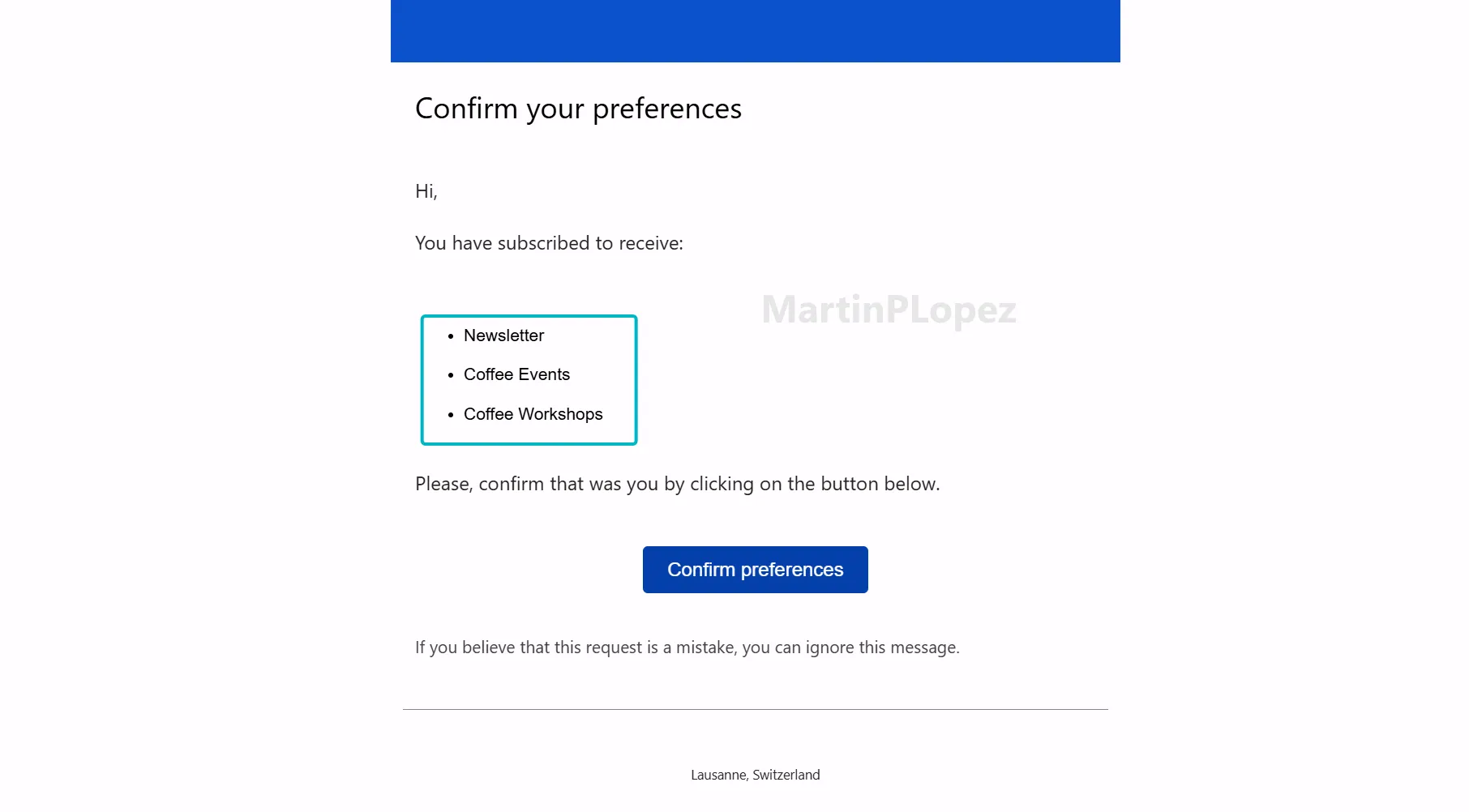
The idea is simple: instead of displaying the original consent values separated by semicolons, we use a personalized list of Field Submission records, filtering for the topics where Opted In is set to Yes and displaying the Consent Name.
The result is a much cleaner list showing only the topics the customer selected.
For the email configuration itself, I’m following the approach explained by Amy Holden in her article. She covers how to configure the personalization in Customer Insights - Journeys, so I won’t repeat all those steps here.
The difference in my implementation is how the columns get populated: instead of using Power Automate and adding a wait step to the journey, the synchronous plugin prepares the values directly in Dataverse.
Testing the Plugin Under Load
One concern when implementing a synchronous plugin is its potential impact on performance. Since the plugin executes within the Dataverse transaction, I wanted to see how the overall process behaved under higher submission volumes.
I tested the solution with four batches, ranging from 10 to 1,000 form submissions, measuring the time between submitting the form and receiving the double opt-in email.
The results were encouraging: all 1,610 tested emails contained the expected consent topics. Even in the largest batch, the median delivery time was 70 seconds.
These results don’t isolate the execution time of the plugin itself, but they provide a useful indication of how the complete solution behaved under the tested workloads.
Median Slowest email
| Step | Submissions | Emails with correct topics | Time from submit to inbox (median / slowest) |
|---|---|---|---|
| B1 | 10 | 10/10 | 29 s / 59 s |
| B2 | 100 | 100/100 | 26 s / 41 s |
| B3 | 500 in 2 min | 500/500 | 34 s / 2.7 min |
| B4 | 1,000 in 5 min | 1,000/1,000 | 70 s / 6.6 min |
Design considerations
Every time we solve one problem, a new one arises. These are the things to consider when applying this solution:
- Designed to minimize the risk of blocking a sign-up. Processing errors are logged rather than intentionally propagated. However, synchronous plugins still run within the Dataverse transaction, so proper testing and monitoring remain important.
- The bullets use the form’s wording, not Dataverse’s. The names on the form will be used, which has another perk: a German form produces German bullets. So multilingual double opt-in can be done if you modify the journey and add emails per language as well.
Conclusion
Sometimes, a small improvement to the customer experience requires a little more work behind the scenes.
In this case, the requirement was simple: make double opt-in emails easier to read by displaying the selected consent topics as a structured list.
The existing Power Automate approach is a great starting point, especially if you prefer low-code solutions. But I wanted to explore whether a synchronous Dataverse plugin could simplify the processing and reduce the dependency on journey wait times.
The result is a lightweight plugin that prepares the consent information as part of each Field Submission operation. My tests were encouraging, with the expected topics appearing in all tested emails, even under higher submission volumes.
Of course, a plugin isn’t always the right choice. It requires development skills, proper deployment, and ongoing maintenance. For simpler scenarios, Power Automate may still be the better option.
If you want to try this approach, I’ve shared the code and solution files on GitHub.
And if you’ve implemented double opt-in personalization differently, I’d love to hear how you approached it!
One useful CI-J idea, every other Friday.
Sign up for my newsletter and be the first to know about new blog articles, Customer Insights discoveries, and more.