How to Configure Reply-To for No-Reply Senders in Customer Insights Journeys
Learn how to configure Reply-to addresses for no-reply senders in Dynamics 365 Customer Insights Journeys without building custom journeys, triggers, or Power Automate flows.
This week I was taking a look behind the trenches and checked out Odoo Marketing Automation capabilities, and I noticed that they can configure an automatic reply for people who respond to the sender mailbox. Which made me think a lot of things:
- Why were they creating this action after every email sent?
- Can’t they just trigger this in a different workflow?
- What is the benefit of replying every time if the customer still does not get any real help? 😅
But most importantly, it made me question How is this handled in Customer Insights Journeys?
This is the journey I took to discover a simple but very useful feature in Customer Insights Journeys. 😎
NOTE
TL;DR:
In Customer Insights Journeys, you do not need to build a journey, custom trigger, or Power Automate flow just to handle replies to a no-reply sender address. You can configure a Reply-to address directly in the sender settings of your branding profile.
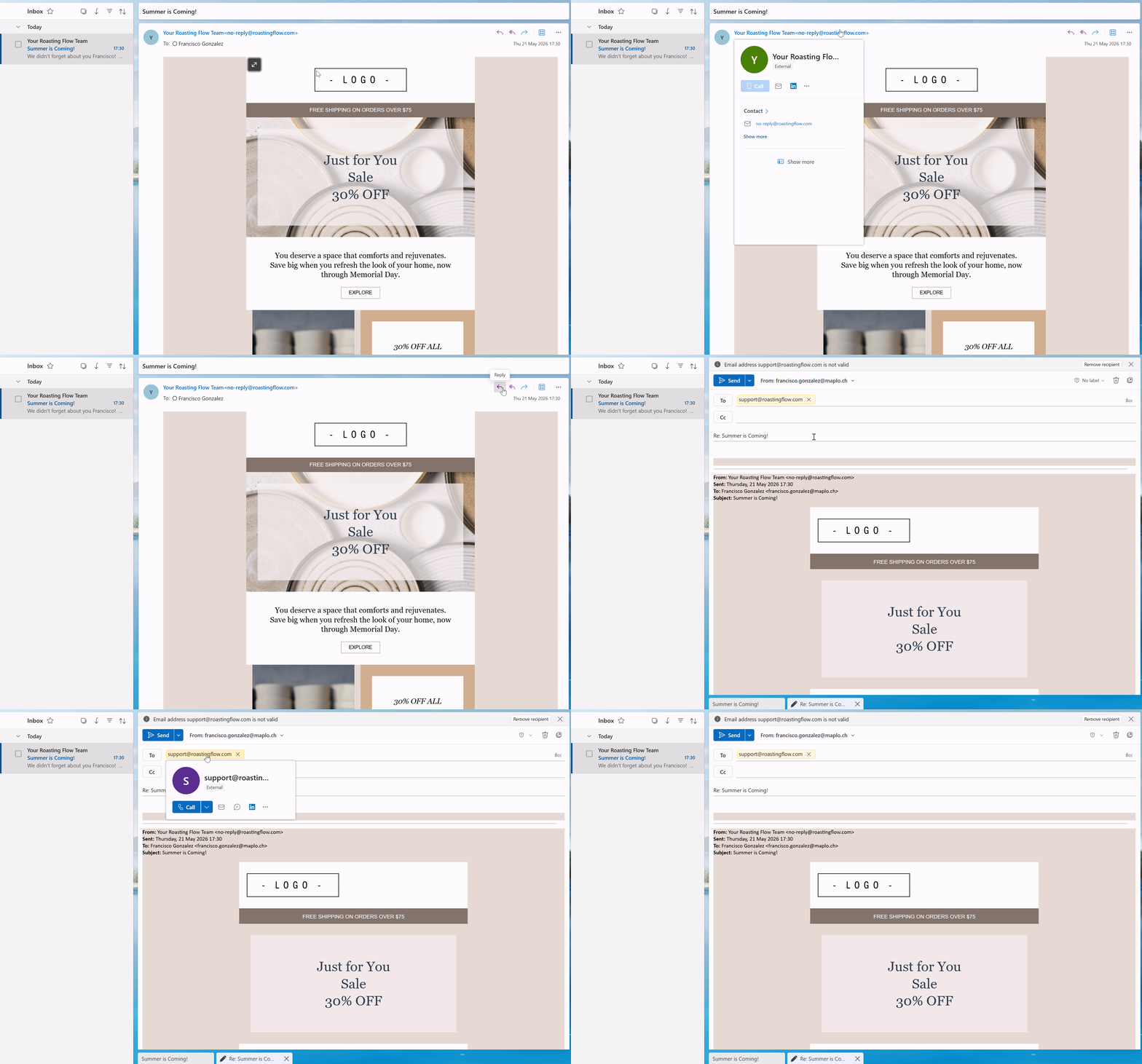
When recipients hit “Reply” their email client uses the Reply-to header and sends the response to the configured mailbox instead of the no-reply address.
My Initial Ideas
In my process of how to solve this in Dynamics Customer Insights I had 2 ideas:
The Journey Idea
My first thought on how to solve this was: “There must be a trigger for this and I can create a journey to handle it for sure”
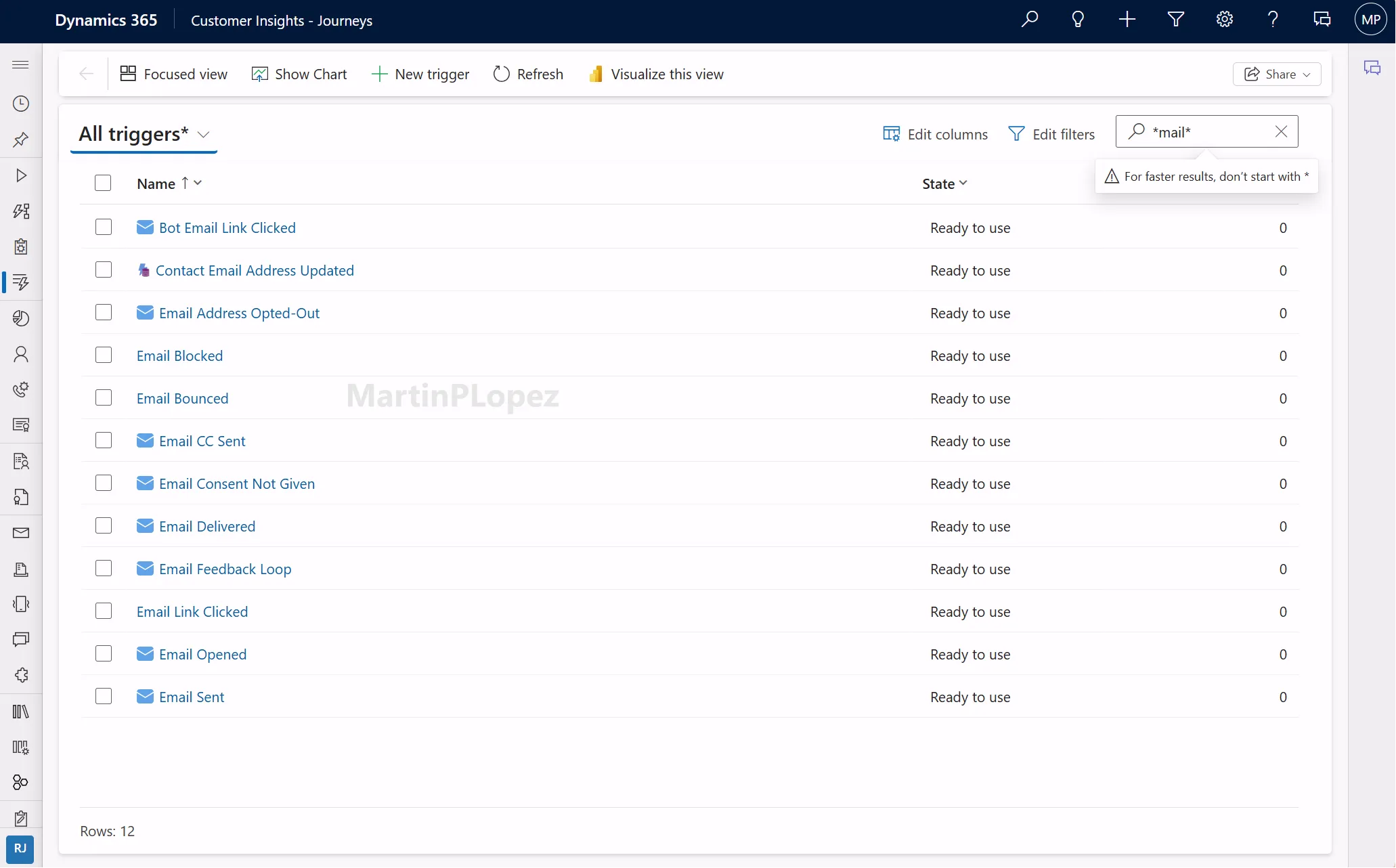
“Well, without an out-of-the-box trigger, I cannot create a journey for this.”
So that led me to the next idea.
The Custom Trigger with Power Automate
So I decided to try creating a Power Automate flow triggered when an email is received in the no-reply mailbox.
The idea was to send that event to a custom trigger in Customer Insights Journeys and then use a journey to send the customer an email, similar to what I saw in Odoo but centralized inside the Microsoft ecosystem.
This could also open more interesting scenarios, such as flagging the contact as someone who interacted with the email but had a problem, identifying emails that are not performing well, or even creating a case directly in Dynamics 365 Customer Service.
PROBLEM: I don’t even have a no-reply mailbox, it’s clearly a “no-reply” email address 😅
That is when I decided to look at the sender configuration in Customer Insights Journeys emails.
How Microsoft Learn Explains It
I found the Microsoft Learn article article where the sender configuration is explained.
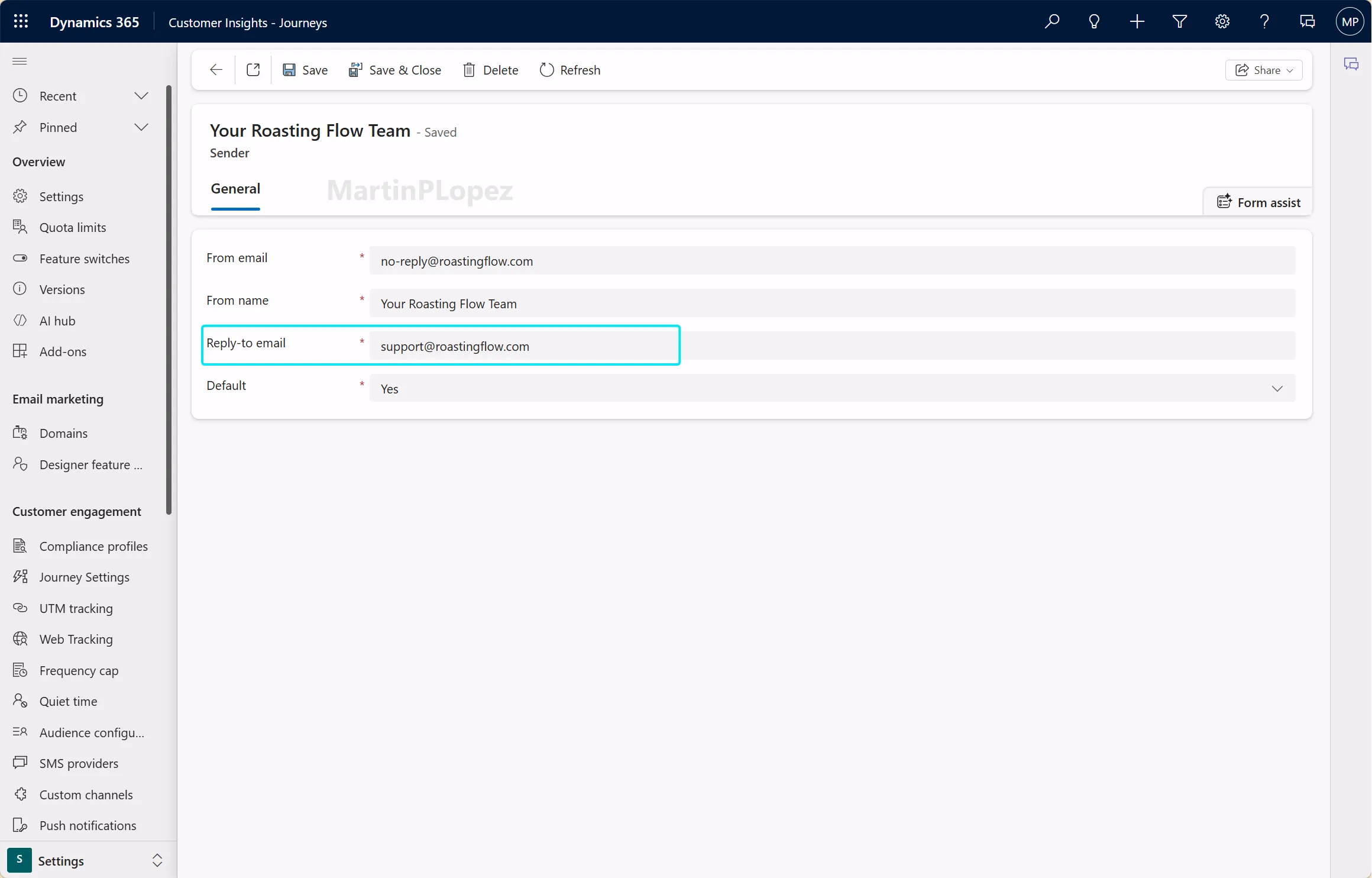
This configuration is currently available in the branding profile. Under the sender tab, you can select the different senders for your brand. When you open one of them, you can see the sender configuration, including the Reply-to address:
My Test
So I decided to make a test email with this default sender to try it out…
Behind the scenes
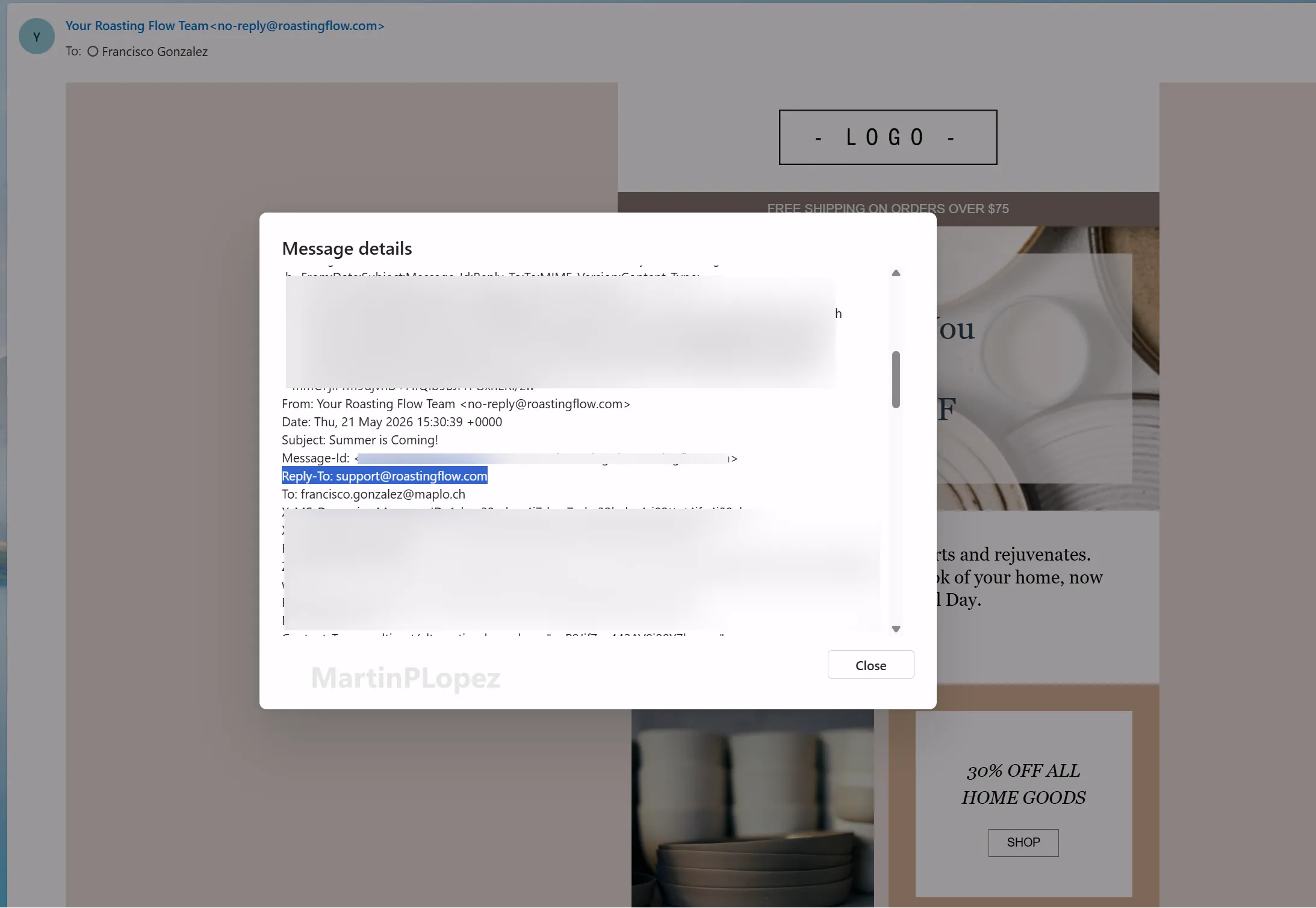
This is a protocol that is documented as the Internet Message Format. So it universally works with all modern email clients (Outlook, Gmail, Apple Mail, etc.).
When you inspect the details of the message, you can see this as one of the email headers:
Conclusion
Today I learned two things:
- You always learn something when you stay curious.
- Some of the best features in a tool are so well integrated that you almost do not notice them.
In this case, Customer Insights Journeys already had the answer: configure the Reply-to address in the sender settings and let the email standard do the rest.
One useful CI-J idea, every other Friday.
Sign up for my newsletter and be the first to know about new blog articles, Customer Insights discoveries, and more.