“Can I Bring Someone?” - Solving Plus-One Waitlisting in Customer Insights Journeys (Part 2)
Waitlists can be a powerful tool, but they can become difficult to manage, especially when manual processes are involved.
Handling waitlisted registrations can be straightforward, but once we involve companions, it can quickly become tricky.
Because what can we do with 2 registrations? how do we communicate the client that we have only place for one? Do we allow them to cancel one of the registrations?
In my experience, we should give as much control to attendees as possible. Luckily, this is achievable by setting up journeys and informing them via email about the status of their registration.
Handling waitlists with companions in Customer Insights Journeys can quickly become complex.
This solution uses:
- 2 journeys (attendee + companion)
- 2 emails (waitlist start + waitlist end)
- 1 trigger (registration status change)
Together, they allow you to:
- Automatically notify users when they enter the waitlist
- Let attendees cancel their registration directly from email
- React when spots become available
- Clearly communicate when the waitlist closes
The result: a fully automated, user-friendly waitlist experience.
Why This Matters
Handling waitlists becomes significantly more complex when companions are involved.
Without automation, you risk:
- Confusing communication (who got in?)
- Manual updates and errors
- Poor attendee experience
This approach ensures every scenario is handled automatically and clearly communicated.
Solution Overview
In my experience, the best approach is:
- One Email to handle an attendee or companion entering the waitlist
- One Email to handle if the Event Registration has closed and we couldn’t secure a place for the attendee and/or the companion
- One new Trigger to trigger on an Event Registration status change (So people can exit the waitlist journey)
- Two Journeys (one for the attendee and one for the companion) to handle the emails
This approach works well if:
- you already have a journey handling your event registrations on create
- you have normally one event at a time (If there are more, we can always create event specific journeys)
- you already struggle with handling standard waitlisting scenarios
The process
General Assumptions
This is Part 2 of the series, I assume you already know how to handle plus one registrations and automatically place them on the waitlist, but it is especially important that Companion exists as a value in the Primary role Optionset inside the event registration.
I recommend to take a look at Part 1.
1. “Waitlist - Start” Email
Create an email and use the following placeholders:
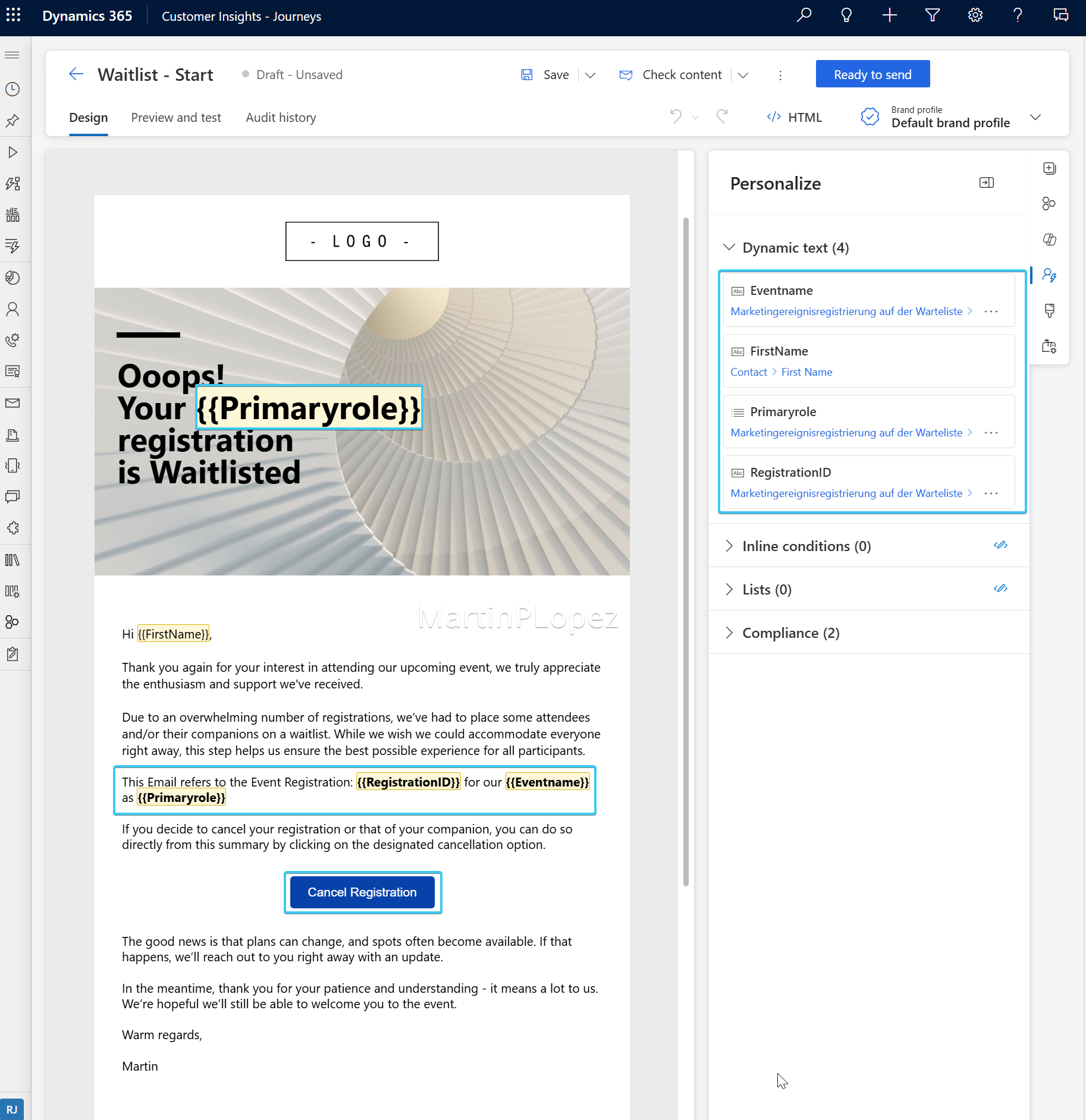
The relationships are:
- Under
trigger --> Marketing Event Registration in the Waitlist --> Reference for Marketing Event Registration- Primary Role
- RegistrationID
- For the EventName
trigger --> Marketing Event Registration in the Waitlist --> Reference for Marketing Event --> Event Name - FirstName is the default
contact --> First Name
I like to distinguish the registration types in the title of the email, because if both registrations are waitlisted, the contact who signed up for the waitlist will receive 2 emails. One for the Attendee and one for the Companion.
This is the reason to provide the Registration ID, event name and primary role of the registration.
Adding a cancellation button also gives attendees more control over their registration, in case they want to free up their spot or they’re not interested in the event if they cannot go together.
So we add the button, it should be linked to a certain event, for which we can use our relationships from the trigger and event registration 😉
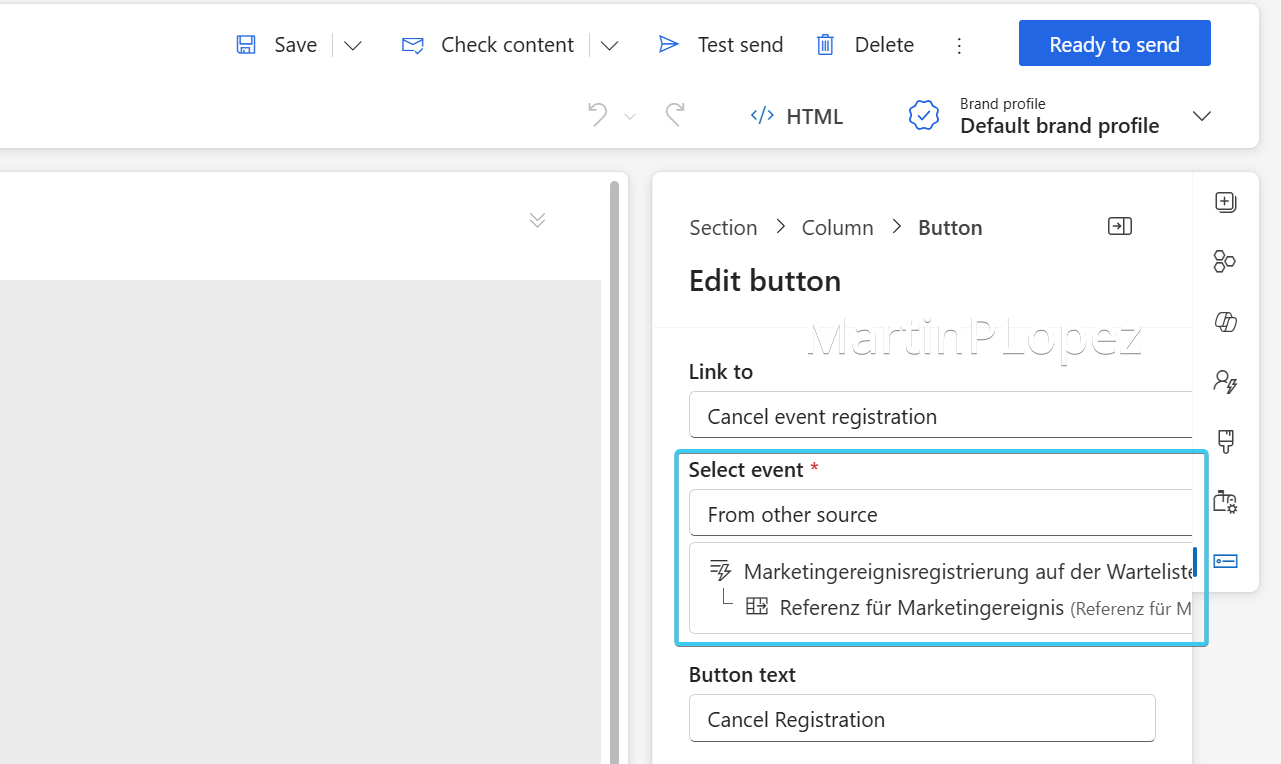
To reference the text in the email, you can use the following:
</p>Hi {{FirstName}},<br><br>Thank you again for your interest in attending our upcoming event, we truly appreciate the enthusiasm and support we've received.<br><br>Due to an overwhelming number of registrations, we’ve had to place some attendees and/or their companions on a waitlist. While we wish we could accommodate everyone right away, this step helps us ensure the best possible experience for all participants.<p><br></p><p>This Email refers to the Event Registration: <span style="font-weight: bold;">{{RegistrationID}}</span> for our <span style="font-weight: bold;">{{Eventname}}</span> as <span style="font-weight: bold;">{{Primaryrole}}</span><br></p><p><br></p>
<p>If you decide to cancel your registration or that of your companion, you can do so directly from this summary by clicking on the designated cancellation option.</p>
<p><br></p>
<div data-editorblocktype="Button" align="-webkit-center" style="margin-top: 10px; margin-bottom: 10px;" class="buttonWrapper" data-link-type="EventCancellation"><a class="buttonClass" href="{{event_cancellation_1}}&eventRegistrationId={{RegistrationID}}#_msdynmkt_donottrack=0,_msdynmkt_linkid=9293b116-acfa-43e1-925e-cd27885658b1" style="text-align: center; margin-right: auto; margin-left: auto; display: inline-block; text-decoration: none; width: fit-content; height: auto; max-width: 100%; line-height: normal; background-color: rgb(7, 66, 171); color: rgb(255, 255, 255); border-radius: 4px; padding: 10px 20px;mso-hide: none !important;" data-msdyn-tracking-id="b039e73e35e3a81775469549356" data-value-type="dynamic" data-placeholder-key="event_cancellation_1">
<span style="display: inline-block; min-width: 1px; font-family: Arial, Verdana, sans-serif;">Cancel Registration</span>
</a></div><p><br></p>
<p>The good news is that plans can change, and spots often become available. If that happens, we’ll reach out to you right away with an update.</p>
<p><br>In the meantime, thank you for your patience and understanding - it means a lot to us. We’re hopeful we’ll still be able to welcome you to the event.
</p>
<p><br></p>
<p>Warm regards,
</p>
<p><br></p>
<p>Martin</p>
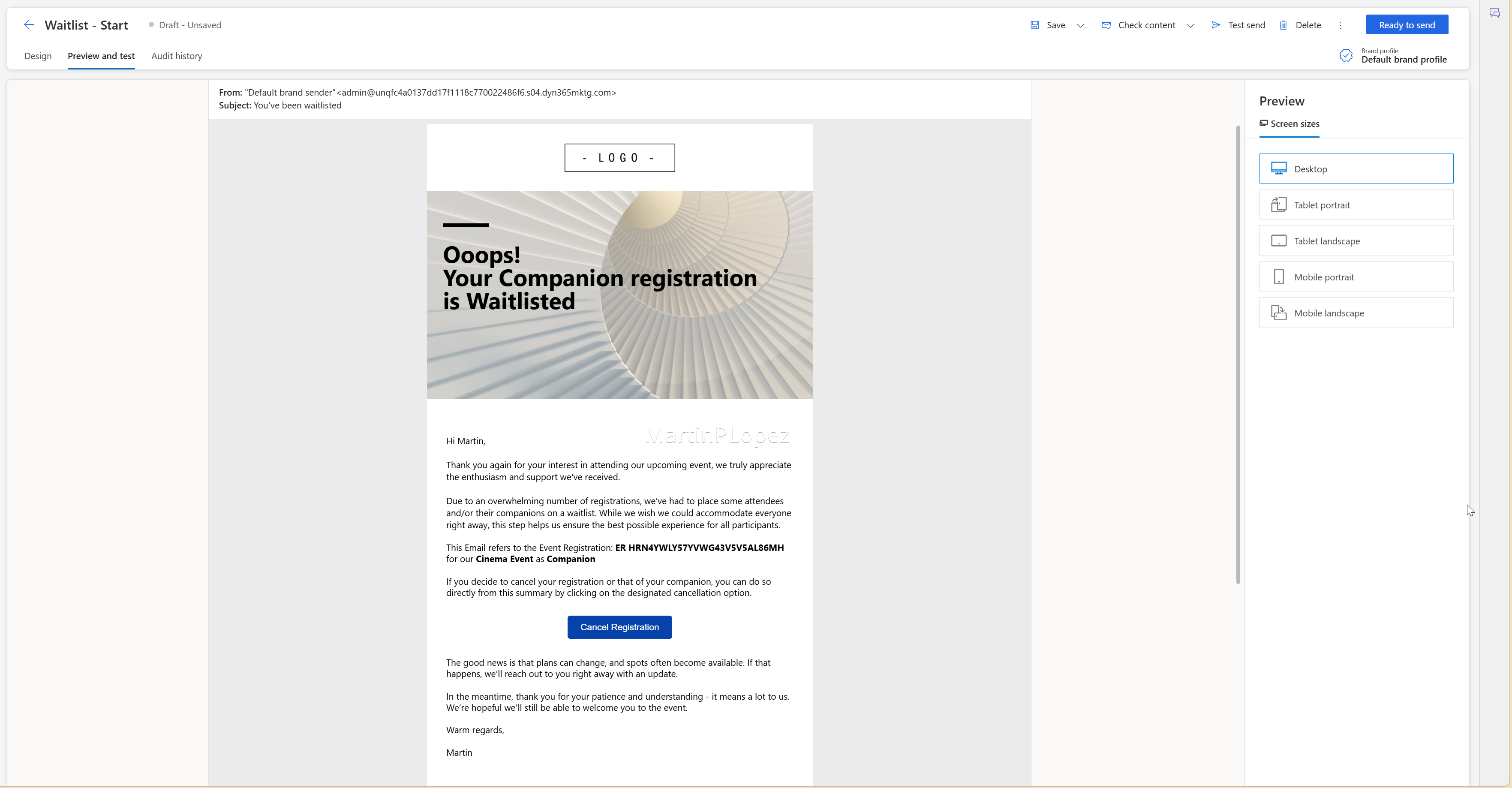
It should look like this:
2. “Waitlist - Finish” Email
Here we have to create an email that will be used to handle attendees and companions, but in different ways.
We’ll introduce an inline condition to personalize the message, we’ll filter the message depending if it’s an attendee and we say that we’re sorry they cannot attend or if they’re not, they are told that they can’t bring a companion:
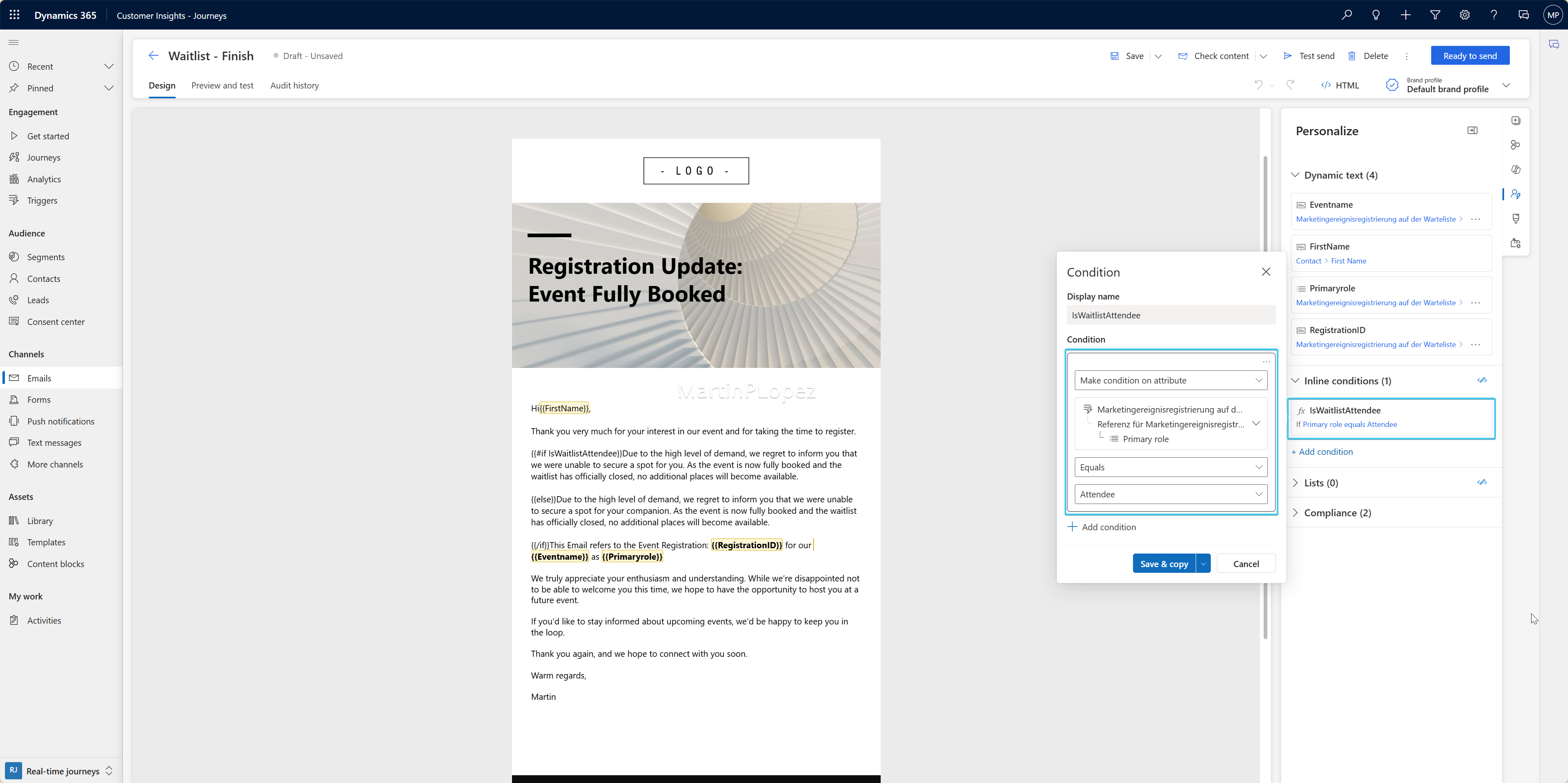
For this Email, we’ll be using the same relationships as the previous Email.
Here the HTML of the text;
<p>Hi {{FirstName}},<br><br>Thank you very much for your interest in our event and for taking the time to register.<br></p>
<p><br></p>
{{#if IsWaitlistAttendee}}Due to the high level of demand, we regret to inform you that we were unable to secure a spot for you.
As the event is now fully booked and the waitlist has officially closed, no additional places will become available.<br><br>
{{else}}Due to the high level of demand, we regret to inform you that we were unable to secure a spot for your companion.
As the event is now fully booked and the waitlist has officially closed, no additional places will become available.<br><br>
{{/if}}This Email refers to the Event Registration: <span style="font-weight: bold;">{{RegistrationID}}</span> for our <span style="font-weight: bold;">{{Eventname}} </span>as <span style="font-weight: bold;">{{Primaryrole}}</span><p><br></p><p>We truly appreciate your enthusiasm and understanding. While we’re disappointed not to be able to welcome you this time, we hope to have the opportunity to host you at a future event.<br><br>
If you’d like to stay informed about upcoming events, we’d be happy to keep you in the loop.
<br><br>Thank you again, and we hope to connect with you soon.<br><br>Warm regards,
</p><p> </p>
<p><br></p>
<p>Martin</p>
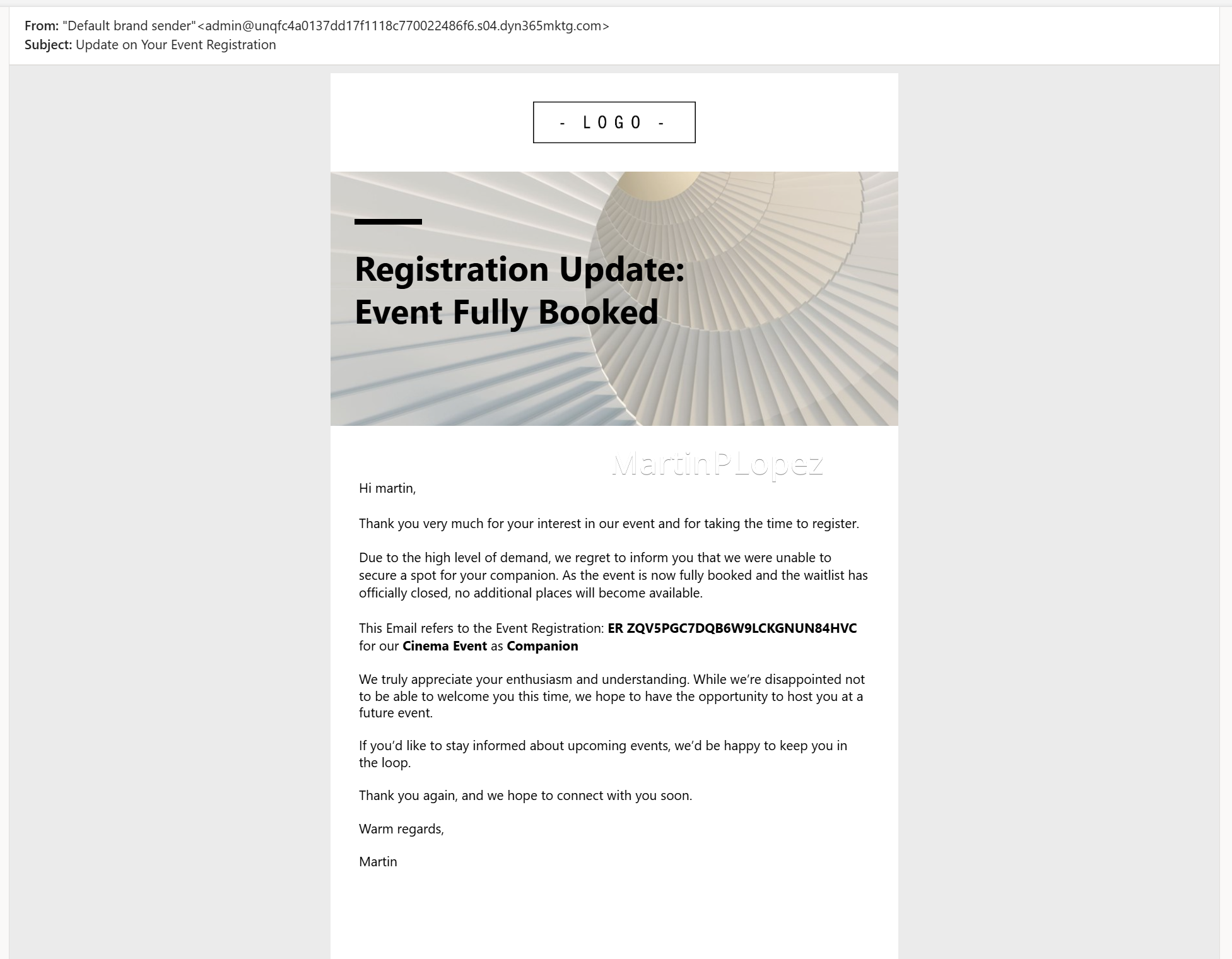
It should be kept simple, it should look like this:
3. “Event Registration Status Change” Trigger
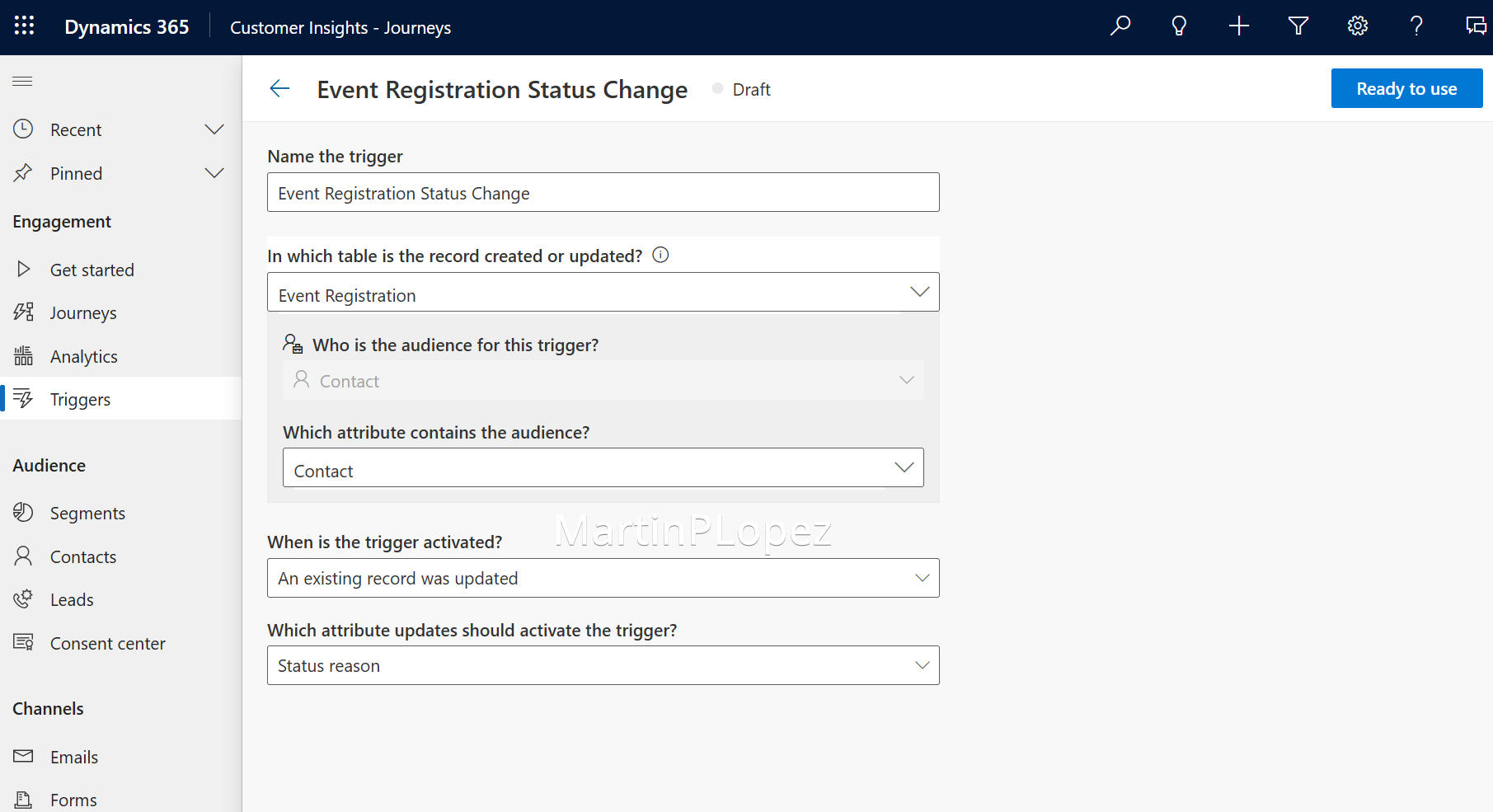
This trigger is designed to remove contacts from the journeys if their registrations get canceled or registered. To set it up:
- Name the trigger
Event Registration Status Change - What action will activate the trigger?
When a record related to a customer is created or updated - In which table is the record created or updated?
Event Registration - Who is the audience for this trigger?
Contact - Which attribute contains the audience?
Contact - When is the trigger activated?
An existing record was updated - Which attribute updates should activate the trigger?
Status reason
4. “Waitlist Attendees” Journey
Create a trigger Journey and choose the Marketing Event Registration Waitlisted Trigger and add the condition that the Primary role is Attendee and allow to repeat the journey After 1 Minutes:
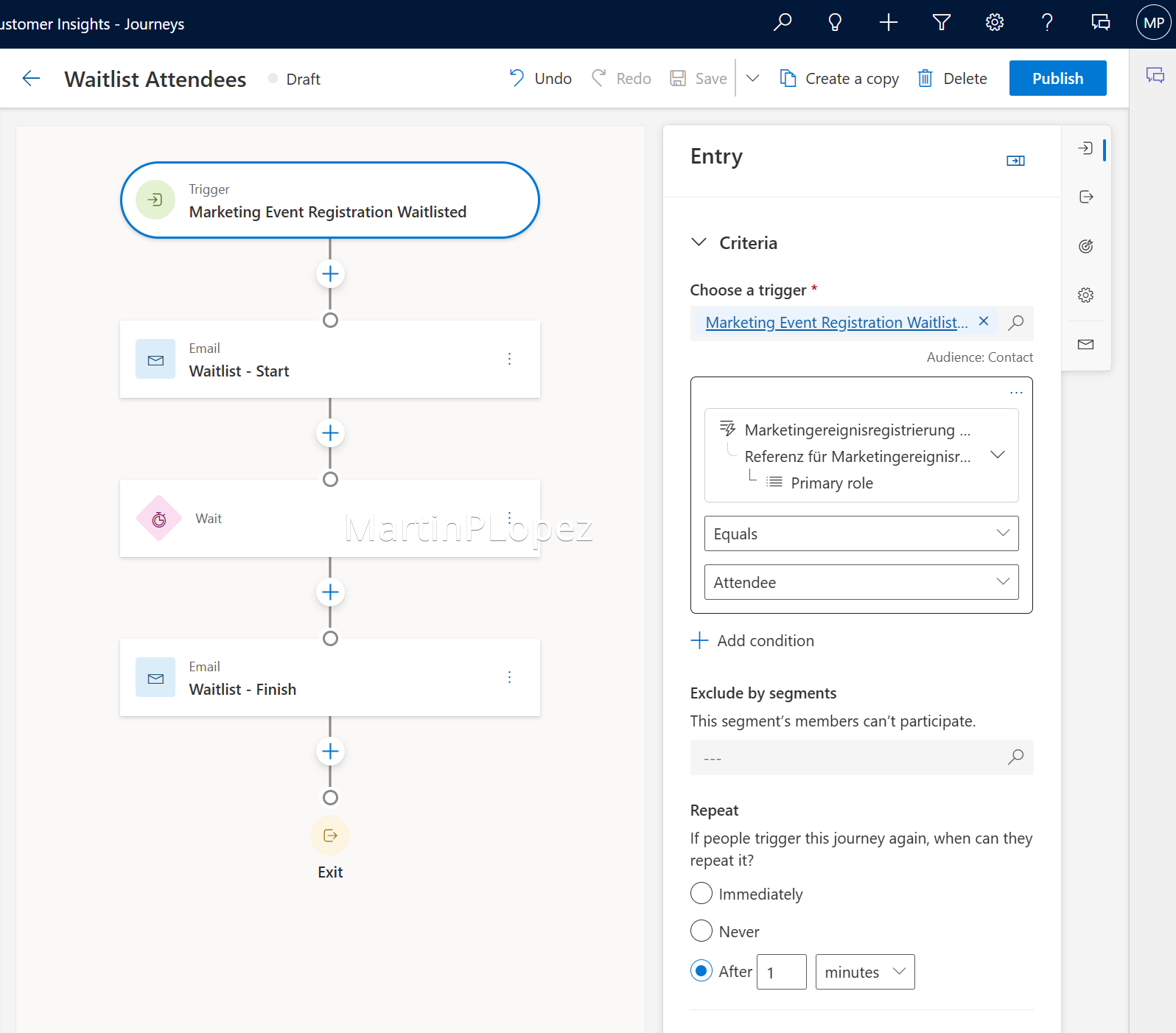
Add the Waitlist - Start Email that we created to the journey as the first action.
Then we add a wait condition and set it up to Until a specified by a trigger
As we have access to the event from the trigger, I set this up to the date you plan to close the waitlist, in this example 1 day before the start of the event.
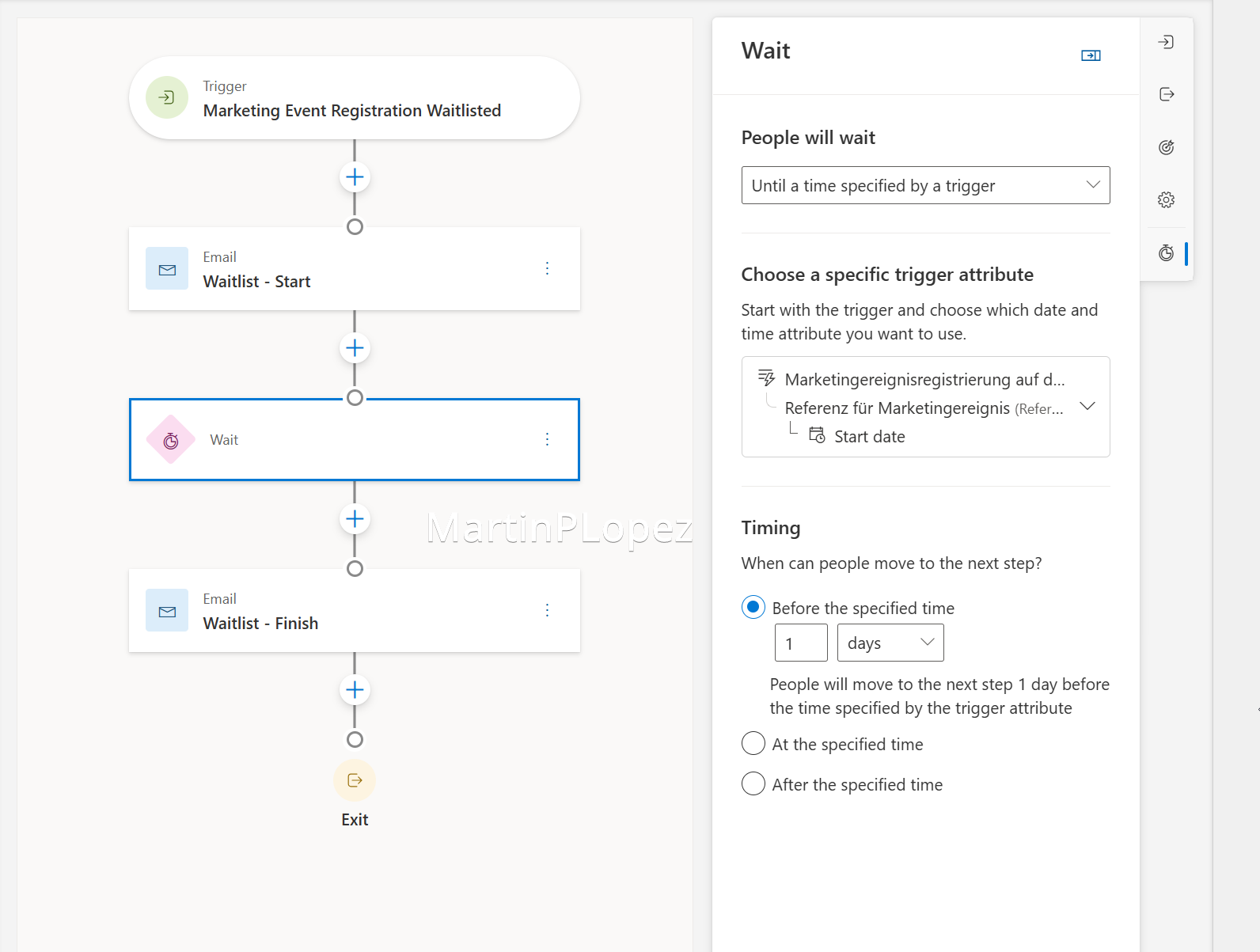
This will send the second email we created to the people that are in the waitlist at that point.
For those who entered the journey but got registered automatically if someone else unregisters, we should exit them from this journey, so we should configure the alternate exits, and that’s when our trigger comes to play.
We would select it as an alternate exit and we will add the following conditions:
- Status Reason does not equal
Waitlisted - Primary Role equals
Attendee
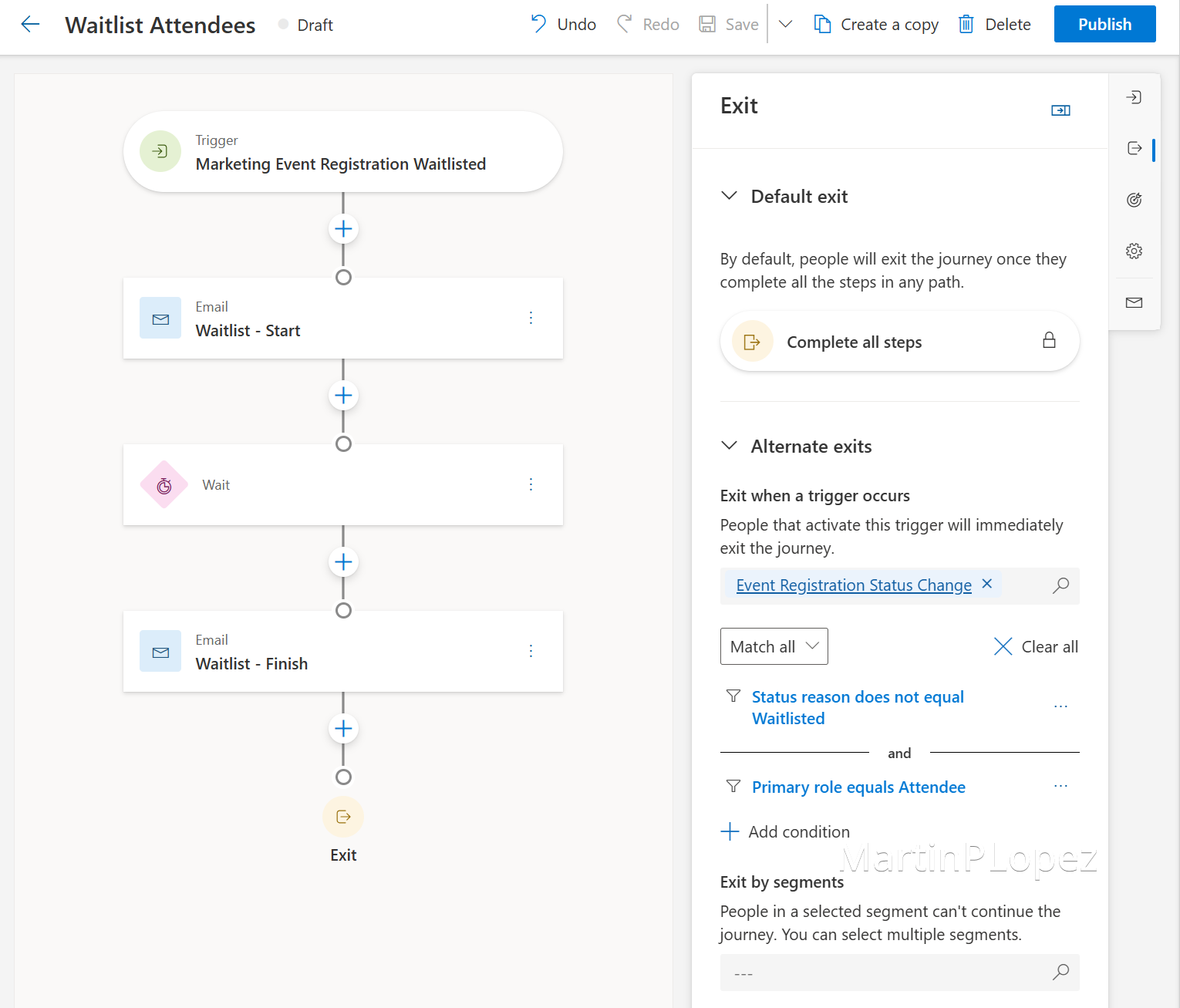
With this journey the waitlisted registrations for the people in the attendee role will be handled, additionally, we’ll add a journey for the companions.
5. “Waitlist Companions” Journey
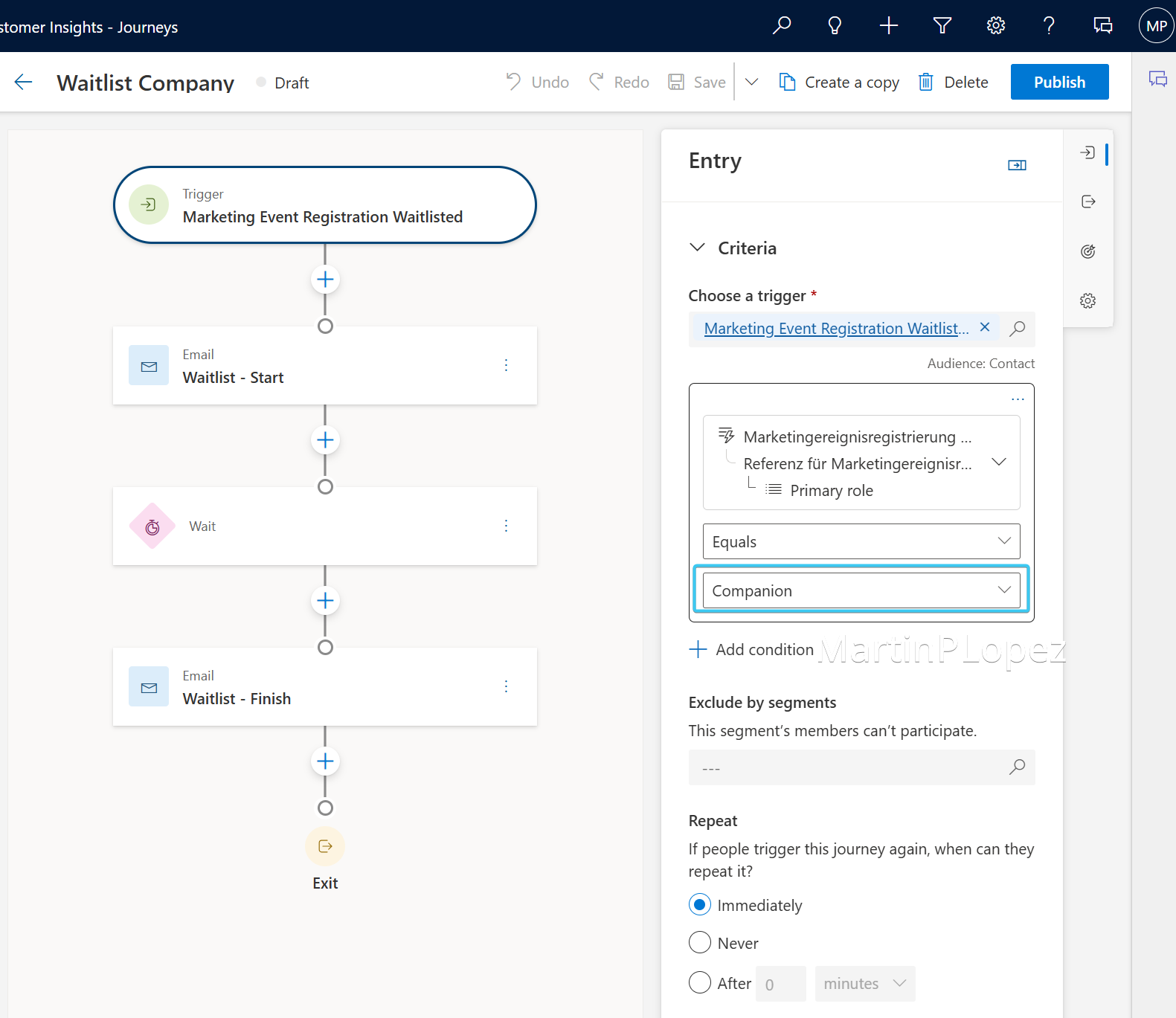
Save as the previous Journey and setup the start and the exit so that it is filtered for the companion instead of the attendee as a primary role:
Last Tips
This setup can cause issues if you have multiple events using these journeys for waitlisting and registration. To avoid this I recommend using these journeys as a template and create 2 Journeys filtered by event so they don’t overlap.
Conclusion
Handling waitlists is already challenging—but when companions are involved, the complexity increases quickly.
By separating attendees and companions into dedicated journeys, and combining them with:
- dynamic emails
- a status change trigger
- and clear communication logic
you can turn a messy manual process into a fully automated and user-friendly experience.
The key idea is simple:
Give control back to the attendee while keeping the system reactive.
This pattern is not limited to events—you can reuse it in:
- capacity-based campaigns
- VIP access scenarios
- or any process where availability changes over time
If you haven’t read Part 1 yet, I highly recommend starting there to understand how the waitlisting logic is initialized.
And if you try this approach in your projects, I’d love to hear how it worked for you 😉