Upgrade Your Customer Insights Journeys Events to Teams Webinar V2

For a while now, clients who run webinars in Customer Insights Journeys have been reaching out to me for help setting up Teams Webinar V2.
Their current Teams webinar option is being marked as “legacy”, which is basically like saying Beetlejuice for software products 😬
The timeline is also important: Microsoft is retiring Teams live events and the related Graph APIs effective June 30, 2026. For legacy Teams Webinar and Teams Meeting events, Microsoft honors already scheduled events through February 28, 2027. After that period, Teams Webinar V2 or Teams Meeting V2 should be used.
Most clients contact me when they try to save a new event as a Teams Webinar V2 and see a message like this:
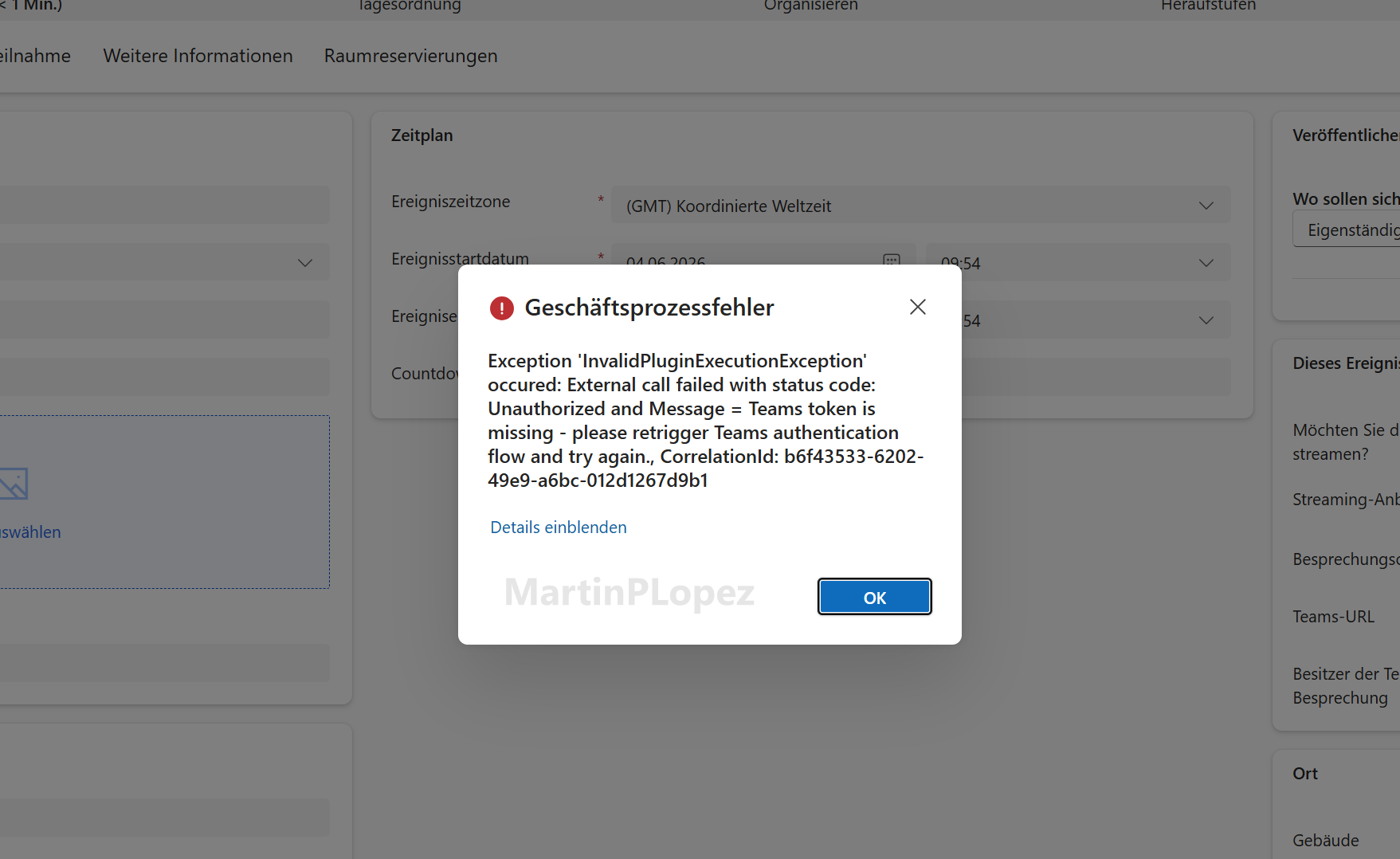
Luckily, Microsoft warns us in the documentation of the Teams V2 that before using it, you need to set up authentication for Teams webinars v2.
They also documented in this Microsoft Learn page, which is the foundation of this article, but in here I share my learnings implementing it, including a script-assisted approach for admins who prefer to automate part of the setup.
If you’re this person, you can send this article to your IT Administrator, as it can get a bit technical.
If you’re brave enough (and have the right permissions), you can also try it out yourself 😉
Teams Webinar V2 in Customer Insights Journeys requires an additional authentication setup before registrations and attendance tracking can work correctly.
The setup connects Customer Insights Journeys with Microsoft Teams through an Entra app registration, federated credentials, Microsoft Graph permissions, and a Teams Application Access Policy.
My recommendation: follow Microsoft’s documented setup first, but pay special attention to the federated credential subject, the required Graph permissions, and the PowerShell access policy.
You do not necessarily need one app registration per Customer Insights environment; in my implementation, I used one app registration with separate federated credentials for different environments.
Also, remember that attendance/check-in data depends on sending registrants the proper Join in Teams link from the Customer Insights email designer.
Why is this required?
Teams does not allow Customer Insights Journeys to create webinar registrations or download attendance reports using the standard integration alone.
That is why an additional authentication setup is required between our Customer Insights and Teams to send Teams registrations to specific attendees and keep track of the people who attended your webinar.
This allows 2 pretty cool features:
- Each registered person in Customer Insights can be seen from the Teams App
- When the Event ends, all the attendees will be checked in with their registrations in Customer Insights Journeys, so you’ll know exactly which people attended your webinar automatically!
I did some tests and it works very well:
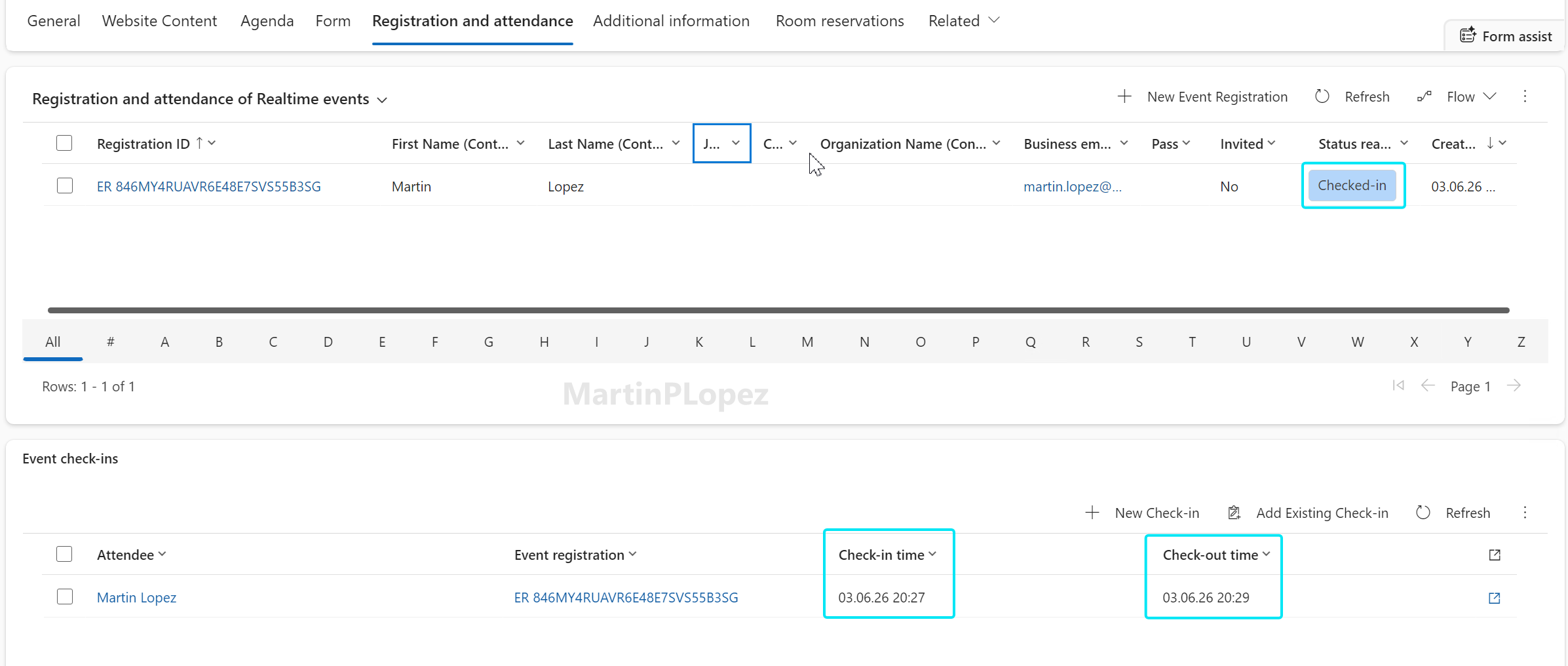
A little note on this: these features depend on using the Join in Teams link from the Customer Insights email designer. So, be mindful to add the button in your Emails!
How I implemented it
I originally followed the article of Microsoft, but I stumbled upon the following questions:
- they don’t give you any guidance on how to handle multiple environments of CIJ (Customer Insights Journeys). Do I have to repeat the process for each registration?
- I required PowerShell at the last stage, so not everything can be done by clicking which led me to think, can this be a simple script?
Now my conclusions:
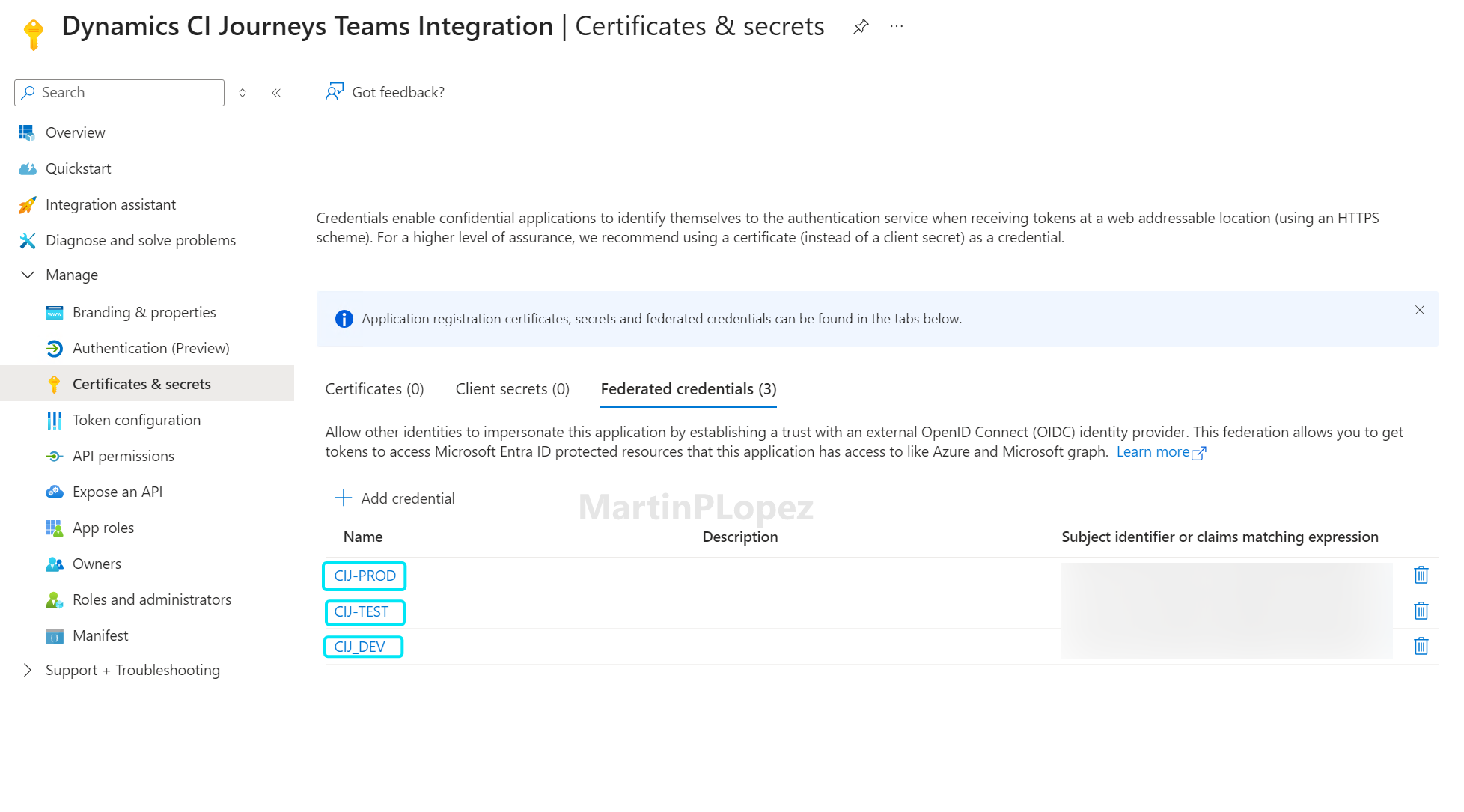
- No, there is no need to register an app for every environment. You can register an app registration, give the right permissions for virtual events and when configuring the Federated credentials in your App, you can give different federated credentials for the different environments:
- Yes, especially the azure and teams part, I think it’s easier to generate your own credential in CIJ.
The Microsoft way (manual)
My plan is not to rewrite something that Microsoft has already documented well. Instead, I’ll summarize the main steps in order and link directly to the relevant Microsoft Learn sections.
- Create the App Registration and copy the App-ID
- Create the teams authentication with the App-ID in CIJ and copy the federated Federated Identity Credential Subject
- Configure the federated credentials for the App Registration
- Give all the API Permissions needed
- Set an access policy with Powershell
My implementation notes
-
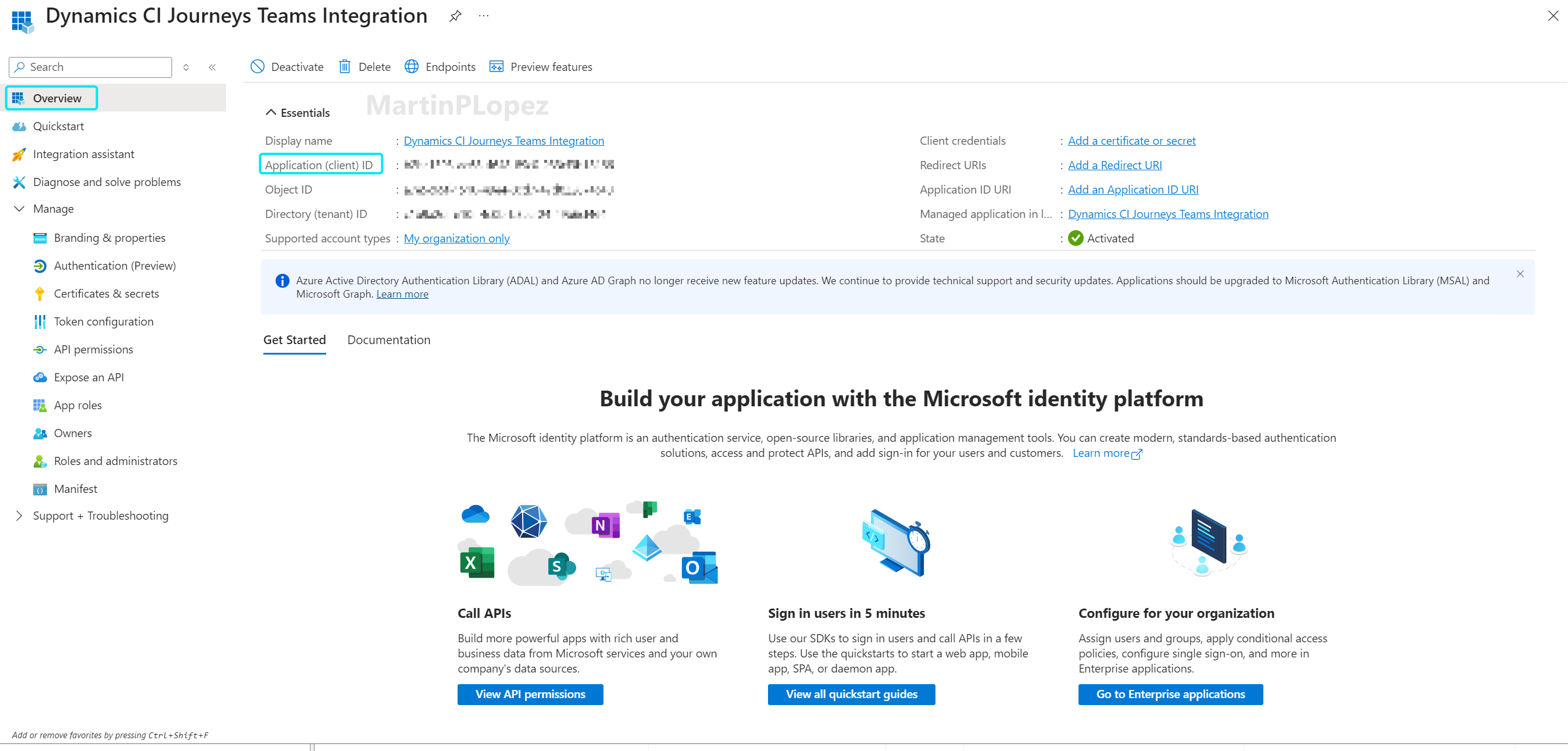
The App-ID can be found here:

-
When configuring the Federated Credentials, you should substitute the tenant in the
<TenantID>when setting the Issuerhttps://login.microsoftonline.com/<TenantID>/v2.0 -
For the PowerShell step should install the Microsoft Teams PowerShell Module. You can just run the following in PowerShell:
Install-Module -Name PowerShellGet -Force -AllowClobber

Install-Module -Name MicrosoftTeams -Force -AllowClobber
Optional: script-assisted setup for admins
For admins who repeat this setup across environments, a script-assisted approach can save time. I would only recommend this if you understand what the script is doing and have the right permissions in Microsoft Entra and Teams.
At a high level, the script can help with:
- Creating or reusing the Entra app registration
- Adding the required Microsoft Graph permissions
- Creating federated credentials for each Customer Insights environment
- Connecting to Microsoft Teams PowerShell
- Creating and assigning the required Application Access Policy
Do not run automation like this directly in production without reviewing it first. Start in a test environment, validate the permissions, and make sure the policy scope matches your organization’s governance model.
You can find the Script in my GitHub Repository
Conclusion
Moving to Teams Webinar V2 is not just a cosmetic change in Customer Insights Journeys. It introduces a new authentication model between Customer Insights, Microsoft Teams, Microsoft Graph, and Entra ID.
That can feel like a lot, especially for teams that only wanted to create a webinar and send invitations
But once the setup is done correctly, the experience is much better: registrations can sync to Teams, attendees can receive their individual Join in Teams links, and Customer Insights can automatically populate attendance data after the event.
My biggest learning from implementing this is that the process is not necessarily difficult, but it touches several admin areas. That means the real challenge is usually coordination: knowing who owns Customer Insights, who owns Entra ID, and who can run the Teams PowerShell commands. (If you are that person for every area, you’re not alone 😅, and it makes the setup quicker)
If you are a functional consultant or marketer, use this article as a checklist and involve your tenant administrator early.
If you are the admin, validate the setup first in a non-production environment and document which app registration, federated credentials, permissions, and access policies were created.
Once this foundation is in place, Teams Webinar V2 becomes much easier to use and your event registrations and attendance tracking can finally work the way users expect